Bulk Operations
Bulk operations allow you to take action on multiple records simultaneously, saving time when you need to update, delete, or export large numbers of records.
Available In
Bulk operations are available in the following modules:
| Module | Bulk Update | Bulk Delete | Bulk Export |
|---|---|---|---|
| Leads | Yes | Yes | Yes |
| Opportunities | Yes | Yes | Yes |
| Contacts | Yes | Yes | Yes |
| Accounts | Yes | Yes | Yes |
| Tasks | Yes | Yes | Yes |
Selecting Records
Individual Selection
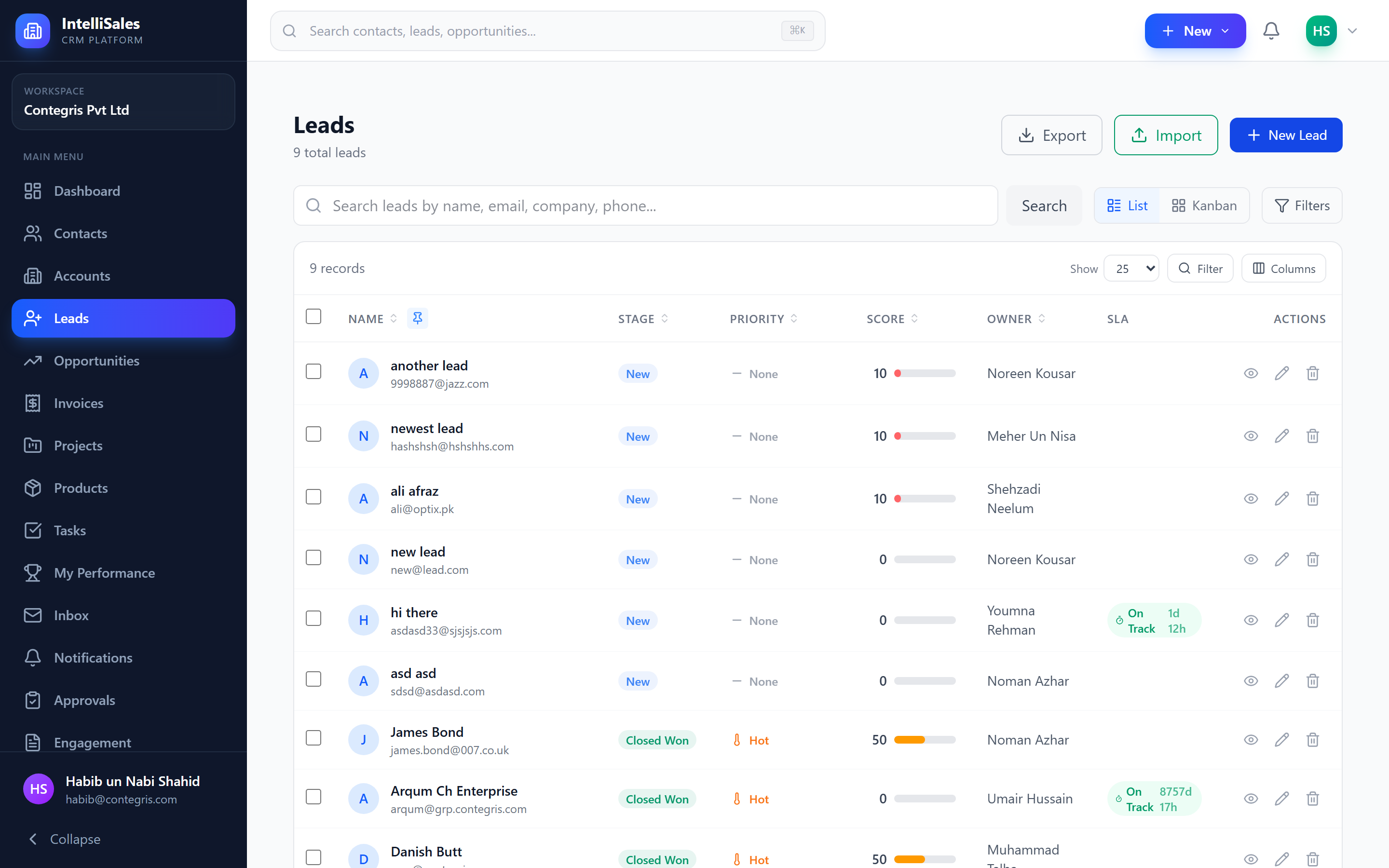
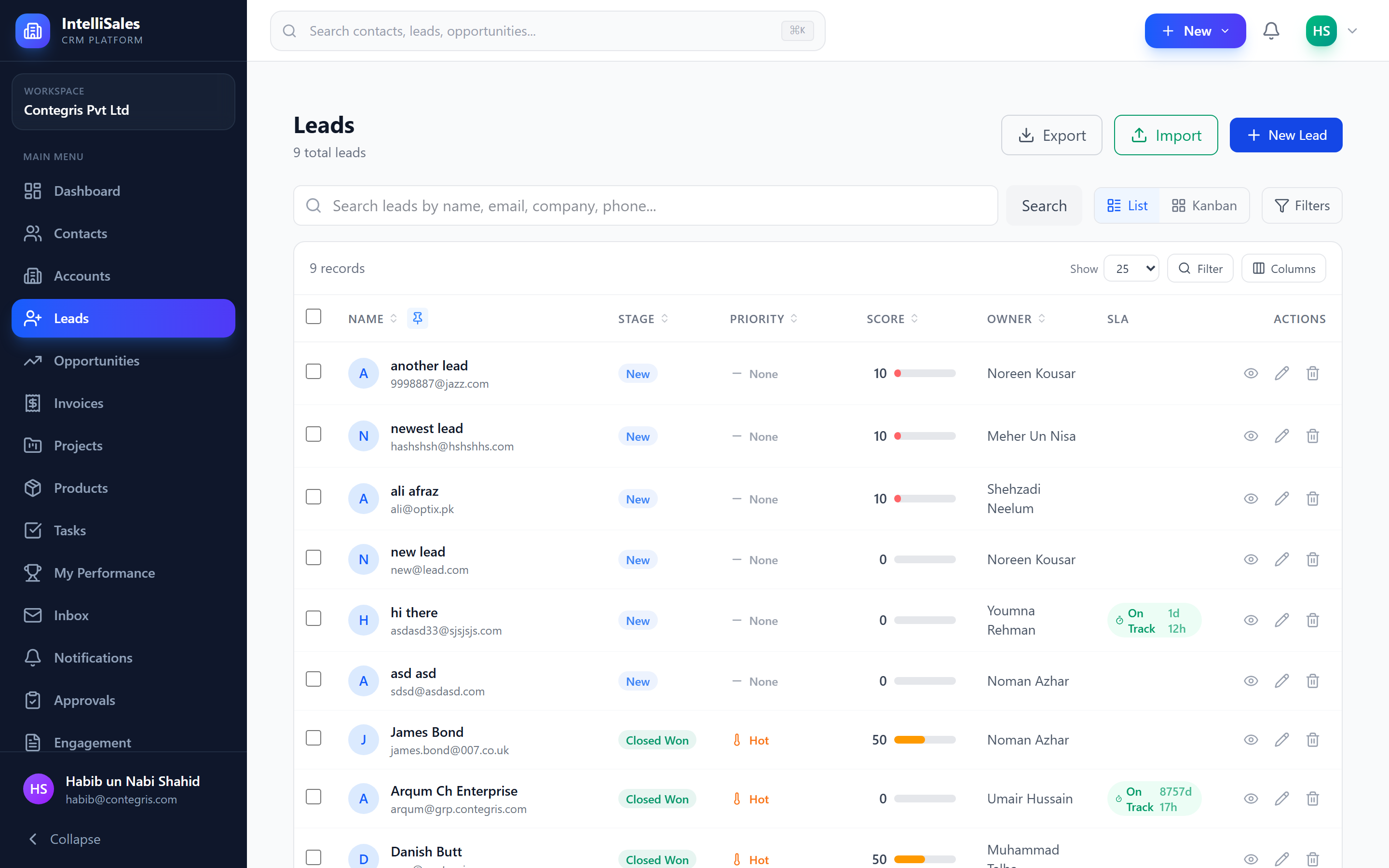
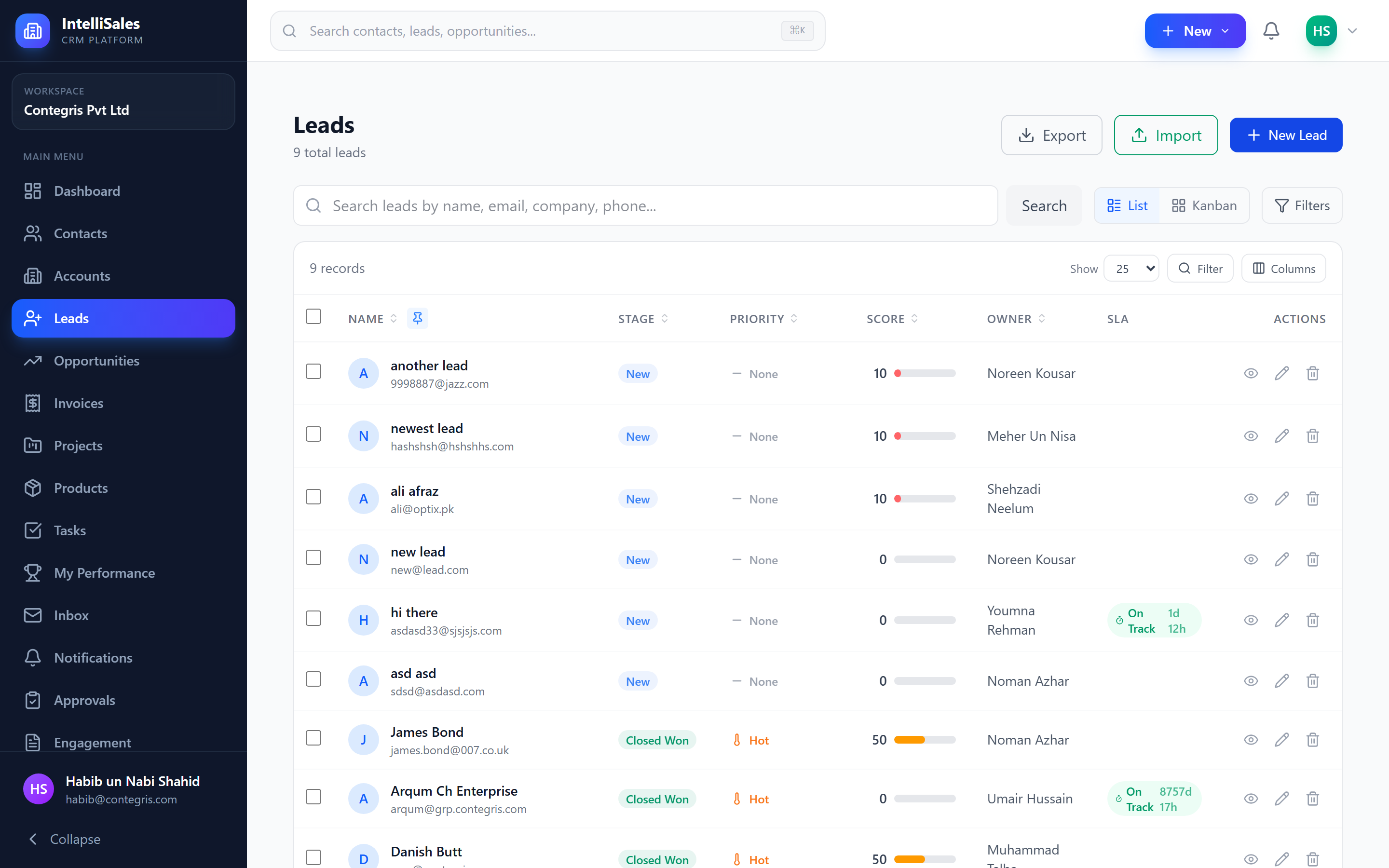
- Click the checkbox on the left side of any row
- The row highlights to indicate selection
- A counter appears above the table showing how many records are selected
Select All on Page
- Click the checkbox in the table header (top-left)
- All visible rows on the current page are selected
- Click again to deselect all
"Select All" only selects records on the current page. If you have 200 records across 10 pages, selecting all will only select the 20 records on the visible page.
Clearing Selection
- Click the header checkbox again to deselect all
- Or click individual row checkboxes to deselect specific records
- Changing pages does not clear your selection on the previous page
Bulk Update
Bulk update lets you change field values for all selected records at once.
How to Bulk Update
- Select records using the checkboxes
- Click the Bulk Update button in the toolbar that appears
- A modal opens with available fields to update
- Choose a field to update (e.g., Stage, Owner, Priority, Status)
- Set the new value for that field
- Optionally add more fields to update simultaneously
- Click Update to apply changes
Available Bulk Update Fields
Depending on the module, you can typically bulk update:
- Leads: Stage, Owner, Priority, Status, Source, Pipeline
- Opportunities: Stage, Owner, Priority, Close Date, Forecast Category
- Contacts: Owner, Status
- Accounts: Owner, Account Type
- Tasks: Status, Priority, Assignee, Due Date
Bulk updates are irreversible in the sense that there is no "undo" button. However, all changes are recorded in the audit log, so you can see exactly what was changed and revert manually if needed.
Audit Trail
Every bulk update creates individual audit log entries for each affected record. This means:
- Each record's change history shows the update
- The audit log identifies the update as part of a bulk operation
- You can trace exactly which records were changed and by whom
Bulk Delete
Bulk delete allows you to remove multiple records at once.
How to Bulk Delete
- Select records using the checkboxes
- Click the Bulk Delete button (usually a red trash icon)
- A confirmation dialog appears showing:
- The number of records to be deleted
- A warning about the action
- Type the confirmation text or click Confirm to proceed
- Records are soft-deleted (moved to trash, not permanently destroyed)
While bulk delete uses soft deletion (records can potentially be recovered by an admin), always double-check your selection before confirming. Accidental bulk deletes can be disruptive to your workflow.
Before bulk deleting, consider using bulk update to change the status instead. This preserves the data while keeping your active lists clean.
Bulk Export
Export selected records to a file for use in spreadsheets or other tools.
How to Bulk Export
- Select records you want to export (or use "Select All" for the current page)
- Click the Export button
- Choose the export format:
- CSV — comma-separated values (universal compatibility)
- Excel (XLSX) — formatted spreadsheet
- The file downloads to your browser's default download location
What Gets Exported
- All visible columns in your current table configuration
- Custom fields (if columns are visible)
- Standard fields (name, email, dates, status, etc.)
- Data respects your current search/filter criteria
You can only export records you have permission to view. If your role restricts record access to "Own" records, only your records will be included in the export.
Best Practices
- Double-check your selection — always verify the selected count before performing bulk operations
- Use filters first — narrow down your list with search and filters before selecting, to avoid accidentally including wrong records
- Start small — if you're unsure about a bulk update, try it on 2-3 records first to verify the result
- Check audit logs — after a bulk operation, spot-check a few records to confirm the changes were applied correctly
- Communicate with your team — if you're bulk updating shared records (e.g., changing ownership), let affected team members know
Permissions Required
| Operation | Required Permission |
|---|---|
| Bulk Update | edit permission on the module |
| Bulk Delete | delete permission on the module |
| Bulk Export | export permission on the module |
If you don't see the bulk operation buttons, contact your administrator to check your role permissions.