Data Tables
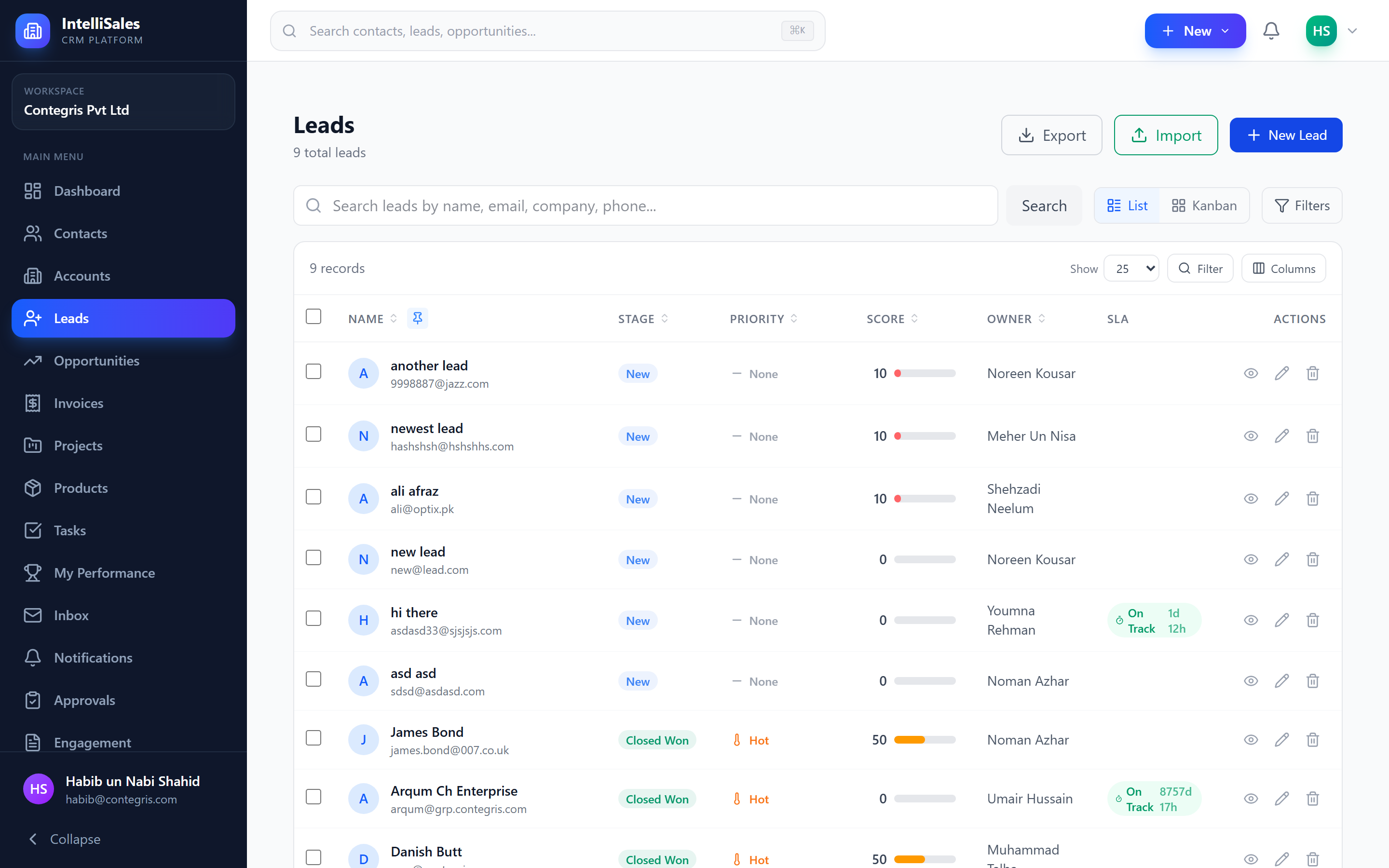
Data tables are the primary way you interact with lists of records across IntelliSales CRM. Whether you're viewing contacts, leads, opportunities, or tasks, the table experience is consistent and powerful.
Column Configuration
Showing and Hiding Columns
Every data table allows you to choose which columns are visible:
- Click the Columns button (grid icon) above the table
- A modal appears listing all available columns
- Toggle columns on or off using the checkboxes
- Click Apply to save your selection
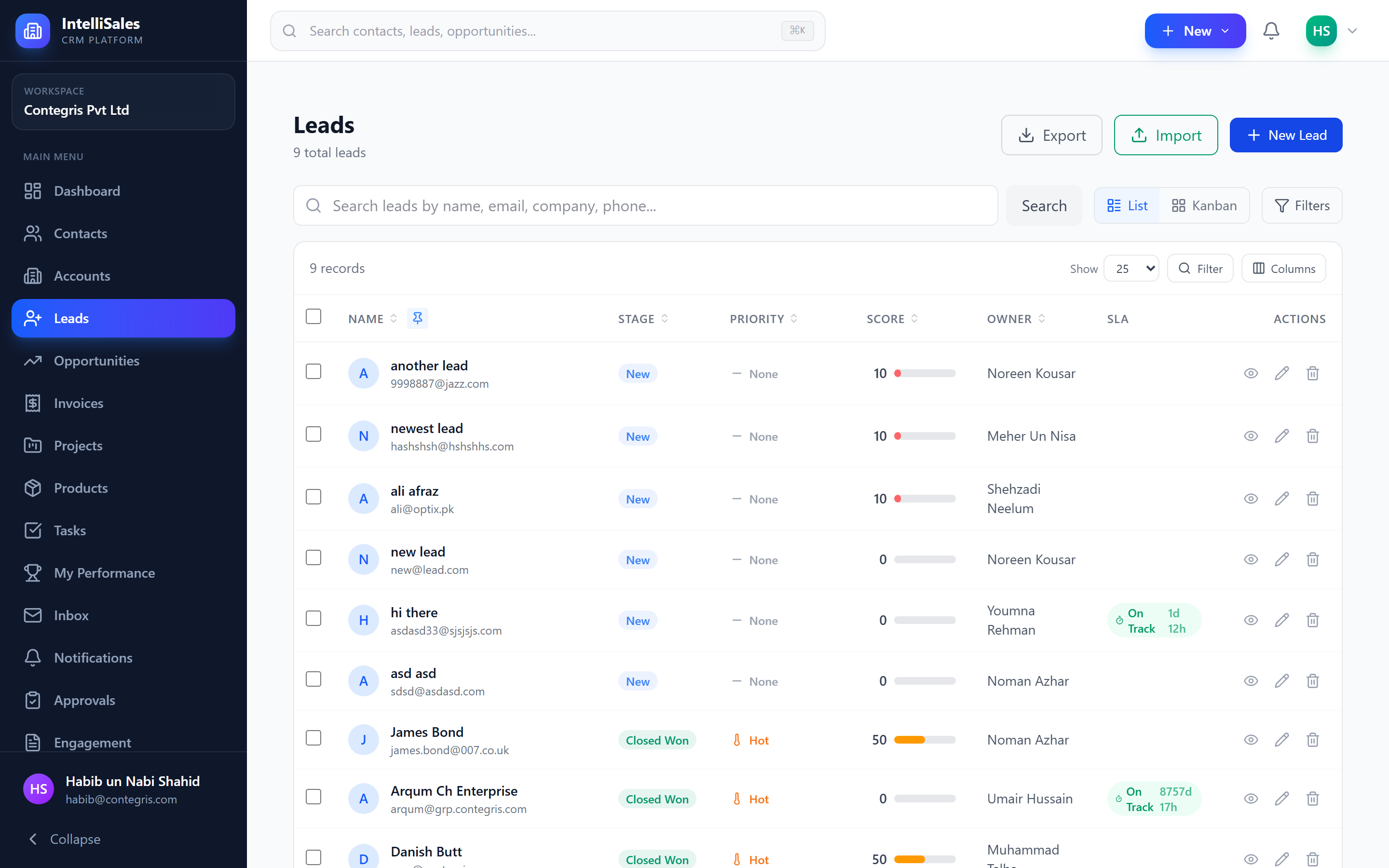
Your column preferences are saved per module — so your Leads table configuration won't affect your Contacts table.
Resizing Columns
To adjust column width:
- Hover over the right edge of any column header
- Your cursor changes to a resize handle
- Click and drag left or right to resize
- Release to set the new width
Column widths are automatically saved to your preferences.
Sorting
Click any column header to sort by that column:
- First click: Sort ascending (A→Z, 0→9, oldest→newest)
- Second click: Sort descending (Z→A, 9→0, newest→oldest)
- Third click: Clear sort
A small arrow icon indicates the active sort column and direction.
Only one column can be sorted at a time. Clicking a different column header replaces the current sort.
Pagination
Tables display records in pages to keep things fast and manageable.
Page Navigation
- Use the Previous and Next buttons at the bottom of the table
- The current page number and total pages are displayed between the buttons
- Total record count is shown (e.g., "Showing 1–20 of 347 results")
Page Size
Change how many records appear per page:
- Look for the page size selector at the bottom of the table
- Choose from available options (typically 10, 20, 50, or 100)
- The table refreshes immediately with the new page size
Use a smaller page size (10–20) for quick scanning. Use larger sizes (50–100) when you need to review many records at once or before exporting.
Row Actions
Each row has an actions menu on the right side:
- Hover over a row to reveal the actions button (three dots or icons)
- Click to see available actions (View, Edit, Delete, etc.)
- Available actions depend on your permissions
Row Selection & Bulk Actions
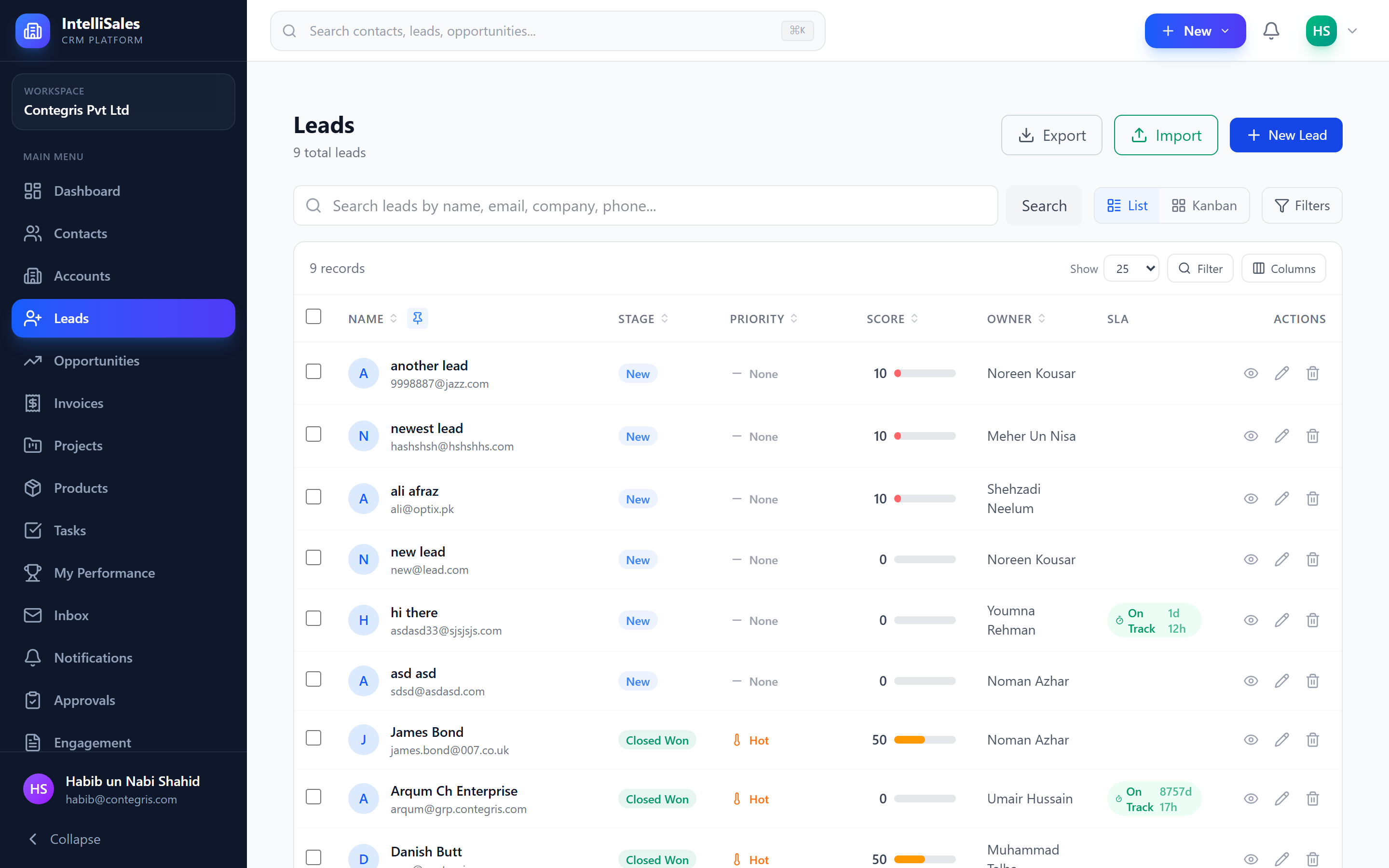
Many tables support selecting multiple rows for bulk operations:
- Click the checkbox on the left side of any row to select it
- Click the header checkbox to select all rows on the current page
- Selected row count appears in a floating action bar above the table
- Bulk action buttons appear when rows are selected
Available Bulk Actions
On Accounts and Contacts list views, selecting rows reveals these bulk actions:
| Action | Description |
|---|---|
| Change Status | Set the status of all selected records at once |
| Assign Owner | Reassign selected records to a different user |
| Delete | Soft-delete all selected records (with confirmation) |
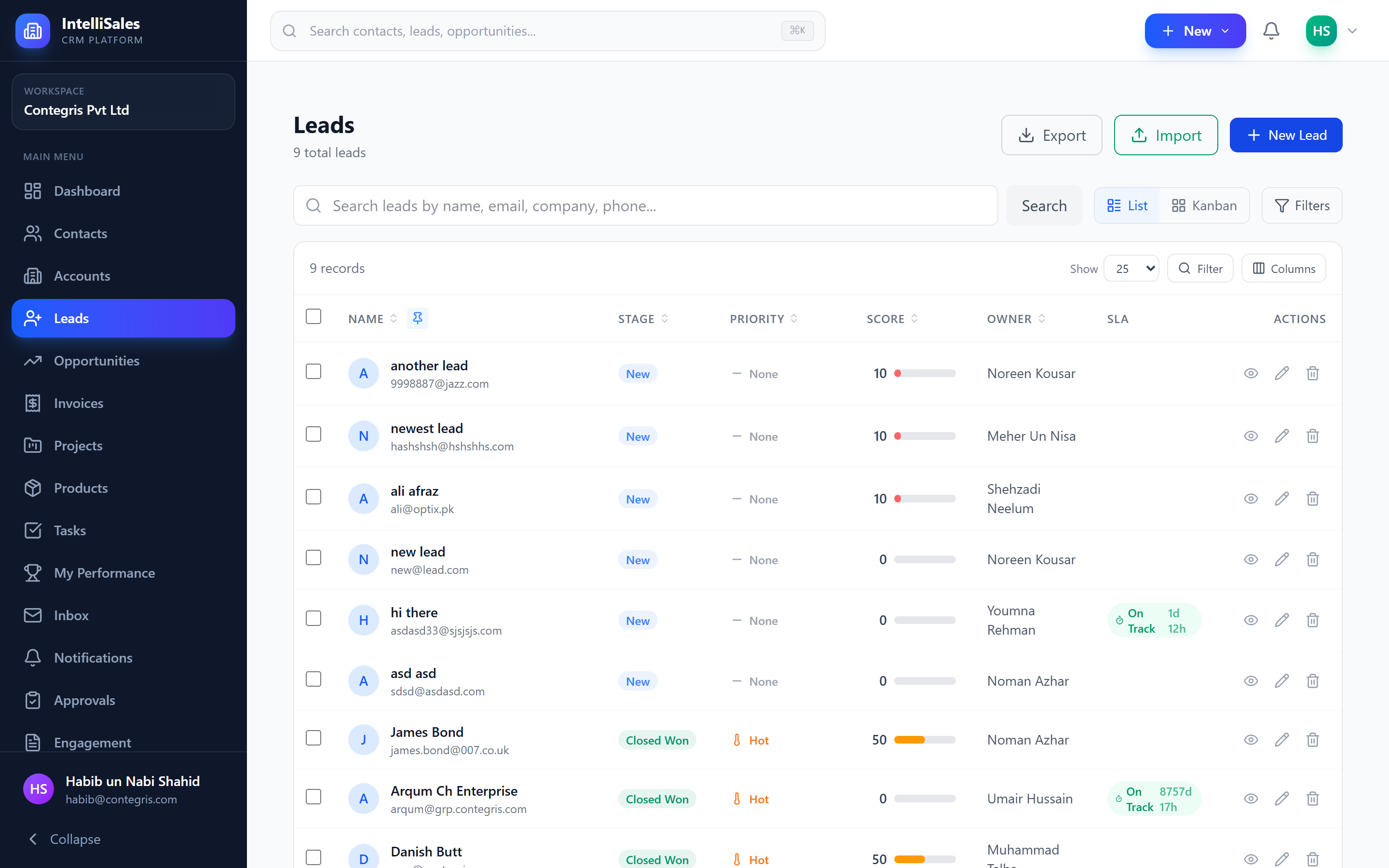
Bulk delete prompts for confirmation before proceeding. Deleted records can be recovered by an administrator.
Search and Filtering
Quick Search
Most tables have a search bar above the table:
- Type to search across key fields (name, email, phone, etc.)
- Results update as you type (with a small debounce delay)
- Clear the search field to show all records again
Per-Column Search
Tables support per-column search for precise filtering:
- Look for a search input below each column header
- Type in the column search field to filter by that specific column
- Multiple column searches combine — records must match all active column searches
- Clear a column search field to remove that filter
This is especially useful when you need to find records matching specific criteria in a particular field — for example, searching for a specific industry in the Industry column while also filtering by city in the Address column.
Column Filters
Some tables support per-column filtering:
- Look for a filter icon on column headers
- Click to open a column-specific filter
- Enter filter criteria (text match, date range, select options)
- Active filters are indicated with a highlighted icon
Pin Column (Freeze Left)
You can pin columns to the left edge of the table so they remain visible while scrolling horizontally:
- Hover over any column header to reveal the pin icon (pushpin).
- Click the pin icon to freeze the column to the left side.
- Pinned columns stay visible as you scroll through other columns.
- Click the pin icon again to unpin the column.
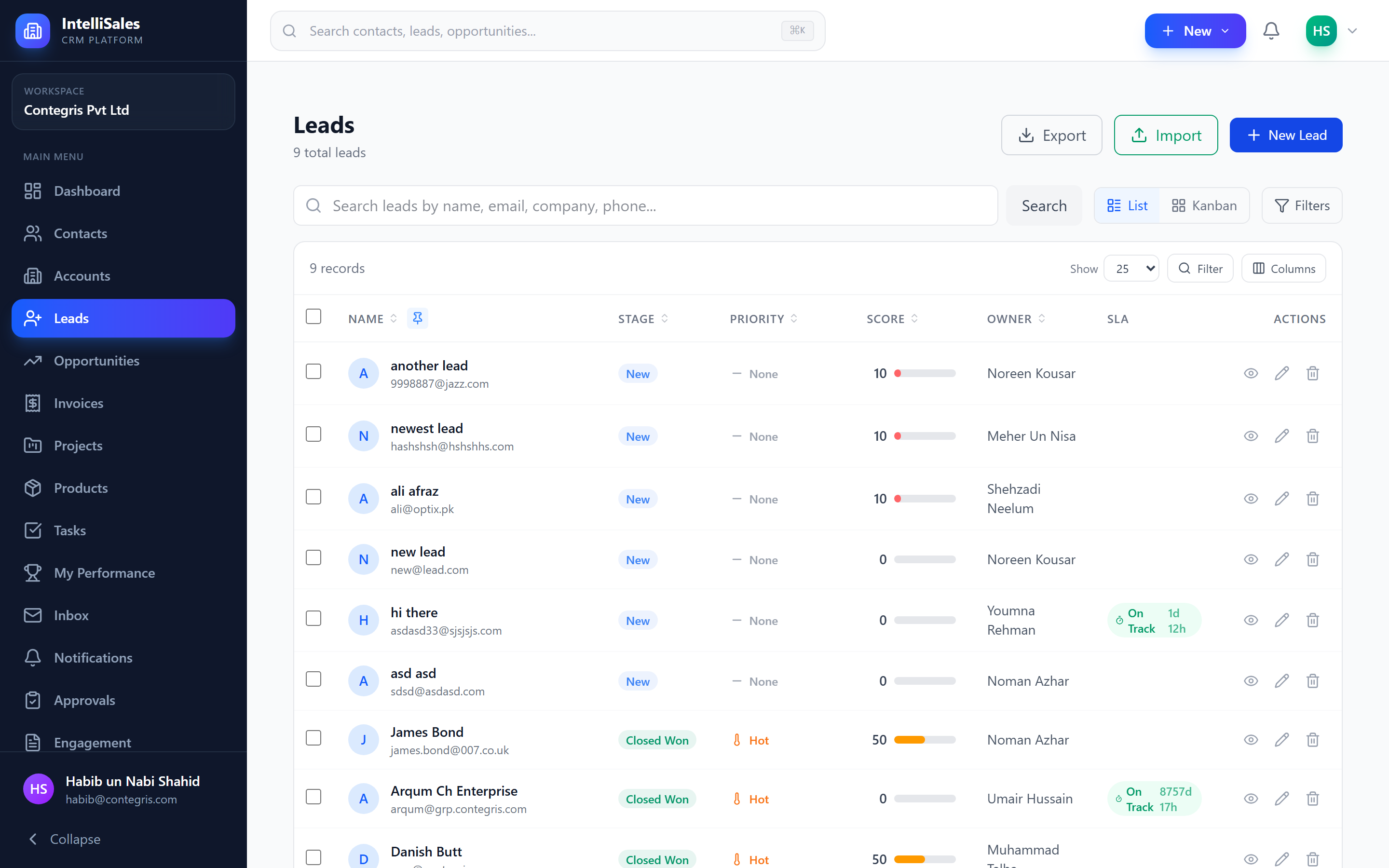
Pin the "Name" or "Account Name" column so you always know which record you are looking at, even when scrolling to view columns on the right side of the table.
Filtered Export
When you have filters applied to a table, you can export just the filtered results:
- Apply your desired filters (search, column filters, status, etc.).
- Click the Export button above the table.
- The export includes only the currently visible columns and only the filtered records.
- Choose CSV or Excel format.
This gives you precise control over what data is exported — no need to export everything and then clean up in a spreadsheet.
Export respects your column visibility settings. Hidden columns are not included in the export. Adjust your visible columns before exporting to get exactly the data you need.
Loading and Empty States
- Loading: While data is being fetched, skeleton rows animate to indicate progress
- Empty: When no records match your filters (or the module has no data), a helpful empty state message appears with guidance on how to create your first record
Column Width Persistence
Your table preferences (visible columns, column widths, sort order, page size) are automatically saved per module. When you return to the same table later, your preferences are restored.
Preferences are stored per user per module. Other users won't be affected by your column customizations.
Best Practices
- Customize columns early — hide columns you don't need to reduce visual clutter
- Use sorting to quickly find records (e.g., sort by "Created Date" descending to see newest first)
- Combine search + sort for fast lookups
- Pin key columns — freeze the Name column so you always have context while scrolling
- Use per-column search for precise lookups in specific fields
- Export filtered views — apply filters first, then export to get exactly the data you need
- Adjust page size based on your workflow — fewer rows for quick scanning, more for bulk review