Managing Contacts
This chapter covers the day-to-day operations for working with contacts — viewing the list, searching, creating new contacts, editing existing ones, and removing contacts you no longer need.
Contacts List View
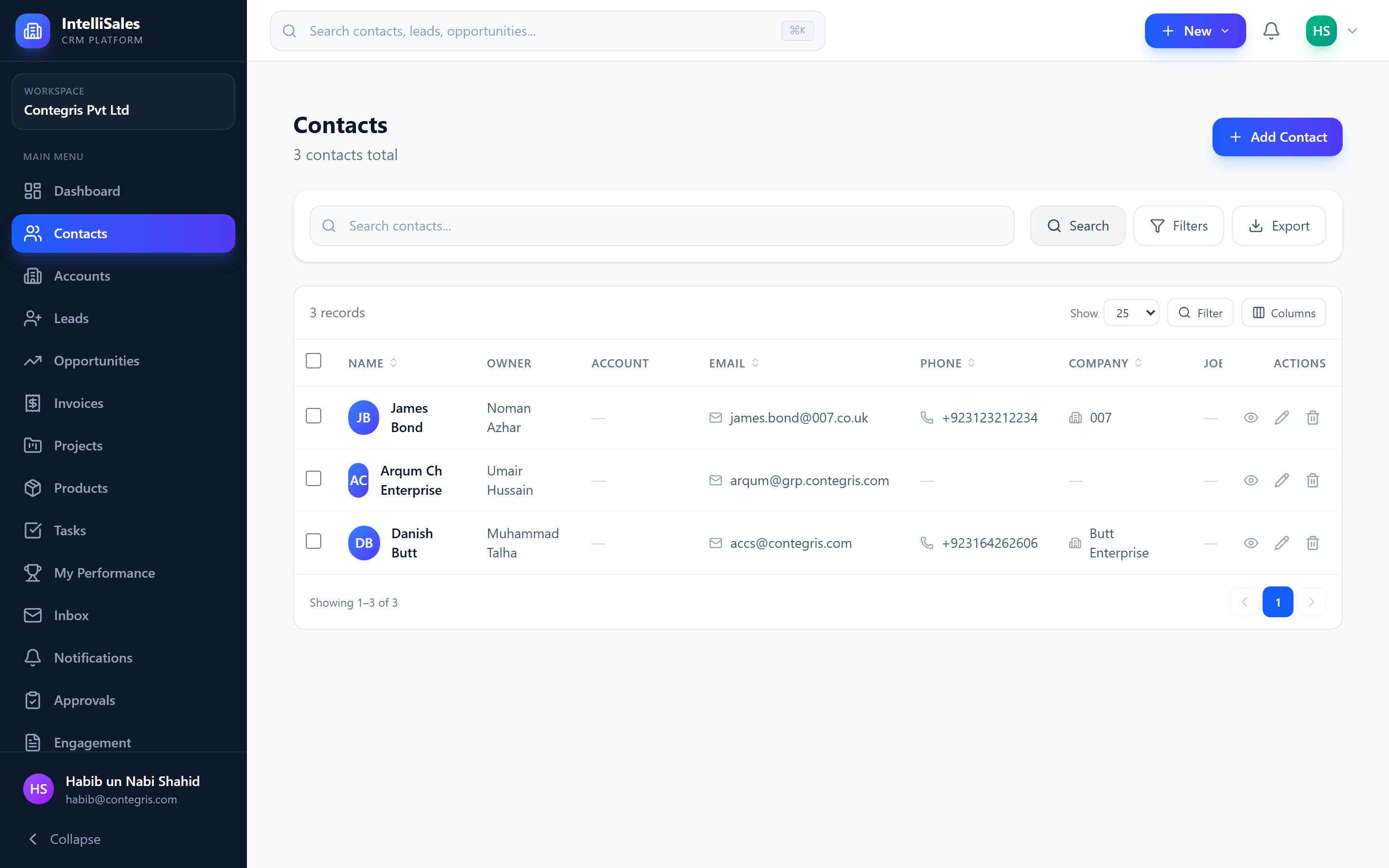
Navigate to Contacts in the sidebar to see the contacts list. The list displays contacts in a data table with configurable columns.
By default, visible columns include:
- Name (first + last)
- Phone
- Company
- Job Title
- Owner
- Created Date
For details on table features like column resizing, sorting, and pagination, see Data Tables.
Searching Contacts
Use the search bar at the top of the contacts list to perform full-text search. The search matches against:
- First and last name
- Email address
- Phone number
- Company name
Results update as you type, filtering the list in real time.
Sorting and Filtering
Sorting
Click any column header to sort the list by that column. Click again to toggle between ascending and descending order. An arrow icon indicates the active sort direction.
Filter Panel
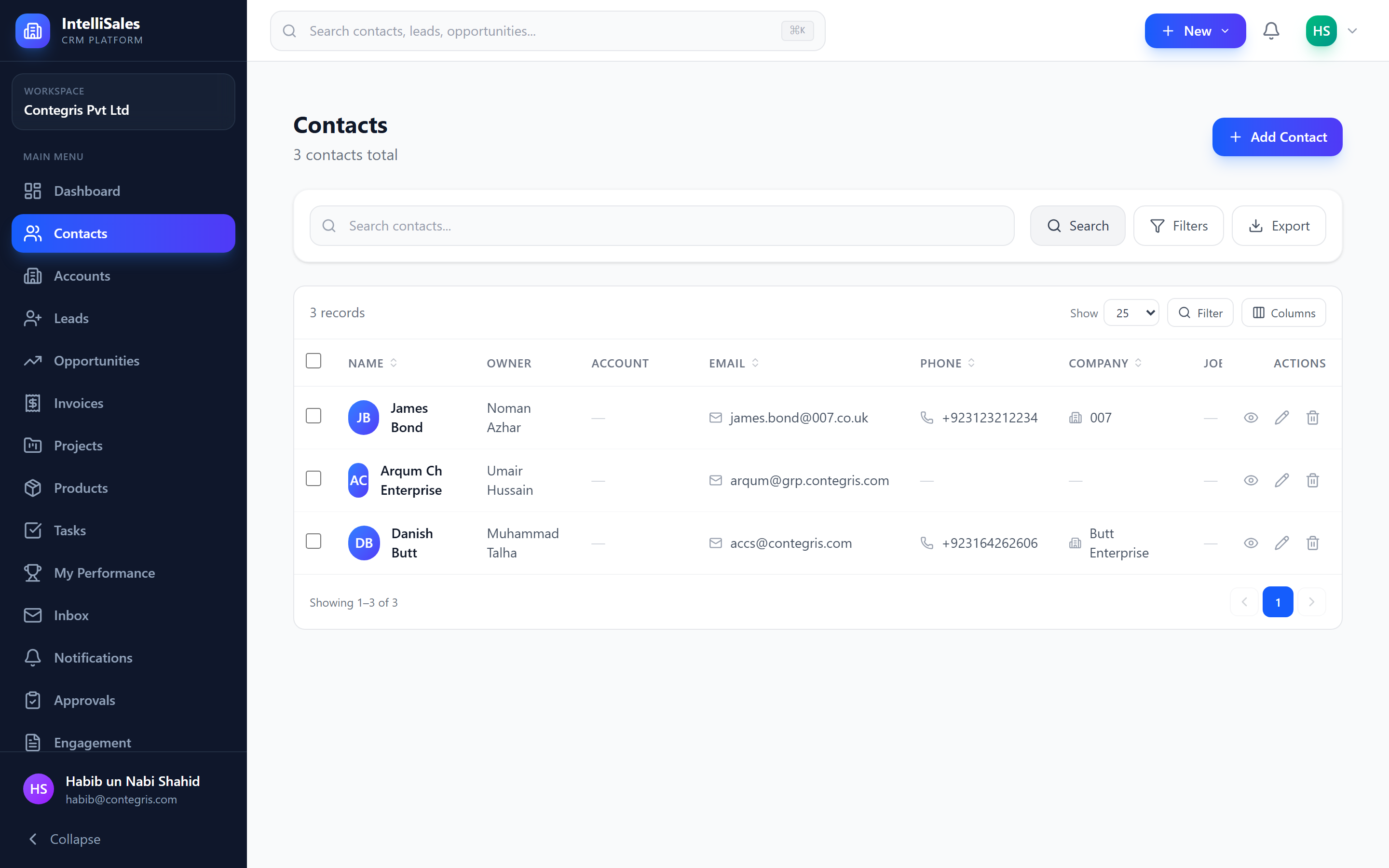
Click the Filters button to open the filter panel. The following filters are available:
| Filter | Description |
|---|---|
| Status | Filter by contact status (Active, Inactive, Lead, Customer, Prospect) |
| Account | Filter by the linked account |
| Owner | Filter by the assigned contact owner |
| Tags | Filter by contact tags |
Active filter chips appear below the filter panel showing which filters are applied. Each chip displays the filter name and value, with an X button to remove individual filters. Click Clear All to reset all filters at once.
Use the Account filter to quickly see all contacts at a specific organization without navigating to the account detail page.
Column Customization
To show or hide columns in the contacts list:
- Click the column settings icon (grid or columns icon) above the data table.
- A modal opens listing all available columns.
- Toggle columns on or off using checkboxes.
- Click Apply to update the table.
Your column preferences are saved and persist across sessions.
Hide columns you rarely use to reduce visual clutter. You can always re-enable them later.
Creating a New Contact
- Click the + New Contact button at the top of the contacts list.
- The contact creation form opens with the following sections:
- Basic Information — first name, last name, email, phone
- Professional Details — job title, department, company
- Address — street, city, state, zip, country
- Social Profiles — LinkedIn, Twitter, website
- Custom Fields — any admin-configured custom fields
- Fill in the required fields (marked with a red asterisk *).
- Click Save to create the contact.
Required fields are configured by your administrator. The form will not submit until all required fields are filled. Check for validation messages highlighted in red below any incomplete fields.

Editing a Contact
- Open the contact you want to edit by clicking its row in the list.
- On the contact detail page, click the Edit button.
- Modify the desired fields.
- Click Save to apply changes.
Alternatively, from the list view:
- Click the actions menu (three dots) on the contact's row.
- Select Edit.
Deleting a Contact
- Open the contact or find it in the list.
- Click the actions menu (three dots).
- Select Delete.
- Confirm the deletion in the dialog.
Contacts are soft-deleted — they are hidden from normal views but retained in the database. This protects against accidental data loss. Contact your administrator if you need to recover a deleted contact.
Quick Create Contact Modal
In many places across the platform — such as when adding a contact role to an opportunity or linking a contact to a lead — you can create a new contact inline without leaving the current page:
- Look for a "+ New Contact" or "Create Contact" link in the contact selection dropdown.
- A modal form opens with essential contact fields.
- Fill in the basic information and click Save.
- The new contact is automatically linked to the current record.
This saves time when you need to quickly add a new person while working in another module.