Composing Emails
The integrated inbox lets you compose, reply to, and forward emails without leaving IntelliSales CRM. All sent emails are automatically tracked and can be linked to CRM records.
Composing New Emails
- In the Inbox, click Compose or the new email button.
- A compose window opens with the following fields:
- From — your connected email account (select if multiple accounts connected)
- To — enter recipient email addresses (autocomplete from CRM contacts)
- CC — carbon copy recipients (click "CC" to reveal the field)
- BCC — blind carbon copy recipients (click "BCC" to reveal the field)
- Subject — email subject line
- Body — the message content (rich text editor)
- Write your message using the rich text editor.
- Click Send.
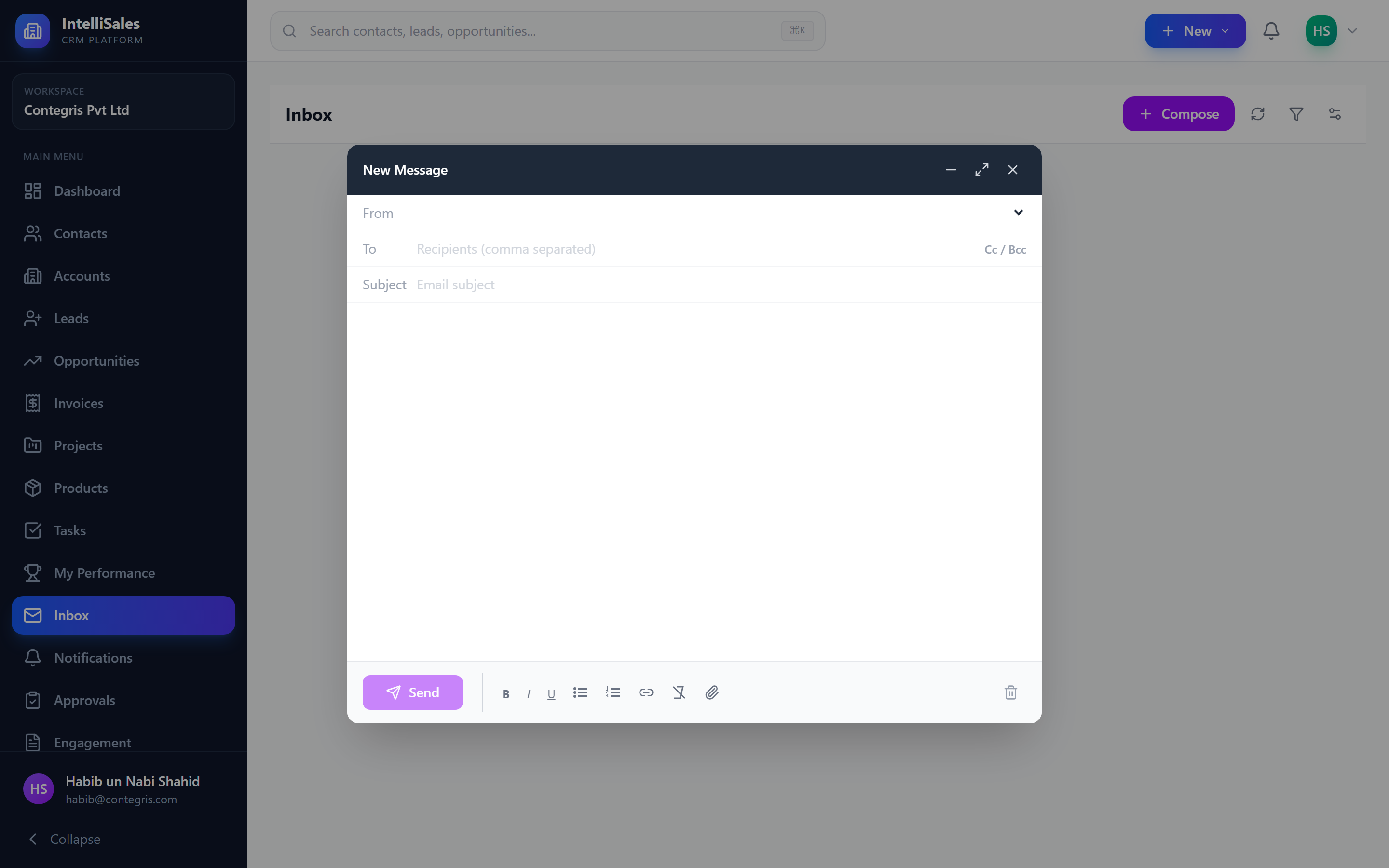
You can start composing an email from anywhere in the CRM — from the inbox, from a contact's detail page, from a lead, or from an opportunity. When composing from an entity page, the "To" field and entity link are pre-filled.
Rich Text Editor
The compose body uses a rich text editor with a formatting toolbar:
| Tool | Description |
|---|---|
| Bold | Bold text |
| Italic | Italic text |
| Underline | Underlined text |
| Strikethrough | Strikethrough text |
| Heading | Heading levels (H1, H2, H3) |
| Bullet List | Unordered bullet list |
| Numbered List | Ordered numbered list |
| Blockquote | Indented quote block |
| Link | Insert or edit a hyperlink |
| Image | Insert an inline image |
| Code | Inline code formatting |
| Text Color | Change text color |
| Alignment | Left, center, right, or justify |
The editor supports keyboard shortcuts (Ctrl+B for bold, Ctrl+I for italic, etc.) and paste from other applications with formatting preserved.
CC and BCC
- Click CC next to the "To" field to reveal the CC input. CC recipients receive a copy of the email and are visible to all recipients.
- Click BCC next to the CC field to reveal the BCC input. BCC recipients receive a copy but are hidden from other recipients.
- Both fields support multiple email addresses with autocomplete from your CRM contacts.
Replying and Forwarding
Reply
- Open an email thread.
- Click Reply at the bottom of the message.
- The compose area opens with the recipient and subject pre-filled.
- Type your reply above the quoted original message.
- Click Send.
Reply All
- Click Reply All to respond to all recipients in the thread.
- All original recipients are included in the To and CC fields.
- Edit recipients if needed before sending.
Forward
- Click Forward on any message in the thread.
- Enter the new recipient(s) in the To field.
- Optionally edit the message body or add a note above the forwarded content.
- Original attachments are included by default (remove any you do not want to forward).
- Click Send.
When replying or forwarding, the original message is quoted below your response. You can edit or remove the quoted text before sending.
Attachments
To attach files to an email:
- In the compose window, click the Attach button (paperclip icon) in the toolbar.
- Select files from your computer using the file picker.
- Files appear listed below the message body with file name and size.
- Remove an attachment by clicking the x next to it.
Alternatively, drag and drop files directly into the compose area.
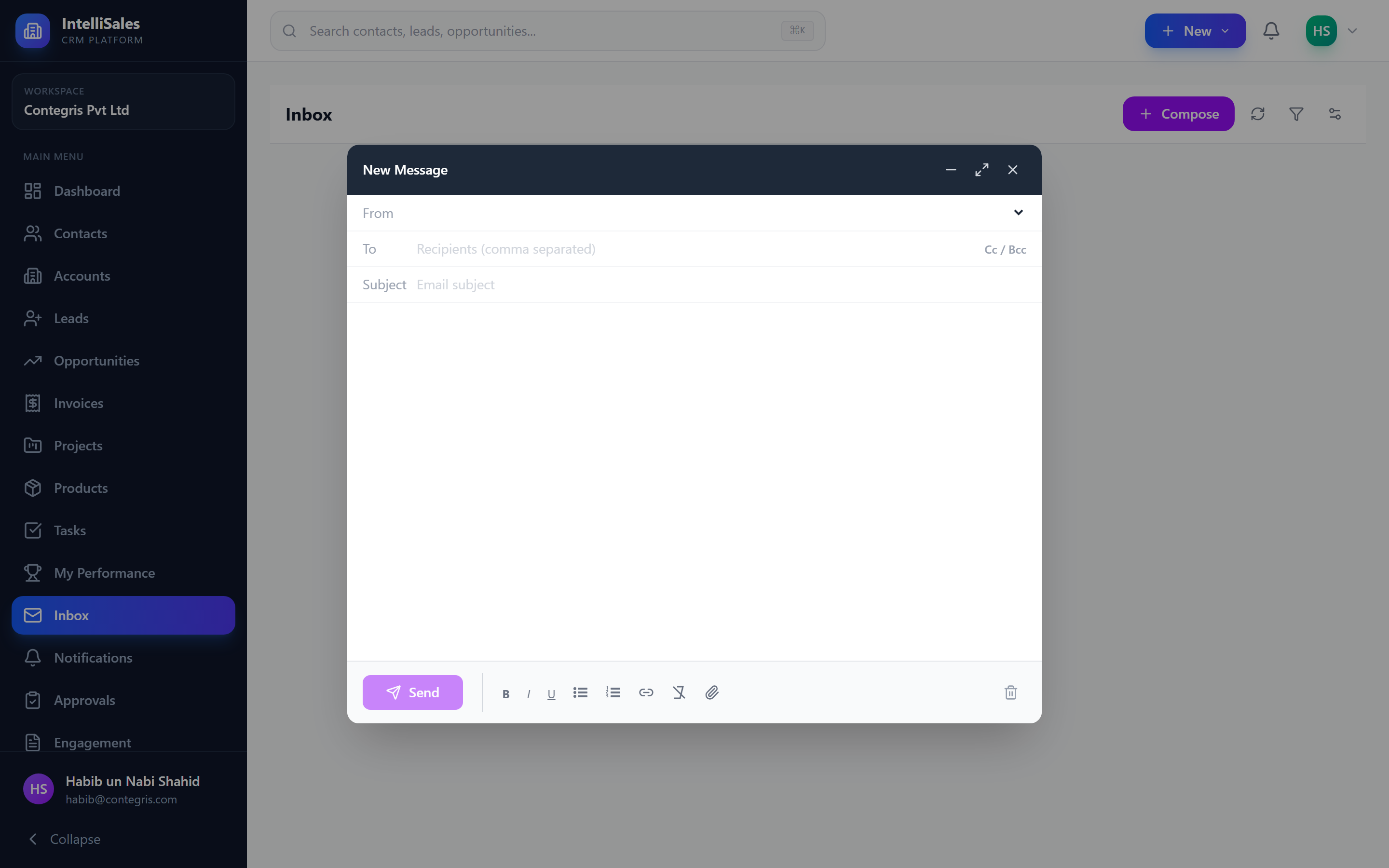
File Upload Details
| Detail | Description |
|---|---|
| Supported formats | All common file types (PDF, DOCX, XLSX, images, ZIP, etc.) |
| Size limit | Per your email provider's limits (typically 25 MB for Gmail/Microsoft 365) |
| Multiple files | Attach multiple files in one email |
| Inline images | Use the image button in the toolbar to embed images in the body |
Be mindful of attachment size limits. Very large files may fail to send or get blocked by the recipient's email server. For large files, consider using the CRM's document sharing features instead.
Email Signatures
Your email signature is automatically appended to new emails and replies.
Setting Up Your Signature
- Go to your Profile Settings.
- Find the Email Signature section.
- Use the rich text editor to create your signature — name, title, phone, company, logo, etc.
- Click Save.
Signature Behavior
- Signatures are appended below your message text in new emails.
- When replying, the signature appears above the quoted original message.
- Each user has their own signature reflecting their role and contact information.
- If you have multiple connected accounts, you can set a different signature per account.
Signatures are applied per user. Each team member can have their own signature reflecting their role and contact information.
Linking Emails to CRM Entities
Linking emails to CRM records ensures that all communication appears in the right context — on the lead's activity timeline, the contact's email tab, or the opportunity's communication history.
Automatic Linking
The system automatically links emails to CRM records when:
- You send an email to an address that matches a known contact
- You compose from an entity's detail page
- An incoming email matches a known contact's email address
Manual Linking
- While composing or after receiving an email, look for the Link to Record option.
- Search for and select a CRM entity (Lead, Opportunity, Contact, Account).
- The email thread is linked to that record.
Once linked, the email appears in the entity's Emails tab.
Linked emails provide full transparency for your team. Anyone with access to the record can see the email conversation, reducing the need to forward messages or explain what was discussed.