Email Rules
Email rules let you automate the handling of incoming emails. Rules evaluate conditions on each incoming message and perform actions automatically — such as marking emails as read, starring them, linking them to CRM entities, forwarding, or sending auto-replies.
Creating Inbox Rules
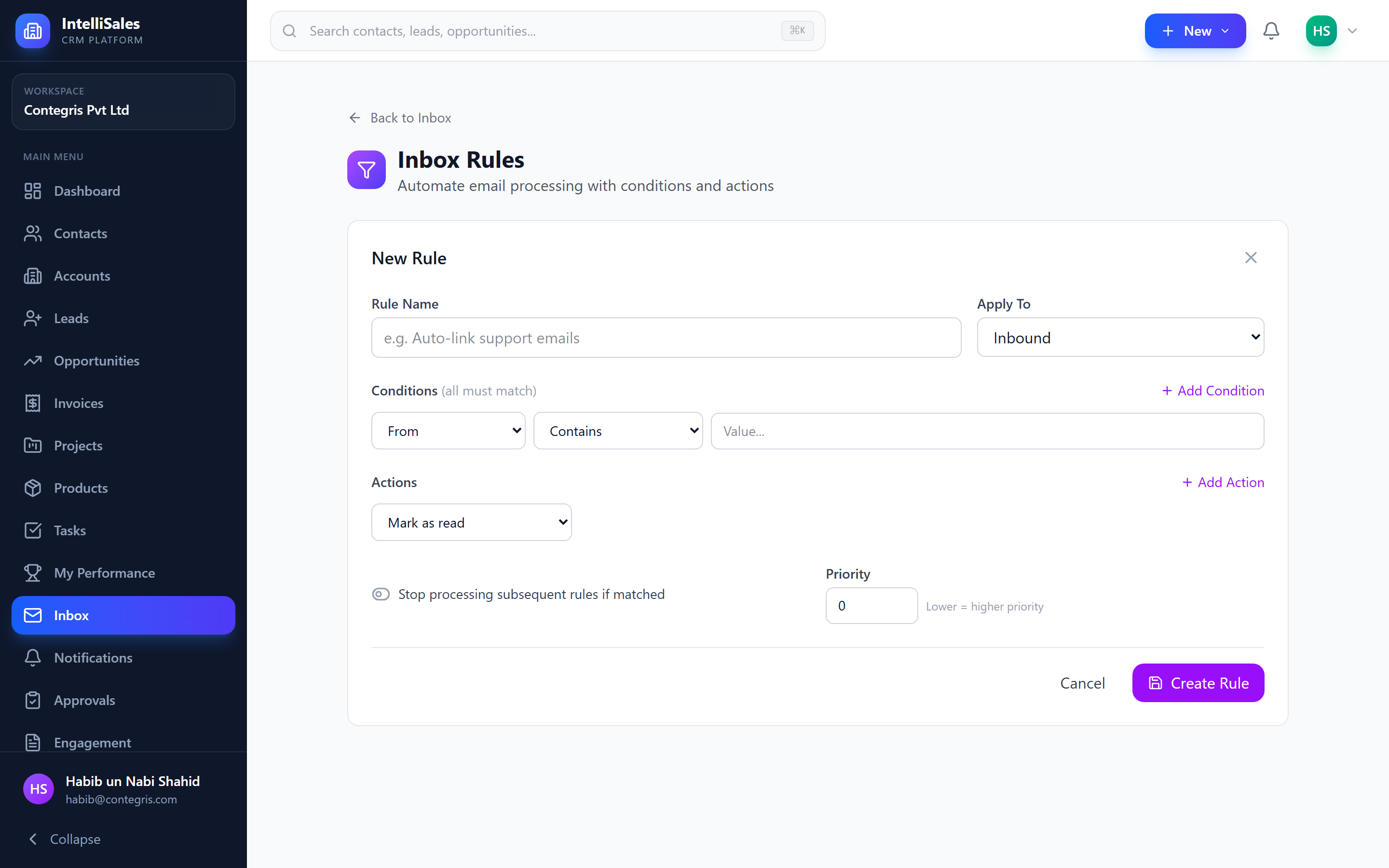
To create a new email rule:
- Navigate to Inbox → Settings or Inbox → Rules.
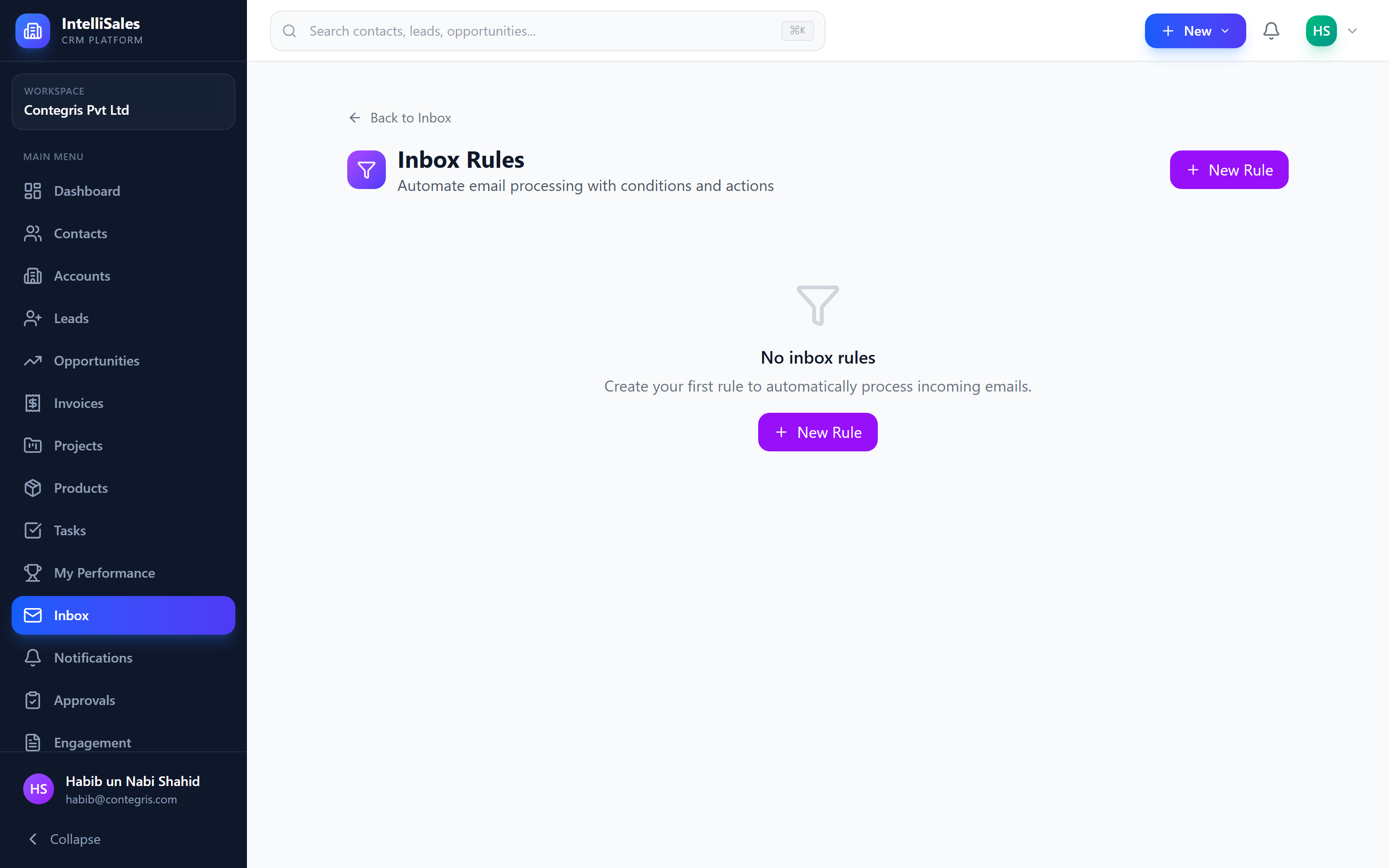
- Click + New Rule.
- Give the rule a name (e.g., "Auto-link partner emails to account").
- Configure conditions (see below).
- Configure actions (see below).
- Set the rule priority (lower number = higher priority).
- Optionally enable Stop processing to prevent subsequent rules from running.
- Click Save.
Rule Conditions
Conditions determine which emails the rule applies to. You can combine multiple conditions using AND/OR logic.
| Condition | Description | Example |
|---|---|---|
| From | Sender email address or domain | *@acme.com or john@example.com |
| To | Recipient email address | sales@yourcompany.com |
| Subject | Subject line contains keywords | "Invoice" or "Urgent" |
| Body | Message body contains keywords | "partnership" or "quote request" |
| Has Attachments | Email has file attachments | true/false |
Combining Conditions
- All conditions (AND) — the rule fires only when every condition matches
- Any condition (OR) — the rule fires when at least one condition matches
Start with simple rules (one or two conditions) and refine them over time as you see how they perform. Overly complex rules can be hard to debug.
Rule Actions
Actions define what happens when the conditions are met. You can add multiple actions to a single rule.
| Action | Description |
|---|---|
| Mark as Read | Automatically mark the email as read |
| Star | Star or flag the email for follow-up |
| Label | Apply a label or tag to the email |
| Link to Contact | Link the email to a matching CRM contact |
| Link to Lead | Link the email to a matching CRM lead |
| Link to Opportunity | Link the email to a matching CRM opportunity |
| Link to Account | Link the email to a matching CRM account |
| Forward | Forward the email to another address |
| Auto-Reply | Send an automatic reply to the sender |
| Delete | Move the email to trash |
Link to CRM Entity Actions
These are the most powerful actions for CRM users:
- Link to Contact — When an email arrives from a known contact, automatically link it to their contact record
- Link to Lead — Link incoming emails to the associated lead for pipeline tracking
- Link to Opportunity — Link emails related to active deals
- Link to Account — Link emails from a domain to the corresponding account
Linked emails appear on the entity's Emails tab, ensuring no customer communication gets lost.
Forward Action
Forward matching emails to one or more email addresses. Useful for:
- Routing support emails to the right team
- Escalating urgent messages to managers
- Copying emails to external systems
Auto-Reply Action
Send an automatic response when conditions match. Configure:
- Subject — Reply subject line
- Body — Reply message content (supports basic variables like sender name)
Use auto-reply rules carefully to avoid email loops. Do not create auto-reply rules that respond to auto-generated emails.
Rule Priority
Each rule has a numeric priority value. Rules are evaluated in priority order (lowest number first):
- Priority 1 rules are evaluated before Priority 2 rules
- If two rules have the same priority, they execute in creation order
- All matching rules' actions are applied unless Stop processing is enabled
Stop Processing
Enable the Stop processing toggle on a rule to prevent any lower-priority rules from running when this rule matches:
- When a rule with "Stop processing" matches an email, no further rules are evaluated for that email
- This is useful when you want exclusive handling — e.g., "If from VIP client, star and stop; do not apply other rules"
Managing Rules
Viewing Rules
Navigate to Inbox → Rules to see all your rules listed with:
- Rule name
- Conditions summary
- Actions summary
- Priority number
- Enabled/disabled status
Enabling and Disabling
- Use the toggle switch next to each rule to enable or disable it
- Disabled rules are kept but not evaluated on incoming emails
Reordering
- Rules are evaluated in priority order
- Drag rules to change their priority order
- Or manually edit the priority number
Editing Rules
- Click a rule to open its settings.
- Modify conditions, actions, priority, or stop processing.
- Click Save.
Deleting Rules
- Click the delete icon next to the rule.
- Confirm the deletion.
If multiple rules match the same email, all matching rules' actions are applied in priority order — unless a higher-priority rule has "Stop processing" enabled.