Report Builder
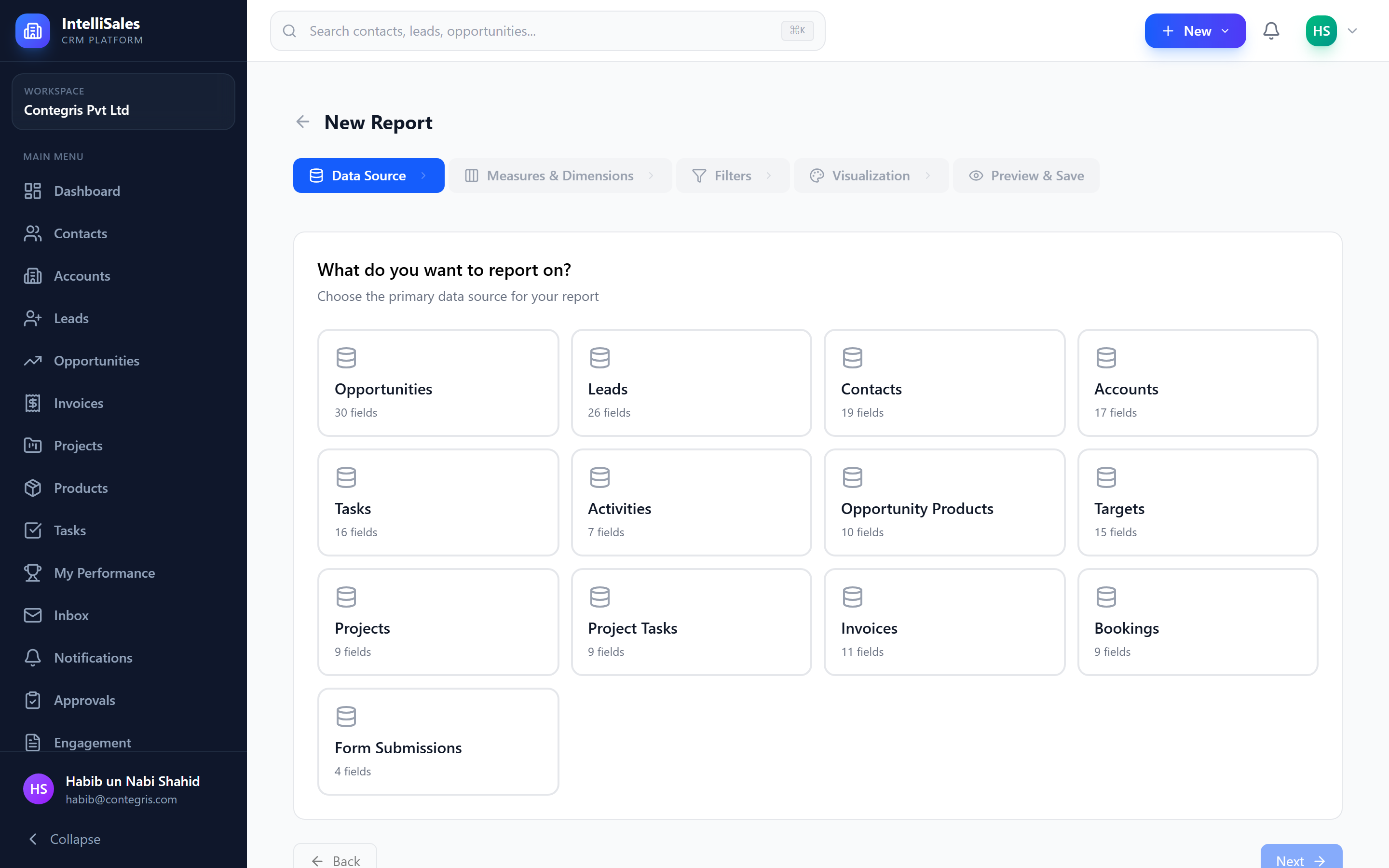
The Report Builder is a visual tool for creating custom reports. You select a data source, choose fields, apply filters, set groupings, and pick a chart type — all without writing any code.
Creating a New Report
- Navigate to Reports.
- Click + New Report.
- The Report Builder opens with a step-by-step workflow.
Selecting Data Source
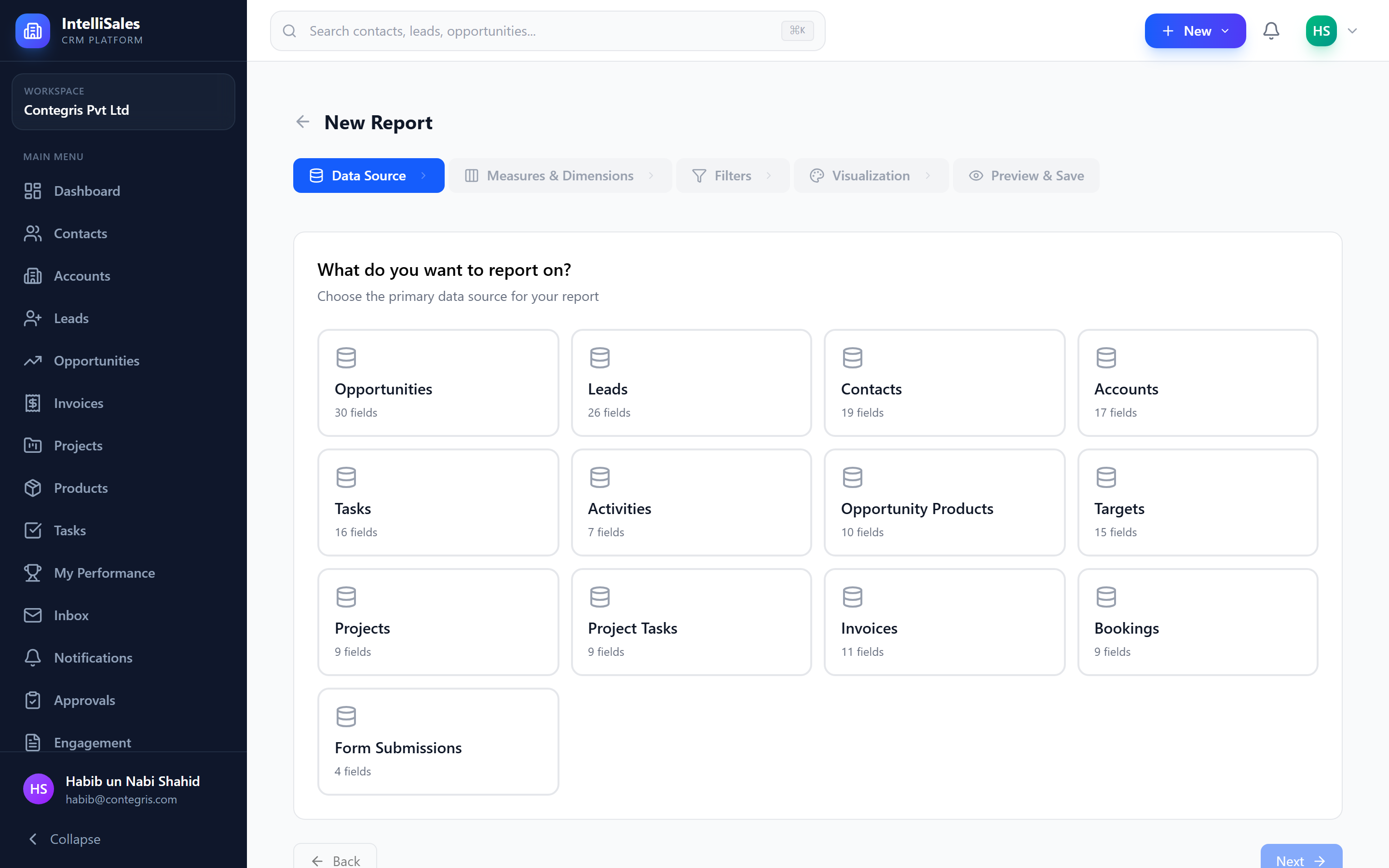
Choose the primary data source for your report:
| Data Source | Contains |
|---|---|
| Leads | All lead records with fields, stages, scores |
| Opportunities | All opportunity records with amounts, stages, probabilities |
| Contacts | Contact records with demographics and activity |
| Accounts | Organization records with types, industries, revenue |
| Activities | Activity log entries — calls, emails, meetings |
| Tasks | Task records with types, statuses, durations |
| Products | Product catalog data |
| Invoices | Invoice records with amounts and payment status |
The data source determines which fields are available for selection, filtering, and grouping. Choose the source that contains the primary data you want to analyze.
Selecting Fields
After choosing a data source, select which fields to include in your report:
- Browse available fields in the field selector panel.
- Click a field to add it to the report.
- Rearrange fields by dragging them in the selected fields list.
- Remove fields by clicking the "x" next to them.
Fields include both standard and custom fields for the selected data source.
Building Filters
Filters narrow down the data included in the report:
- Click Add Filter.
- Select a field to filter on.
- Choose an operator (equals, contains, greater than, less than, between, is empty, etc.).
- Enter the value to filter by.
- Add more filters as needed.
Combining Filters
- AND — all filters must match
- OR — at least one filter must match
- You can nest filter groups for complex logic
Example filters:
- Stage equals "Negotiation"
- Amount greater than $10,000
- Created date in the last 30 days
- Owner equals "Jane Smith"
Grouping Data
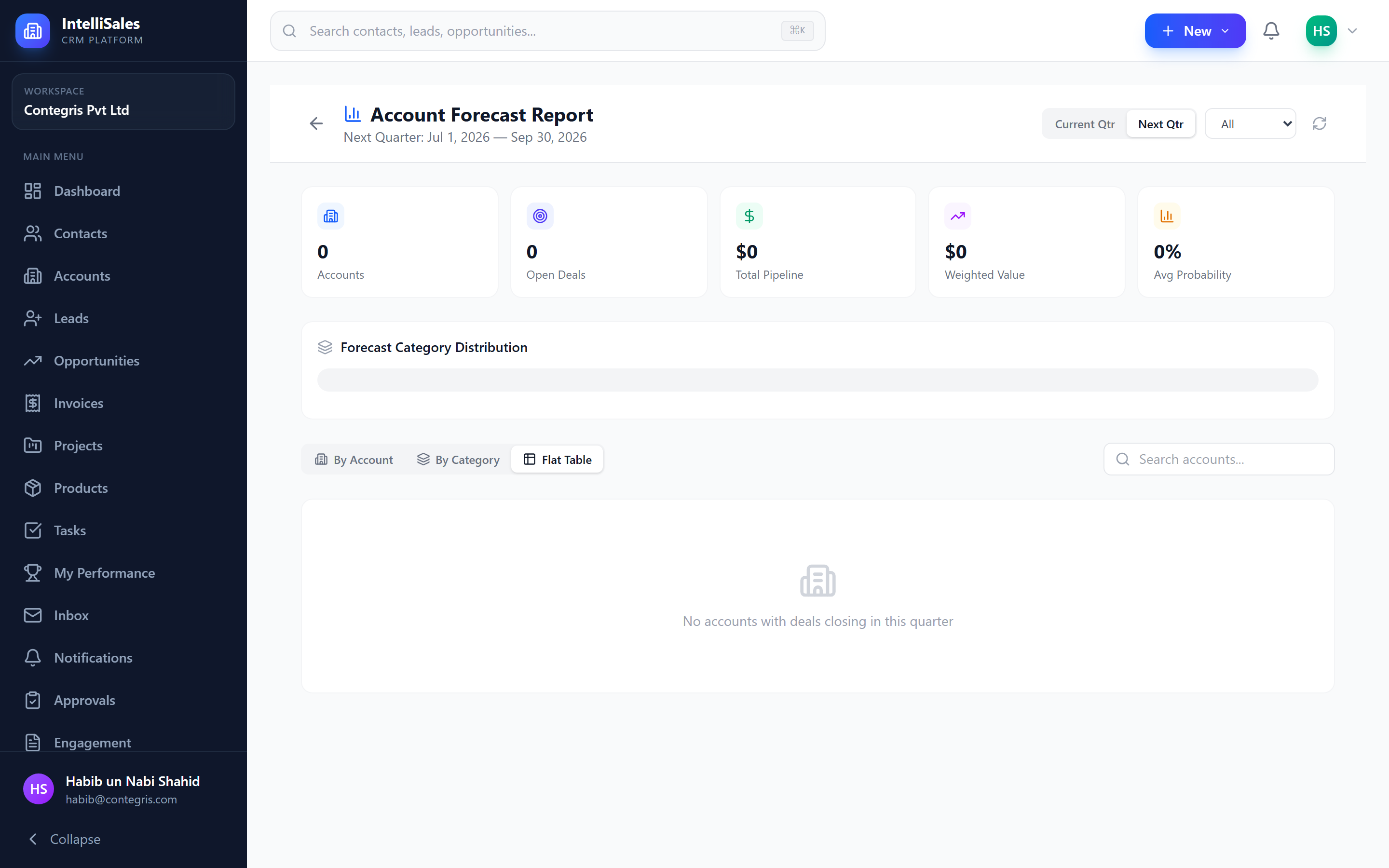
Grouping aggregates records by a field:
- Click Add Grouping.
- Select the field to group by (e.g., Stage, Owner, Source, Month).
- The report data will be aggregated by the selected grouping.
- You can add multiple grouping levels for nested breakdowns.
Example: Group by "Stage" then by "Owner" to see how many deals each person has at each stage.
Sorting
Configure how the report data is sorted:
- Select the sort field (any field in the report).
- Choose ascending or descending order.
- Add secondary sort fields as needed.
Chart Type Selection
Choose how to visualize your data:
| Chart Type | Best For |
|---|---|
| Bar | Comparing categories (leads by source, deals by stage) |
| Line | Showing trends over time (monthly revenue, weekly leads) |
| Pie | Showing proportions (lead source distribution) |
| Table | Detailed data rows with columns |
| Funnel | Conversion stages (lead-to-opportunity funnel) |
| Scatter | Correlations between two metrics |
| Gauge | Single metric against a target |
Choose a chart type that matches the story you want to tell. Use bar charts for comparisons, line charts for trends, pie charts for breakdowns, and tables for detailed data export.
Chart Configuration
Customize the chart appearance:
- Colors — pick custom colors for chart segments, bars, or lines
- Labels — toggle data labels on/off, configure format
- Axes — customize axis labels, scales, and formatting
- Legend — show/hide legend, position it
- Title — set the chart title displayed on the report
Preview and Save
- Click Preview to see the report with current data.
- Review the visualization and data accuracy.
- Adjust settings if needed.
- Enter a report name and optionally a description.
- Select a folder to save the report in.
- Click Save.
Your report is now available in your My Reports section and can be shared, exported, or scheduled.