Reports Viewer
The Reports Viewer is where you interact with completed reports — view the data, drill into details, export results, and share insights with your team.
Viewing a Report
Click any report in your My Reports or the Report Library to open it in the viewer. The report displays with:
- Title and description at the top
- Chart/visualization as the main content
- Data table below the chart (if configured)
- Filter summary showing active filters
- Toolbar with actions (export, share, schedule, duplicate)
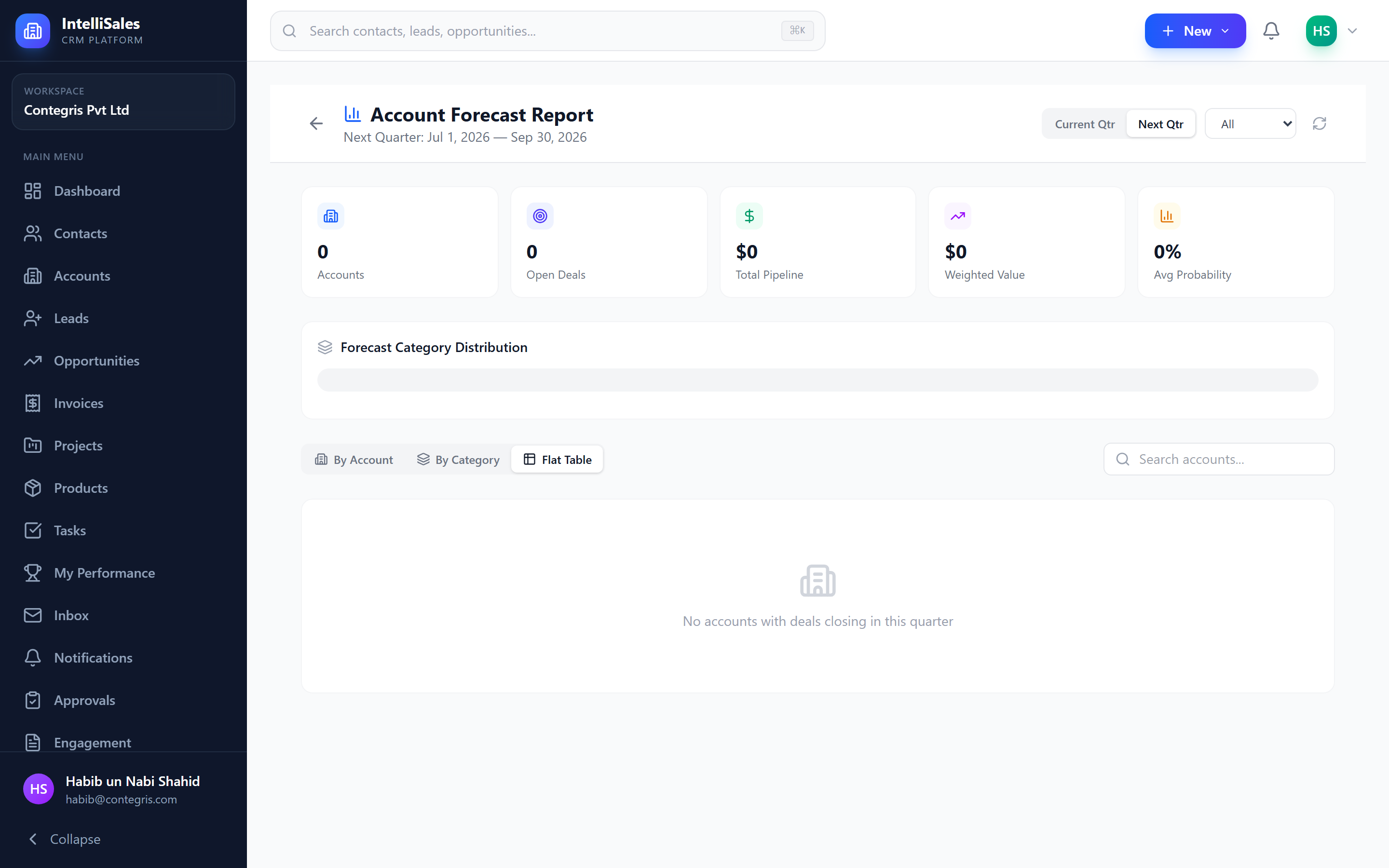
Chart Interactions
Reports with charts support interactive features:
Hover
Hover over any chart element (bar, slice, point) to see a tooltip with the exact values.
Drill-Down
Click a chart element to drill into the underlying data:
- Clicking a bar in a "Leads by Source" chart shows the individual leads from that source
- Clicking a funnel stage shows the records at that stage
- Drill-down opens a filtered data table below the chart
Zoom
Some charts support zooming:
- Scroll to zoom in/out on time-based charts
- Click and drag to select a date range to zoom into
Use drill-down to investigate anomalies. If a bar chart shows an unexpected spike in a metric, click it to see exactly which records contributed.
Exporting Reports
Export your report in multiple formats using the Export button:
PDF
Generates a print-ready PDF document with the chart and data table. Useful for email attachments and presentations.
Excel
Downloads an XLSX file containing the report data in spreadsheet format. Useful for further analysis, pivot tables, and custom formatting.
PNG
Exports the chart as a PNG image file. Useful for embedding in presentations, documents, or chat messages.
Scheduling Reports
Automate report delivery by scheduling it to run and send via email:
- Open the report.
- Click Schedule in the toolbar.
- Configure the schedule:
- Frequency — Daily, Weekly, Monthly, or Custom cron expression
- Day/Time — when the report should run
- Recipients — email addresses to receive the report
- Format — PDF, Excel, or both
- Click Save Schedule.
The report runs automatically at the scheduled time and is emailed to all recipients.
Scheduled reports use the latest data at the time of execution. Filters are applied at runtime, so date-relative filters (like "last 30 days") always use current dates.
Managing Schedules
- View active schedules on the report's settings
- Edit a schedule to change frequency, recipients, or format
- Pause a schedule temporarily
- Delete a schedule to stop automated delivery
Sharing Reports
Share a report with team members:
- Click Share in the toolbar.
- Search for and select users or teams.
- Set permissions: View only or View and Edit.
- Click Share.
Shared reports appear in the recipient's My Reports section.
Sharing a report shares the report definition (configuration), not a static snapshot. Recipients see live data filtered by their own permissions — they may see different numbers than you if their data access differs.
Duplicating Reports
To create a copy of an existing report (useful for customizing pre-built reports):
- Open the report.
- Click Duplicate in the toolbar.
- The Report Builder opens with all settings pre-filled from the original.
- Modify the report as needed.
- Save with a new name.
Use duplication when you want to create variations of the same report — for example, the same pipeline report filtered for different teams or time periods.