Task Views
The Tasks module offers three views to help you manage your work: List, Kanban, and Calendar. Each provides a different perspective on your tasks.
List View
The list view displays tasks in a data table with dynamic, configurable columns:
- Title
- Type (with icon)
- Status
- Priority (with icon)
- Assignee
- Due Date
- Linked Entity
- Estimated/Actual Time
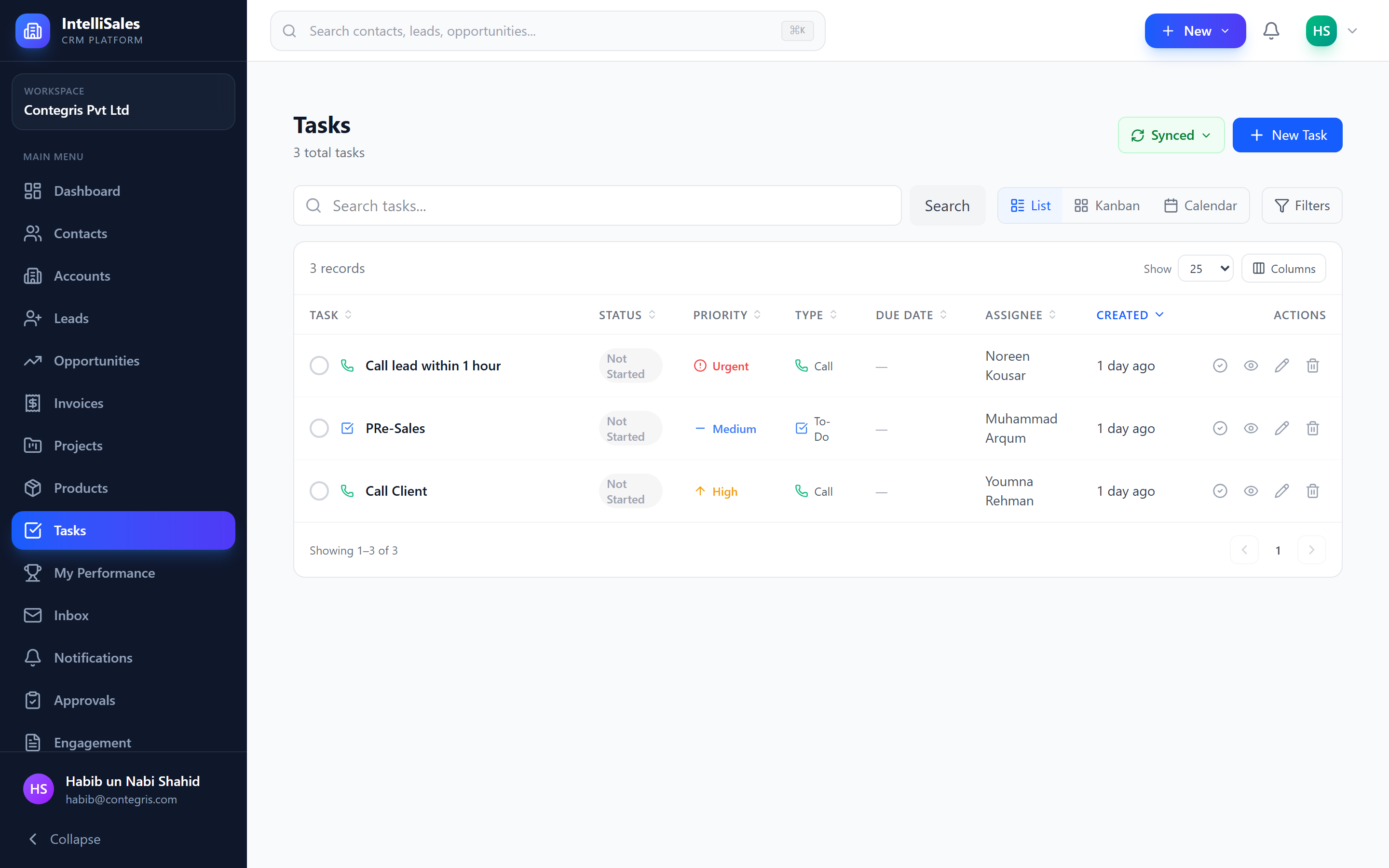
Click the column settings icon to show or hide columns. For details on data table features, see Data Tables.
Kanban View
The Kanban view organizes tasks into columns by status:
- Not Started | In Progress | Waiting | Deferred | Completed | Cancelled
Each task appears as a card showing:
- Title
- Type icon
- Priority icon
- Assignee avatar
- Due date
Drag-and-Drop
Move tasks between statuses by dragging cards from one column to another.
Use the Kanban view for daily task management. Start each day by reviewing your "Not Started" column and dragging tasks to "In Progress" as you begin working on them.
Calendar View
The calendar view displays tasks on a visual calendar grid, with three viewing modes:
Month View
Shows all tasks for the month, placed on their due dates. Click a day to see details or create a new task.
Week View
Shows tasks for the selected week with more detail per day.
Day View
Shows all tasks due on a single day with time slots.
Click to Create
In any calendar mode:
- Click an empty slot on a date.
- A quick-create task dialog opens with the date pre-filled.
- Enter the task details and save.
Switching Between Views
Use the view switcher buttons at the top of the Tasks page to toggle between List, Kanban, and Calendar views. Your preferred view is remembered for future visits.
Filtering
Apply filters to narrow down visible tasks:
- Status — show specific statuses
- Type — filter by task type (Call, Meeting, etc.)
- Priority — filter by urgency level
- Assignee — show tasks assigned to specific users
- Due Date Range — filter by timeframe
- Linked Entity — filter by linked module (Leads, Opportunities, etc.)
- Show Completed toggle — include or exclude completed tasks
By default, completed and cancelled tasks are hidden to keep your view focused on active work. Toggle Show Completed to see them.
Subtasks
Tasks can have subtasks — smaller checklist items that break down the main task:
- Subtasks appear as a checklist within the task card or detail view
- Each subtask has a title and a completion checkbox
- The parent task shows a progress indicator (e.g., "3/5 subtasks complete")
- Completing all subtasks does not automatically complete the parent task
Subtasks are useful for complex tasks that involve multiple discrete steps — for example, a "Prepare Proposal" task might have subtasks for "Draft content," "Create pricing table," "Get manager review," and "Send to client."
For instructions on creating and managing tasks, see Managing Tasks.