Managing Tasks
This chapter covers the day-to-day operations for working with tasks — creating them, updating their progress, tracking time, and completing them.
Creating Tasks
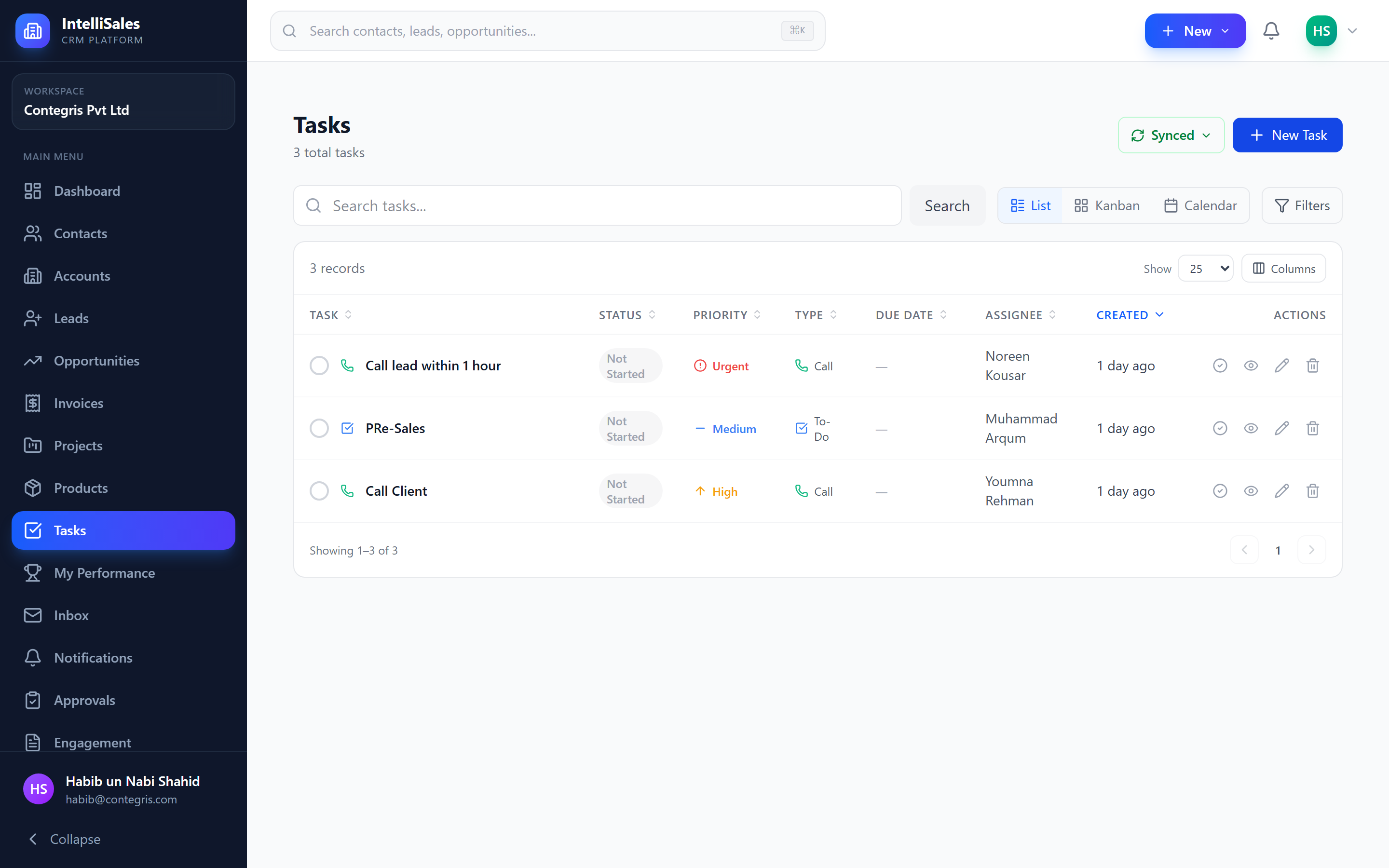
From the Tasks Module
- Navigate to Tasks in the sidebar.
- Click + New Task.
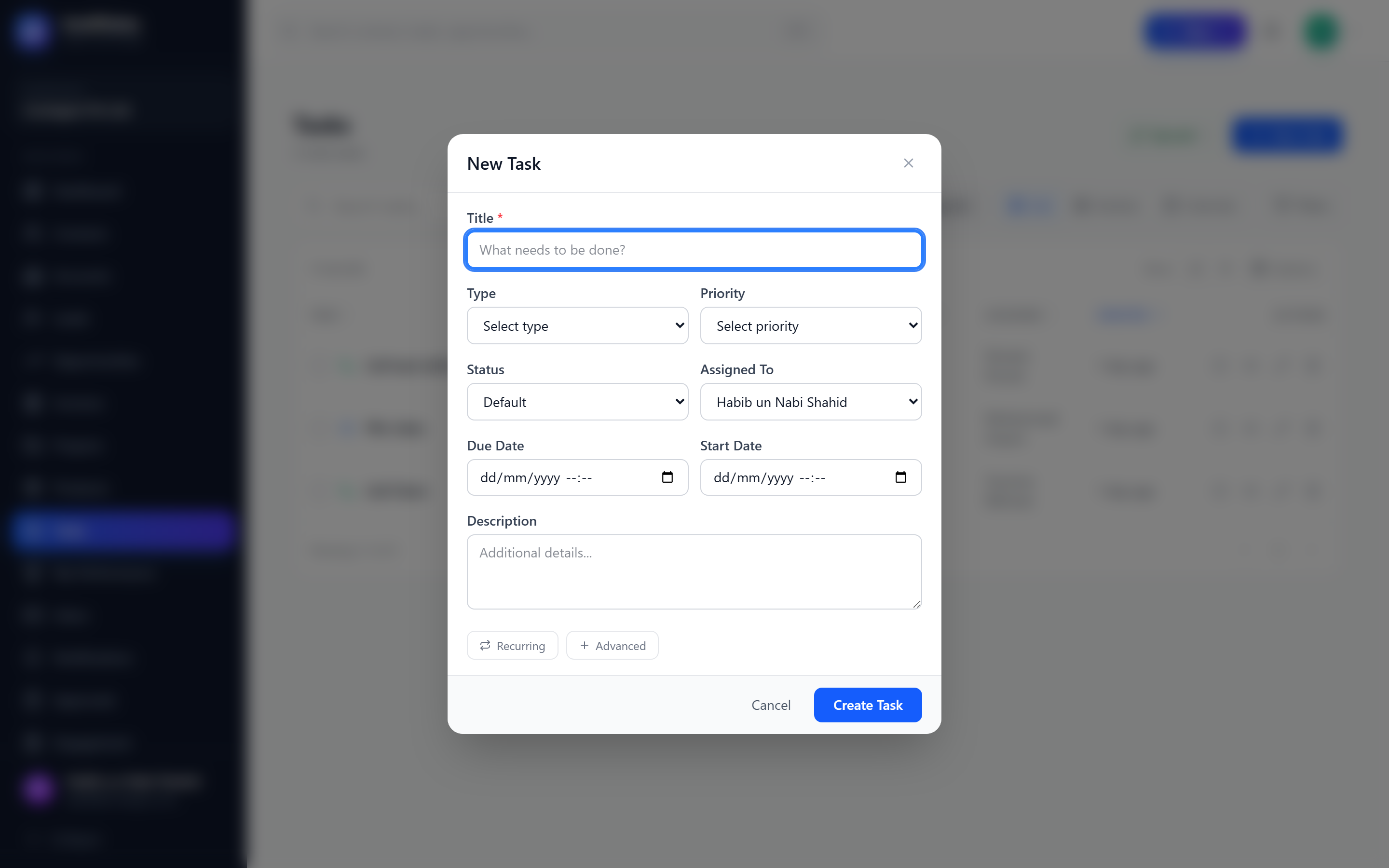
- Fill in the task form:
- Title (required) — a clear description of the action
- Type — Call, Email, Meeting, Follow-up, Demo, etc.
- Status — defaults to "Not Started"
- Priority — Urgent, High, Medium, or Low
- Assignee — who will do this task
- Due Date and Time — when it needs to be completed
- Description — additional details and context
- Linked Entity — optionally link to a Lead, Opportunity, Contact, Account, or Project
- Estimated Minutes — planned effort
- Click Save.
Quick Create Modal
From any entity detail page (Lead, Opportunity, Contact, etc.):
- Go to the Tasks tab.
- Click + Add Task or + New Task.
- A modal form opens with the entity pre-linked.
- Fill in the task details and save.
The task is automatically linked to the entity you created it from.
Use quick create from entity detail pages whenever possible. It ensures the task is properly linked, and you do not need to navigate away from the record you are working on.
Editing Tasks
- Click a task in any view (list, Kanban, calendar) to open it.
- Click Edit or directly modify fields inline (where supported).
- Update any fields — title, status, priority, assignee, due date, description, etc.
- Click Save.
Completing Tasks
To mark a task as complete:
- Open the task.
- Click Mark Complete (or change status to "Completed").
- Optionally enter a result — a summary of the outcome (e.g., "Client agreed to a follow-up meeting next Tuesday").
- The task moves to the "Completed" status.
From the list view, you can also click the checkbox on a task row for a quick completion.
When completing a task, consider adding a result note. This creates a valuable record of outcomes that shows up in activity timelines on linked entities.
Reopening Completed Tasks
If a completed task needs to be revisited:
- Open the completed task.
- Click Reopen or change the status back to "Not Started" or "In Progress".
- The task returns to your active task list.
Creating Subtasks
Subtasks break down a task into smaller checklist items:
- Open a task.
- Scroll to the Subtasks section.
- Click Add Subtask.
- Enter a title for the subtask.
- Press Enter or click the add button.
- Repeat for additional subtasks.
To complete a subtask, click its checkbox. The parent task shows progress (e.g., "3/5 complete").
Adding Notes to Tasks
- Open the task.
- Scroll to the Notes section.
- Click Add Note.
- Type your note content.
- Click Save.
Notes are timestamped and attributed to the user who wrote them. They appear in chronological order.
File Attachments
To attach files to a task:
- Open the task.
- Scroll to the Attachments or Documents section.
- Click Upload or drag and drop files.
- Files are uploaded and listed with name, size, and upload date.
Supported file types include documents, images, spreadsheets, and PDFs.
Time Tracking
Tasks support time tracking through two fields:
| Field | Description |
|---|---|
| Estimated Minutes | How long you think the task will take (set at creation) |
| Actual Minutes | How long the task actually took (set at completion) |
To track time:
- When creating or editing a task, set the Estimated Minutes.
- When completing the task, enter the Actual Minutes.
- Reports can compare estimated vs actual time across tasks and team members.
Consistent time tracking helps managers identify tasks that regularly exceed estimates, improve future planning, and understand where the team spends its time.
Deleting Tasks
- Open the task or find it in the list view.
- Click the actions menu (three dots).
- Select Delete.
- Confirm the deletion.
Deleted tasks are soft-deleted and hidden from normal views. The deletion is recorded in the activity timeline of any linked entity.