Calendar Connections
Google Calendar sync in IntelliSales CRM is set up per user and runs both ways. Every user has to connect their own calendar — an organization-level setup alone does not sync anyone's meetings.
This matters beyond sync. When a colleague checks someone's availability — for example when assigning a task — the CRM can only see meetings for users who have connected. Anyone who has not connected looks free all day.
The Calendar Connections page shows you who has connected and who has not.
Navigate to Admin > Calendar Connections (/admin/calendar-connections). The page is available to administrators only.
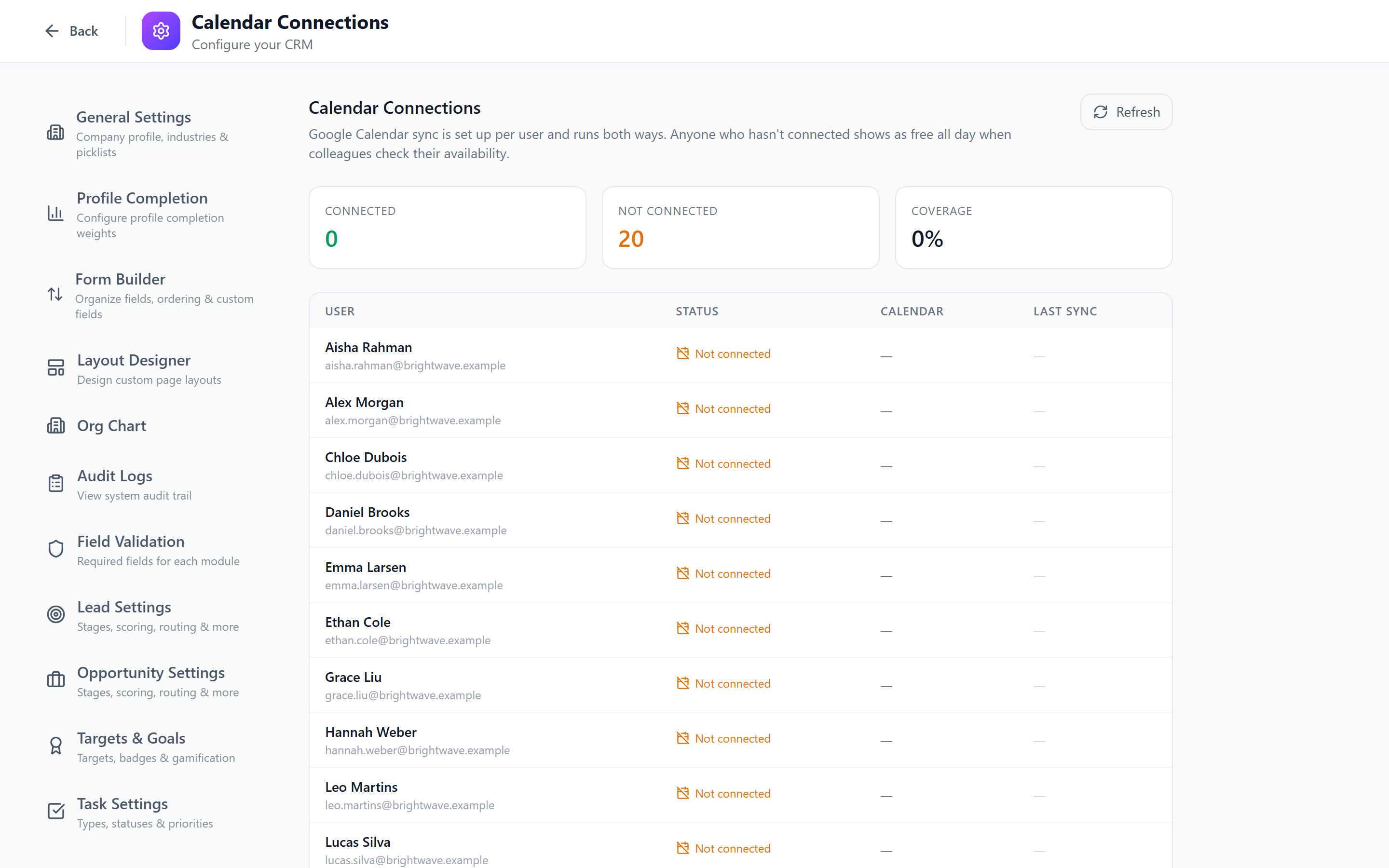
Coverage Summary
Three cards at the top summarise your team:
| Card | Meaning |
|---|---|
| Connected | Active users with a working Google Calendar connection |
| Not connected | Active users who have not connected |
| Coverage | Connected users as a percentage of all active users |
API service accounts (see API Keys) and inactive or deleted users are not counted.
Per-User Table
Below the cards, every active user is listed — users who are not connected appear first, so the gaps are at the top.
| Column | Shows |
|---|---|
| User | Name and login email |
| Status | Two-way (or the configured sync direction) when connected, or Not connected |
| Calendar | The Google account email the user connected |
| Last sync | How long ago the user's calendar last synced — for example 5m ago, 3h ago, or never |
Click Refresh to reload the page's data.
Stale Connections
The sync job runs every 5 minutes, so a connected calendar should never be far behind. If a connected user has not synced in over 24 hours, their Last sync value is shown in amber and a warning appears above the table:
N connected accounts have not synced in over 24h.
This usually means the user revoked IntelliSales CRM's access in their Google account, or their sync is failing. Their availability in the CRM is out of date until it is fixed. Ask the user to reconnect.
Getting Users Connected
Users connect their own calendar from their profile, under Email & Calendar. See Calendar Sync.
To help, the Tasks page shows each user who has not connected a Connect your Google Calendar banner with a one-click Connect button. Users can dismiss it.
Check this page after onboarding new users, and periodically for stale connections. Scheduling checks are only as accurate as your coverage.
Related: Google Calendar Integration — OAuth setup and sync configuration.