Importing Leads
IntelliSales CRM supports bulk import of leads from spreadsheet files. The import wizard guides you through uploading, previewing, mapping columns, and executing the import.
Import Wizard Overview
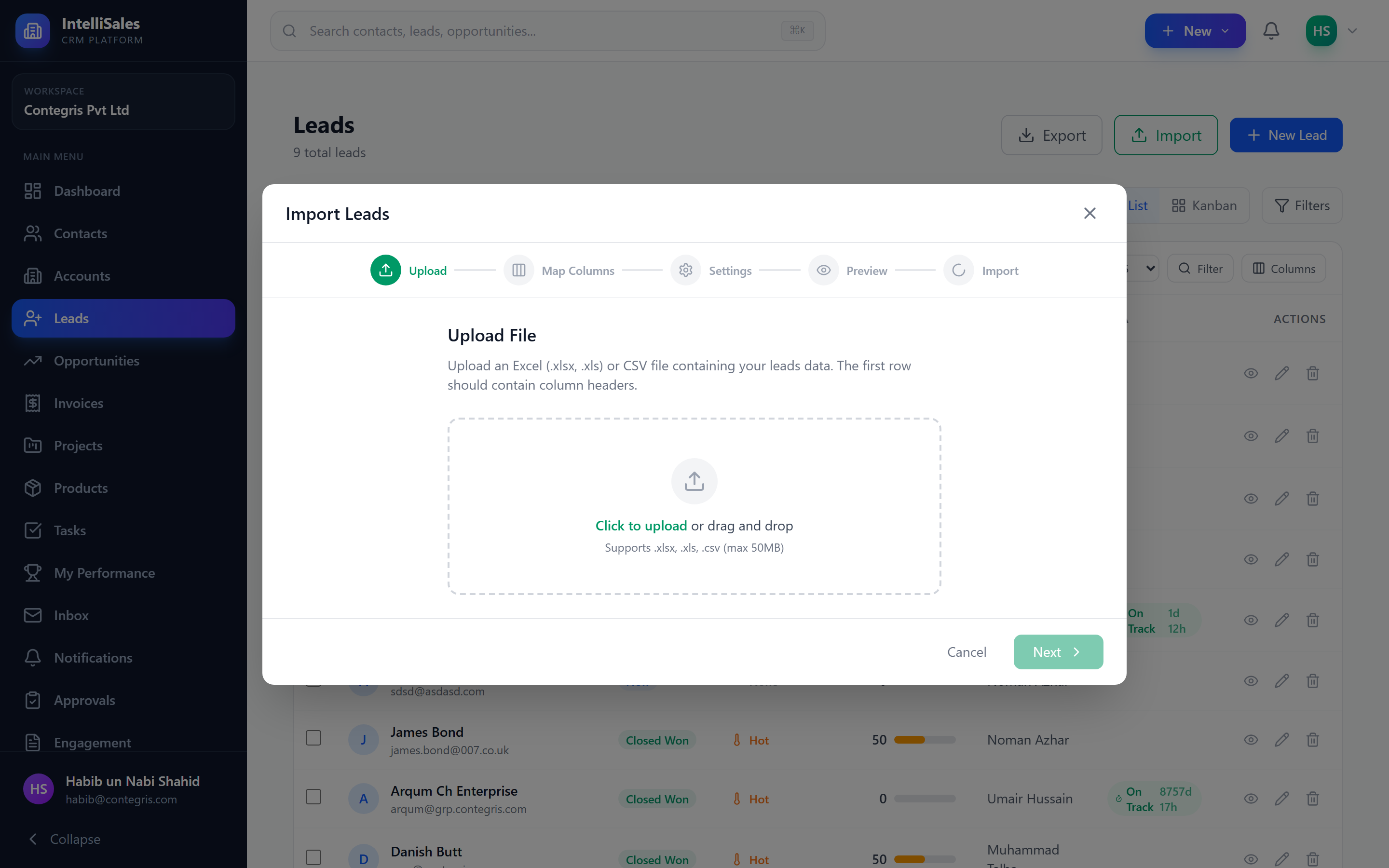
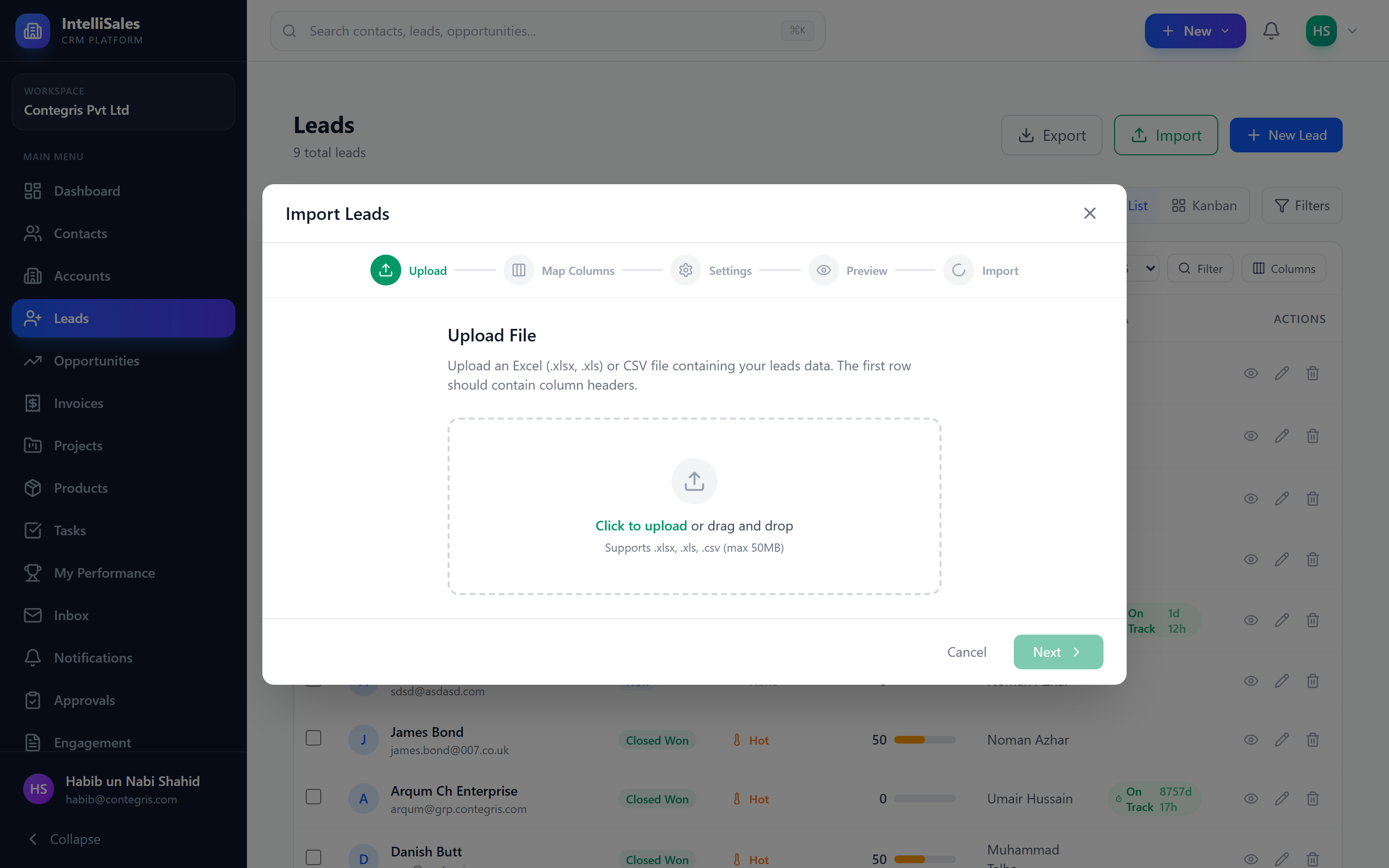
The import process consists of four steps:
- Upload — select your file
- Preview — review the data and columns
- Map Fields — match your file columns to CRM lead fields
- Execute — run the import
Navigate to Leads and click the Import button to start the wizard.
Supported Formats
The import wizard supports:
| Format | Extension | Max Size |
|---|---|---|
| Comma-Separated Values | .csv | 50 MB |
| Excel Workbook | .xlsx | 50 MB |
| Legacy Excel | .xls | 50 MB |
For best results, use CSV or XLSX format with a header row in the first row. Clean your data before importing — remove empty rows, fix formatting issues, and ensure consistent data entry.
Step 1: Upload File
- Click Choose File or drag and drop your file onto the upload area.
- The system validates the file format and size.
- Click Next to proceed to the preview step.
Files larger than 50 MB will be rejected. If your file is too large, split it into smaller batches.
Step 2: Preview and Column Mapping
After uploading, the wizard displays a preview of your file:
- The first few rows of data are shown in a table
- Each column from your file is listed
- The system attempts to auto-detect matching CRM fields based on column headers
Review the preview to verify:
- Data is being parsed correctly
- Columns are recognized
- No obvious data issues
Step 3: Field Mapping Configuration
In this step, you match each column from your file to a lead field in the CRM:
- For each file column, select the corresponding CRM field from a dropdown.
- Columns that are not mapped will be skipped (data not imported).
- Required CRM fields must be mapped to proceed.
Mapping options:
- Auto-mapped — the system matched columns automatically (verify these are correct)
- Manual mapping — select the correct CRM field from the dropdown
- Skip — leave the mapping blank to skip this column
Account Association
The field mapping includes an Account Name field. When mapped:
- The import process searches for existing accounts in the CRM that match the value in the mapped column.
- If a matching account is found, the imported lead is automatically linked to that account.
- If no matching account is found, the lead is imported without an account link.
This is useful when importing leads from sources that include company information, ensuring leads are properly associated with their parent accounts from the moment they enter the CRM.
Ensure account names in your import file match the account names in the CRM exactly. The matching is case-insensitive but otherwise requires an exact name match.
Custom fields appear in the mapping dropdown alongside standard fields. You can map to any field your administrator has configured for the Leads module.
Opt-in: Fire Workflow Triggers for Imported Rows
Step 3 also exposes the Fire workflow triggers checkbox.
- Off (default) — imported leads are inserted silently. No
lead_createdworkflows fire. Right for bulk historical loads, list cleanups, and migrations from another CRM where you don't want to re-fire your routing / SLA / welcome-email workflows on years-old data. - On — every imported lead fires
lead_created. Right when the file genuinely represents fresh inbound demand and you want it routed and notified the same as a hand-entered lead.
The chosen setting is recorded on the import job so the Batch Jobs page later shows whether each import was "triggered" or "silent" — useful for the "why did 4,000 leads just get auto-assigned" question.
Step 4: Import Execution
- Review your mappings one final time.
- Click Start Import to begin.
- The import is queued for background processing — you do not need to keep the page open.
- A progress indicator shows the status:
- Queued — waiting to start
- Processing — actively importing records
- Completed — all records processed
- Completed with Errors — some records failed
Tracking Import Progress
After starting an import:
- A notification appears when the import completes.
- Navigate to Admin > Batch Jobs to see the full import history with status, record counts, and error details.
- Each import job shows:
- Total records in file
- Successfully imported count
- Failed record count
- Processing duration
Handling Errors
If some records fail to import:
- Open the completed import job in Batch Jobs.
- Click Download Failed Records to get a file containing only the rows that failed.
- Each failed row includes an error message explaining why it failed (e.g., missing required field, invalid email format, duplicate detected).
- Fix the issues in the downloaded file.
- Re-import the corrected file.
Common import errors include: missing required fields, invalid email or phone formats, values that do not match dropdown options, and duplicate email addresses. Clean these up before re-importing.
Saving Import Templates
If you regularly import leads from the same source with the same column layout:
- After configuring your field mapping in Step 3, look for the Save Template option.
- Give the template a name (e.g., "HubSpot Export", "Trade Show Leads").
- Next time you import, select the saved template to auto-apply your field mappings.
This saves time and ensures consistency across repeated imports.
Duplicate Detection During Import
The import process checks for duplicates based on configurable criteria (typically email address):
- Duplicate found — the record is flagged and either skipped or merged based on your settings
- No duplicate — the record is created as a new lead
Duplicate handling behavior is configured by your administrator. The default behavior is typically to skip duplicates, but it can be set to update existing records with new data.