Leads List & Kanban Views
The Leads module offers two primary views for managing your pipeline: a List view for detailed data browsing and a Kanban board for visual pipeline management.
List View
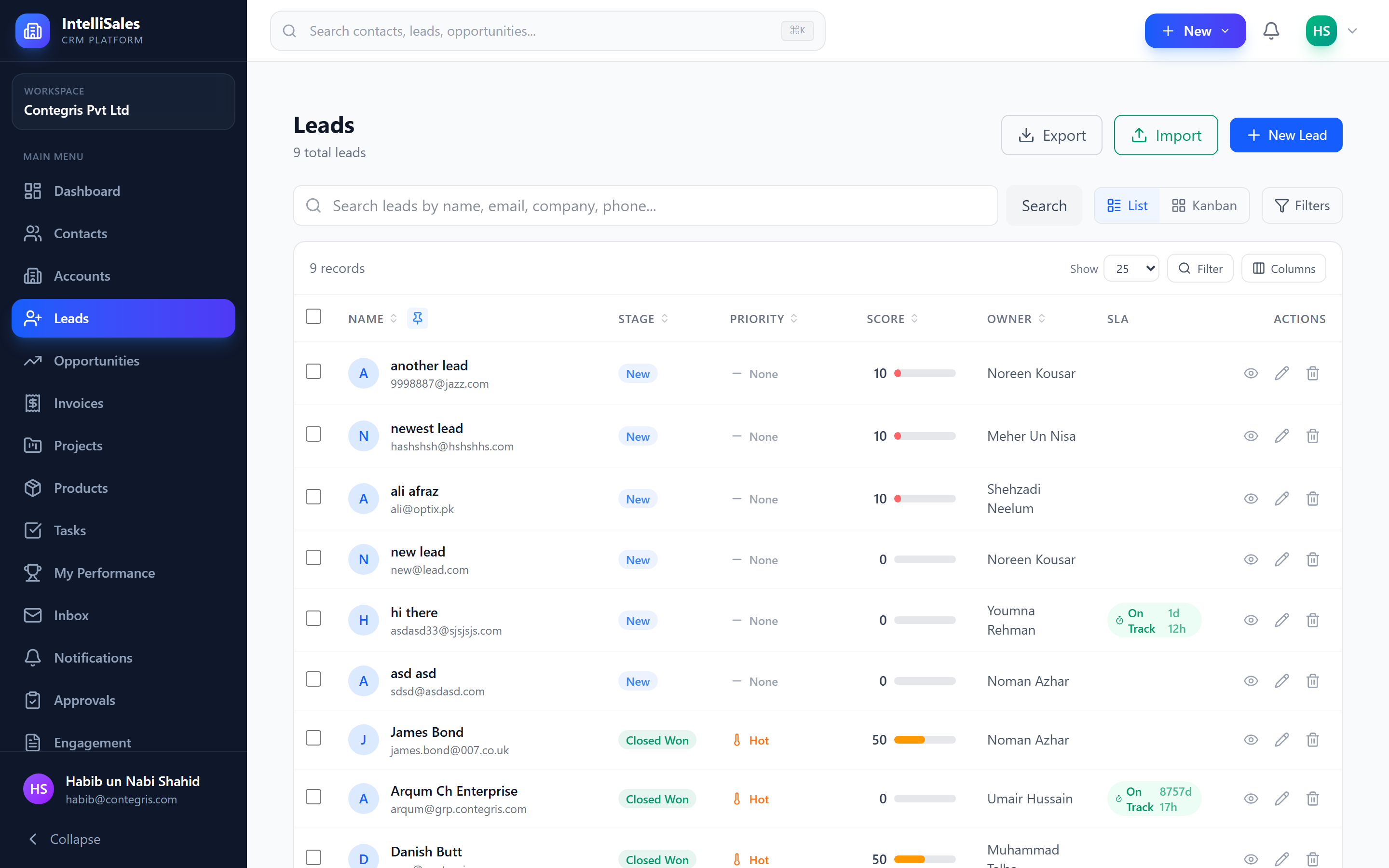
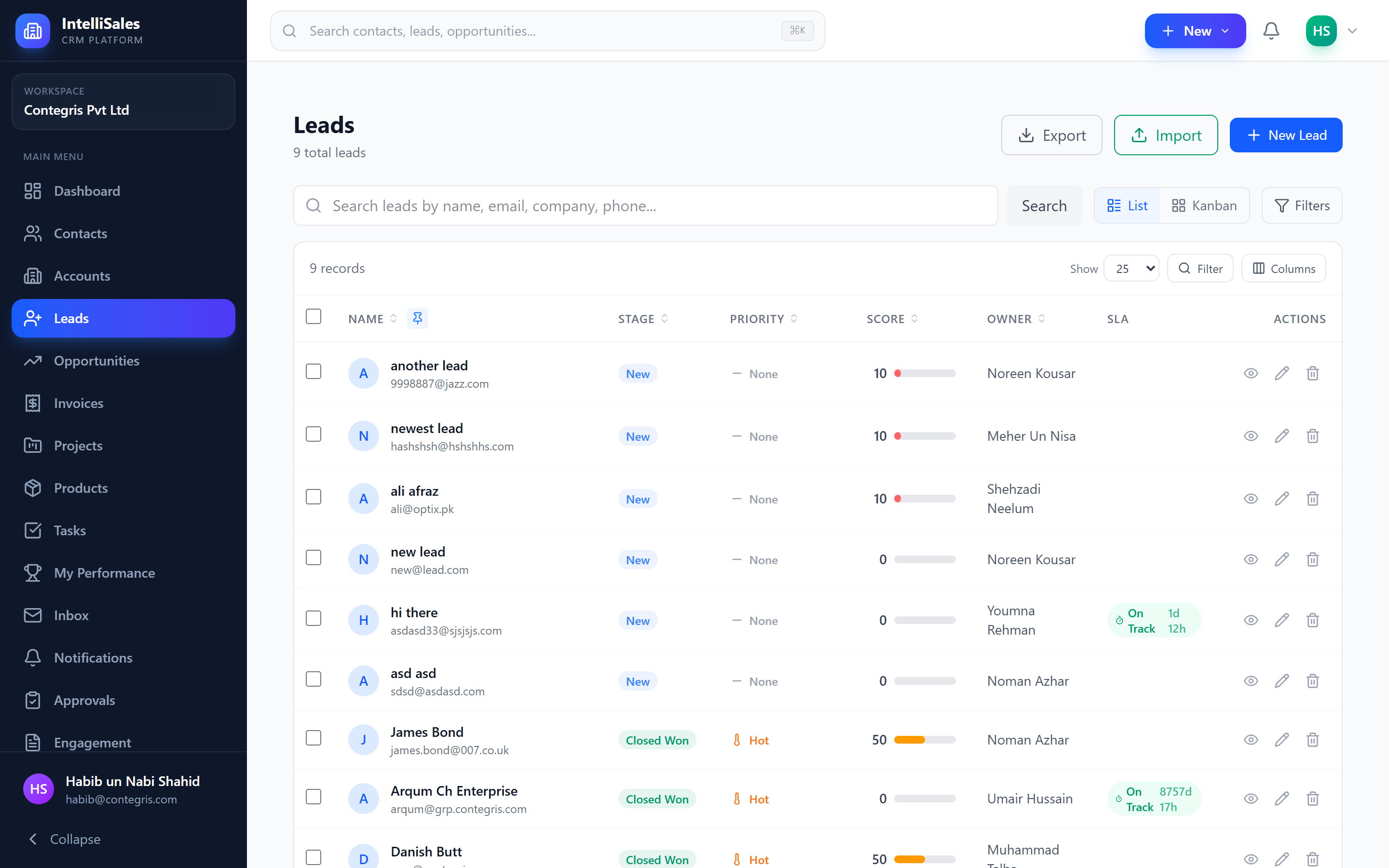
The list view displays leads in a data table with dynamic, configurable columns. This view is ideal for:
- Reviewing large numbers of leads at once
- Sorting and filtering by specific criteria
- Performing bulk operations
Dynamic Columns
The list view supports configurable columns. Click the column settings icon to show or hide columns. Available columns include all standard and custom fields.
Kanban Board View
The Kanban board displays leads as cards organized by pipeline stage. Each column represents a stage, and cards can be dragged between columns to advance or revert leads.
Kanban Cards
Each card displays:
- Lead name
- Company
- Value (monetary amount)
- Priority icon
- Owner avatar
- SLA indicator (if configured)
- Missing required fields indicator (warning icon if required stage fields are incomplete)
Drag-and-Drop
To move a lead to a different stage:
- Click and hold a lead card.
- Drag it to the target stage column.
- Release to drop it.
If the target stage has required fields, a modal will appear prompting you to fill them in before the stage change is saved. See Pipeline Stages for details.
Switching Between Views
Toggle between List and Kanban views using the view switcher buttons at the top of the Leads page. Your preferred view is remembered for your next visit.
Pipeline Selector
If your organization has multiple pipelines, use the pipeline dropdown at the top of the page to switch between them. Each pipeline has its own set of stages.
Search, Filter, and Sort
Search
Use the search bar to find leads by name, email, phone, or company. Results filter in real time.
Filters
Apply filters to narrow down visible leads:
- Stage — show leads in specific stages only
- Priority — filter by urgency level
- Owner — show leads assigned to a specific user
- Source — filter by lead source
- Date range — filter by creation or expected close date
- Custom fields — filter on any custom field values
Column Filtering
In list view, many columns have per-column search fields. Click the filter icon in a column header to type a filter value specific to that column.
Sort
Click any column header to sort. The active sort column shows a directional arrow.
Bulk Selection and Operations
In list view, you can select multiple leads for bulk actions:
- Check the checkbox on each lead row you want to select, or use the Select All checkbox in the header.
- A bulk actions toolbar appears showing the number of selected records.
- Available bulk actions include:
- Bulk Update — change field values for all selected leads
- Bulk Delete — remove all selected leads
- Export — download selected leads as a file
See Bulk Operations for detailed instructions.
Score Columns
Two score columns are visible on the list by default:
- Score — rule-based Lead Score. Sortable.
- Qualification — BANT / CHAMP framework score. Number + progress-bar treatment, identical to Score. Sortable by
qualification_score.
Toggle either off via the column-picker if you don't need them. See Lead Scoring & SLA for the difference between the two engines.
SLA Indicators
If SLA rules are configured, leads display SLA status indicators:
- Green — on track, within SLA time limits
- Yellow — approaching SLA deadline (warning zone)
- Red — SLA breached, needs immediate attention
SLA indicators appear on both list rows and Kanban cards. See Lead Scoring & SLA for details.
Priority Icons
Leads display priority using distinctive icons:
| Priority | Icon |
|---|---|
| Urgent | Flame icon |
| High | Thermometer icon |
| Medium | Sun icon |
| Low | Snowflake icon |
| None | Minus/dash icon |
These icons appear on list rows and Kanban cards for quick visual identification.
Missing Required Fields Indicator
On Kanban cards, a warning icon appears when a lead is missing required fields for its current stage. This helps you identify leads that need attention before they can be advanced to the next stage.
Use the Kanban board during team stand-ups to visually review pipeline progress. Drag cards to update stages in real time as you discuss each lead.