Leads Pipeline & Stages
Pipelines and stages are the backbone of lead management in IntelliSales CRM. They define the path a lead follows from initial entry to conversion or disqualification.
Understanding Pipelines
A pipeline represents a distinct sales process. Your organization can have multiple pipelines to handle different types of leads — for example:
- Inbound Sales Pipeline — for web form and marketing leads
- Outbound Sales Pipeline — for cold outreach leads
- Enterprise Pipeline — for large, complex deals
- Partner Pipeline — for partner-referred leads
Each pipeline has its own set of ordered stages. You select the pipeline when creating a lead, and you can switch between pipelines using the pipeline selector on the list and Kanban views.
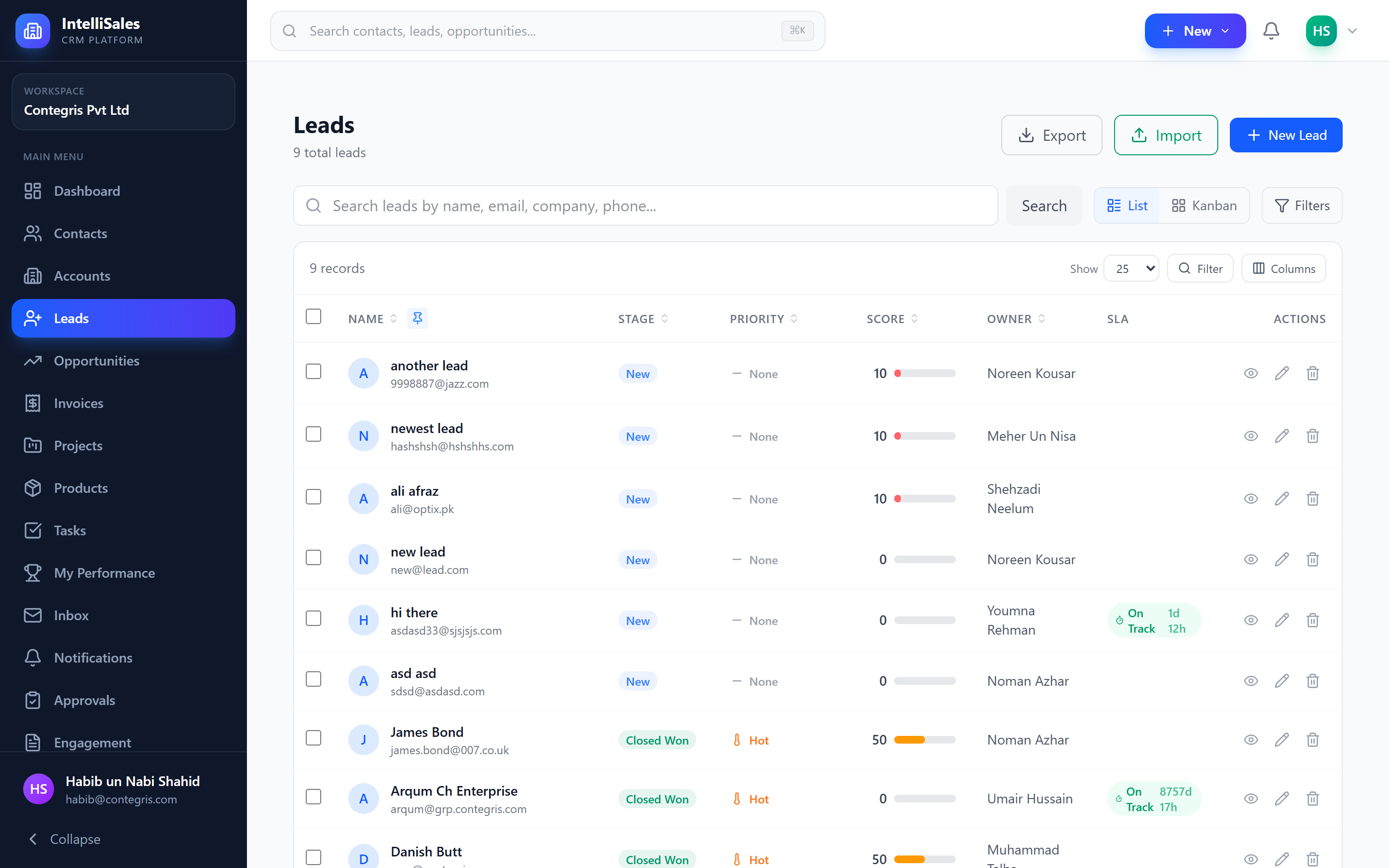
Pipeline Stages
Stages are ordered steps within a pipeline that represent the progression of a lead. For example:
- New — lead just entered the pipeline
- Contacted — initial outreach made
- Discovery — needs assessment in progress
- Proposal — solution proposed to prospect
- Negotiation — terms being discussed
- Qualified — ready for conversion
Stage names and order are configured by your administrator under Admin > Lead Settings. The stages you see depend on your organization's sales methodology.
Moving Leads Between Stages
There are two ways to move a lead to a different stage:
Drag-and-Drop (Kanban)
On the Kanban board, drag a lead card from one stage column to another. See Leads List & Kanban.
Manual Stage Change (Detail Page)
- Open the lead detail page.
- Click the target stage on the Stage Journey Bar, or use the stage dropdown.
- If the target stage has required fields, a modal appears for you to fill them in.
- Complete any required fields and confirm.
Stage Field Requirements
Administrators can configure required fields for each stage. These are fields that must be filled in before a lead can enter or remain in that stage.
When you attempt to move a lead to a stage with required fields:
- A modal dialog appears listing the required fields.
- Fields that are already filled show a green checkmark.
- Empty required fields are highlighted and editable in the modal.
- Fill in all required fields and click Save to complete the move.
If you close the modal without completing the required fields, the stage change is cancelled and the lead remains in its current stage.
Example: Your "Qualified" stage might require:
- Budget amount
- Decision-maker identified (yes/no)
- Expected timeline
- Qualification notes
This ensures leads are not advanced prematurely and data quality remains high.
Stage Ownership
Each pipeline stage can have a designated stage owner — a user, team, or role responsible for leads in that stage. Stage ownership determines:
- Default assignment — when a lead enters a stage, it can be automatically assigned to the stage owner
- Visibility — stage owners have guaranteed visibility of leads in their stage
- Accountability — managers can track who is responsible for each pipeline phase
Stage ownership types:
- User — a specific individual
- Team — all members of a team
- Role — all users with a specific role
Stage ownership is configured by administrators under Admin > Lead Settings > Stage Ownership. It works alongside regular lead ownership — the lead's primary owner may differ from the stage owner.
Field Visibility Per Stage
Administrators can configure field visibility on a per-stage basis. This controls which fields are visible, hidden, or read-only when a lead is in a particular stage.
Benefits:
- Reduce clutter — hide irrelevant fields in early stages
- Guide the process — show only the fields needed at each step
- Protect data — make fields read-only in later stages to prevent accidental changes
For example:
- In the "New" stage, show only basic contact information
- In the "Discovery" stage, reveal budget and requirements fields
- In the "Qualified" stage, show everything including scoring and conversion options
