Importing & Exporting Products
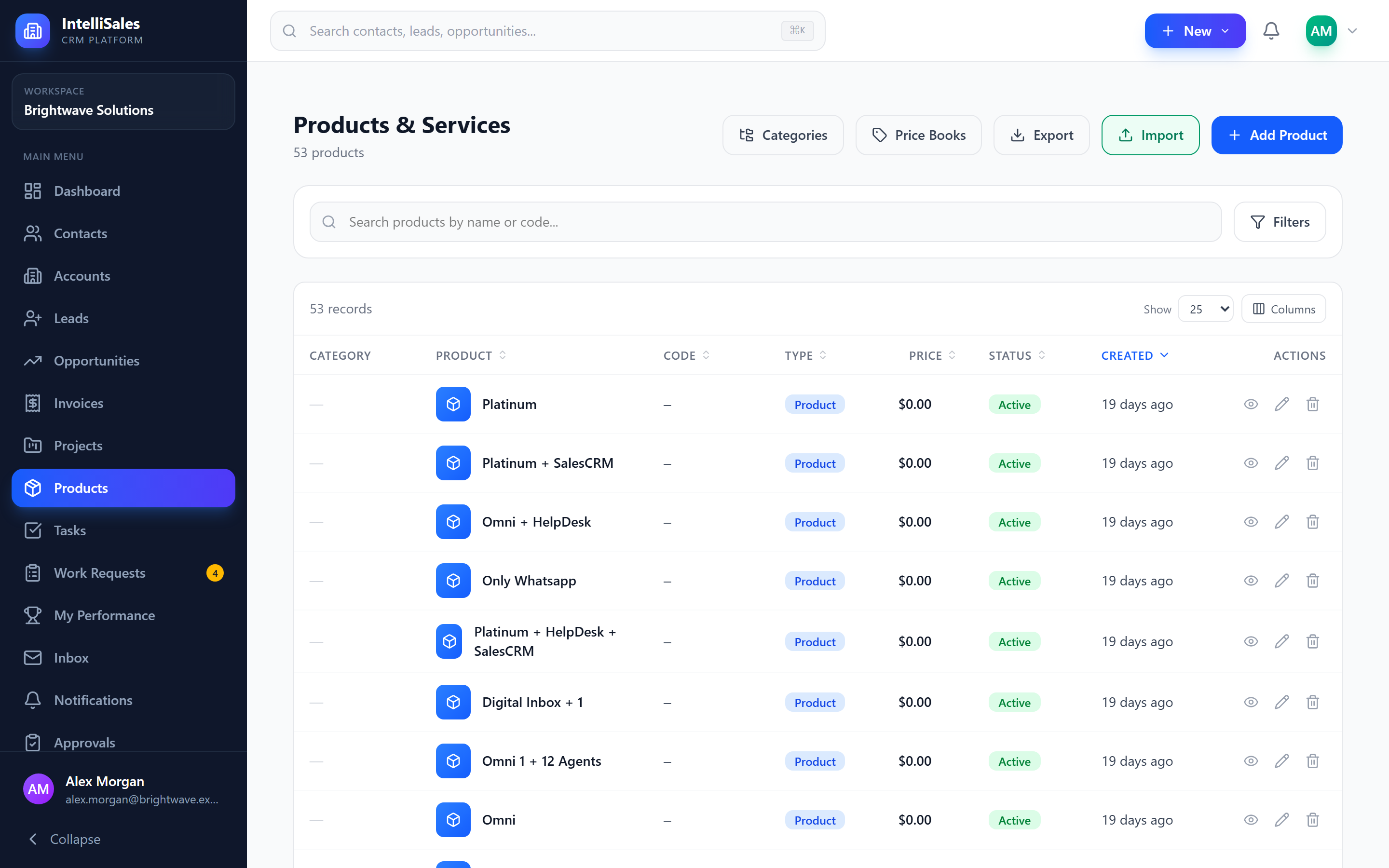
You can load your product catalog in bulk from a spreadsheet and export it back to Excel. Both actions are on the Products list page, next to Add Product.
| Button | Permission needed |
|---|---|
| Export | Export on the Products module |
| Import | Import on the Products module |
If you do not see a button, your role does not include that permission. See Roles & Permissions.
Exporting Products
- Open Products and apply any search or filters you need (type, status, category).
- Click Export.
- An Excel file named
products-export-YYYY-MM-DD.xlsxdownloads.
The export uses the same search, filters and sort order as the list you are looking at, up to 10,000 products. It includes these columns:
Name, Code, Short Description, Description, Type, Category, Unit, Base Price, Cost, Currency, Tax Category, Status, Image URL, External URL, Owner, Created At, Updated At.
To bulk-update your catalog, export it, edit the file in Excel, and import it again with Update duplicate handling. The import auto-maps the exported headers. Set Created At and Updated At to Skip on the mapping step.
Importing Products
Click Import to open the Import products wizard. It has four steps.
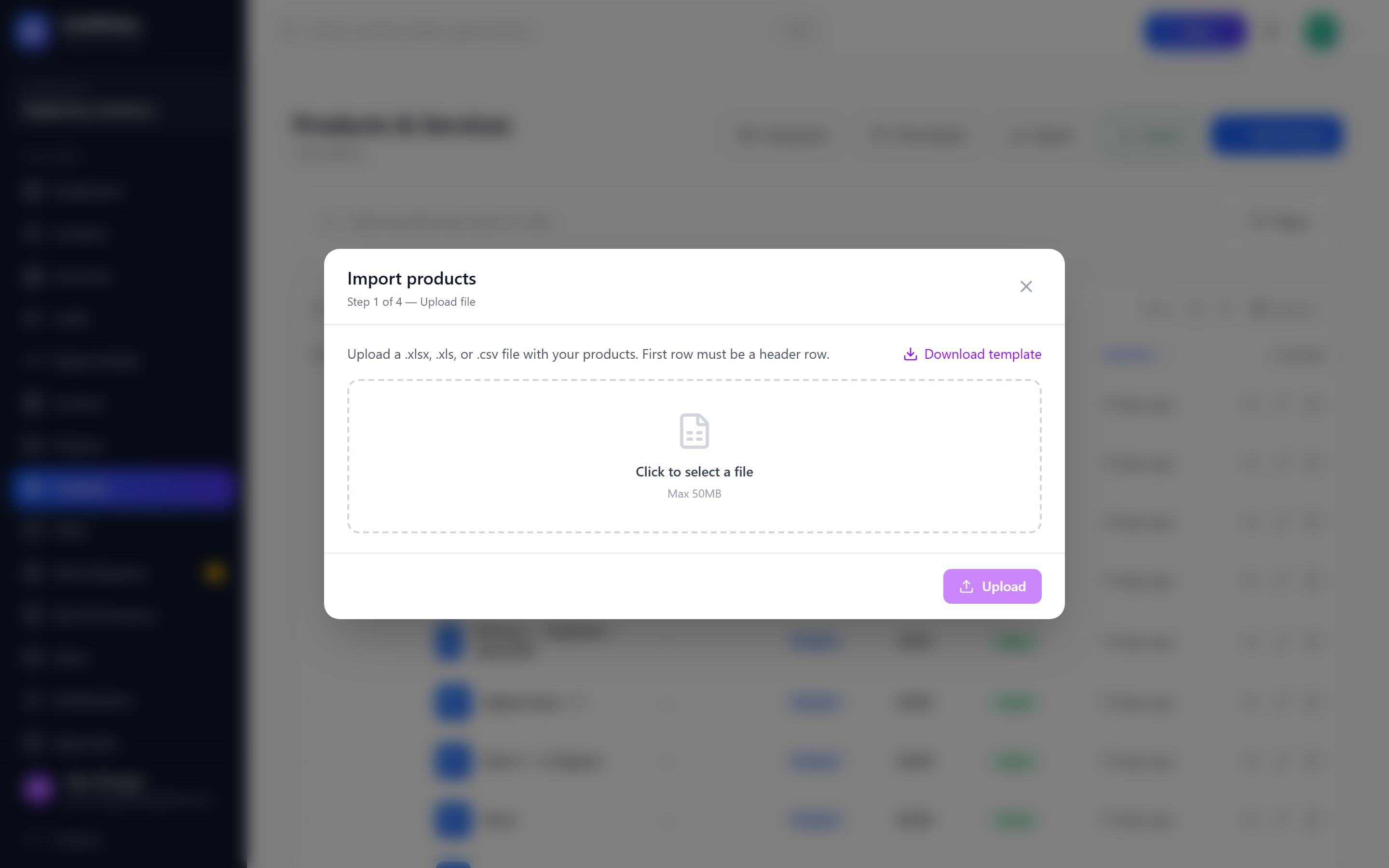
Step 1: Upload file
- Optionally click Download template to get
product-import-template.xlsx. It has every supported column and one sample row. - Click Click to select a file and choose a
.xlsxor.csvfile (max 50 MB). The first row must be a header row. Legacy.xlsfiles are accepted by the picker but not read correctly, so save them as.xlsxfirst. - Click Upload.
Step 2: Map columns
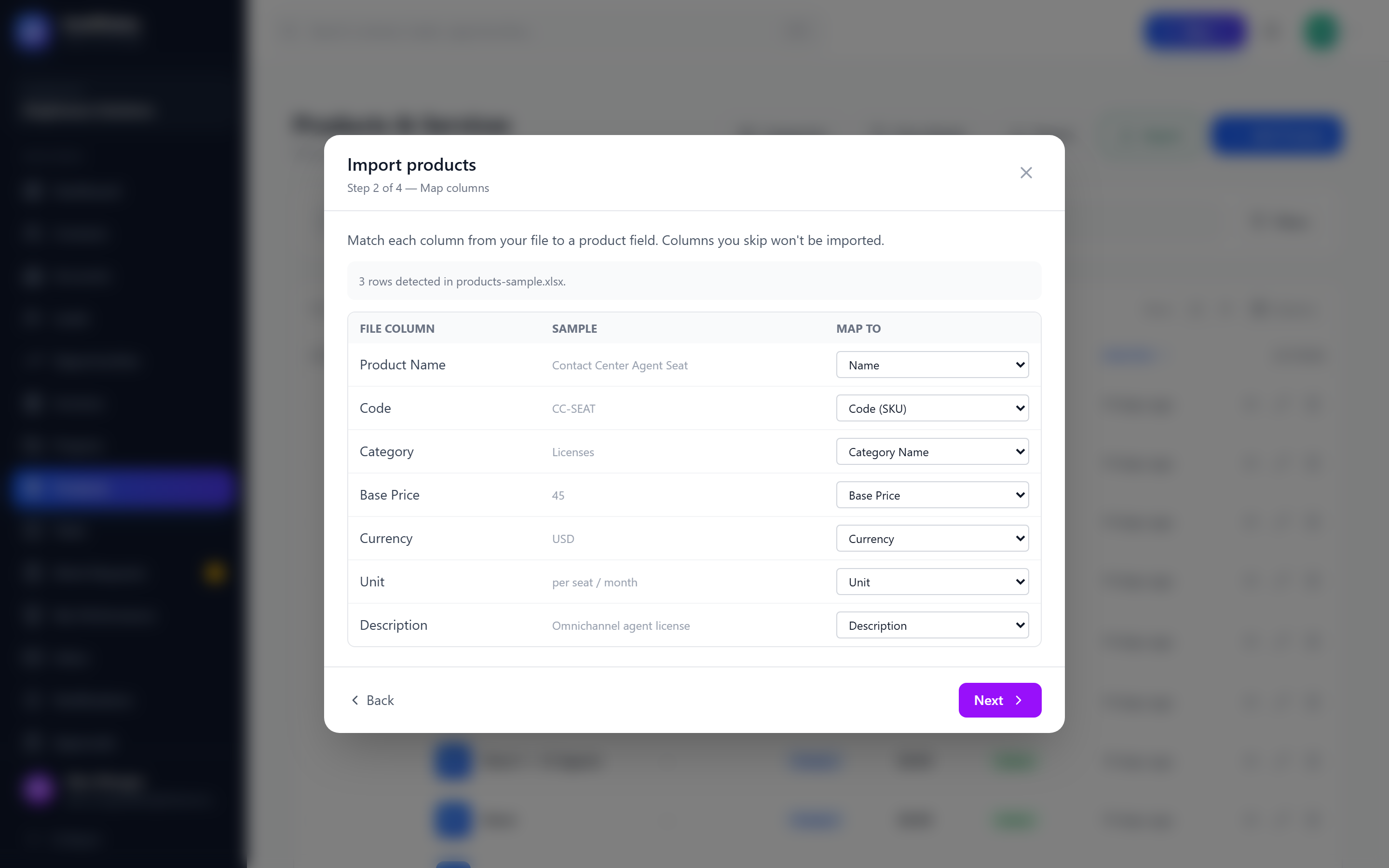
Each file column is shown with a sample value and a Map to dropdown. The wizard auto-suggests mappings from common header names (for example SKU maps to Code, List Price or MSRP maps to Base Price).
| Field | Notes |
|---|---|
| Name | Required. Next stays disabled until a column is mapped to Name. |
| Code (SKU) | Used to detect existing products (see Step 3). |
| Short Description, Description | Free text. |
| Type | For example product, service. Defaults to product. |
| Category Name | Matched to an existing product category by name (case-insensitive). Unknown categories are not created. The product is imported without a category. |
| Unit | Unit of measure, for example each, hour. |
| Base Price, Cost | Must be numeric. An invalid number fails the row. |
| Currency | ISO code. Defaults to USD. |
| Tax Category | Free text. |
| Status | For example active, inactive. Defaults to active. |
| Image URL, External URL | Links. |
| Owner (Full Name) | Matched to an active user by full name or email. Unmatched owners fall back to you. |
| Custom fields | Product custom fields appear with a (Custom) suffix. |
| Skip (Do not import) | Ignore the column. |
Create your product categories before importing so the Category Name column links correctly.
Step 3: Options
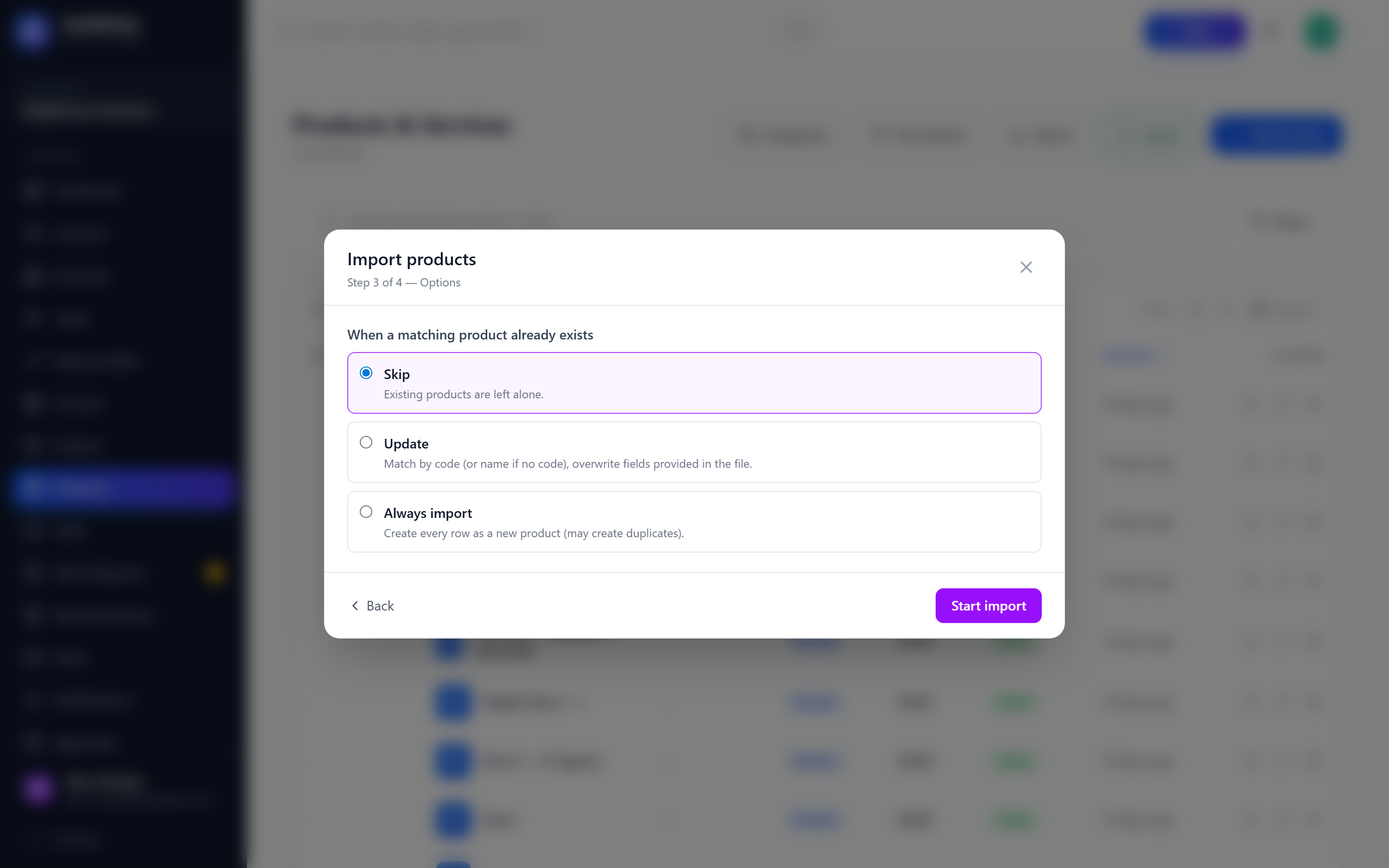
Choose what happens when a matching product already exists. A product matches by Code first (case-insensitive). If the row has no code, it matches by Name.
| Option | Behavior |
|---|---|
| Skip (default) | Existing products are left alone. The row is counted as a duplicate. |
| Update | Overwrites the existing product with the fields provided in the file. Empty cells do not clear existing values. |
| Always import | Creates every row as a new product. This can create duplicates. |
Click Start import.
Step 4: Import
The import runs in the background. The wizard checks progress every few seconds and shows Imported, Skipped, Duplicate and Failed counts.
- Click Continue in background to close the wizard while the import runs. You receive a notification when it finishes.
- If any rows failed, click Download failed rows to get a spreadsheet of those rows with the error for each one (for example
Name is requiredorInvalid base price). - Product imports are also listed on the Batch Jobs page.