Work Requests Overview
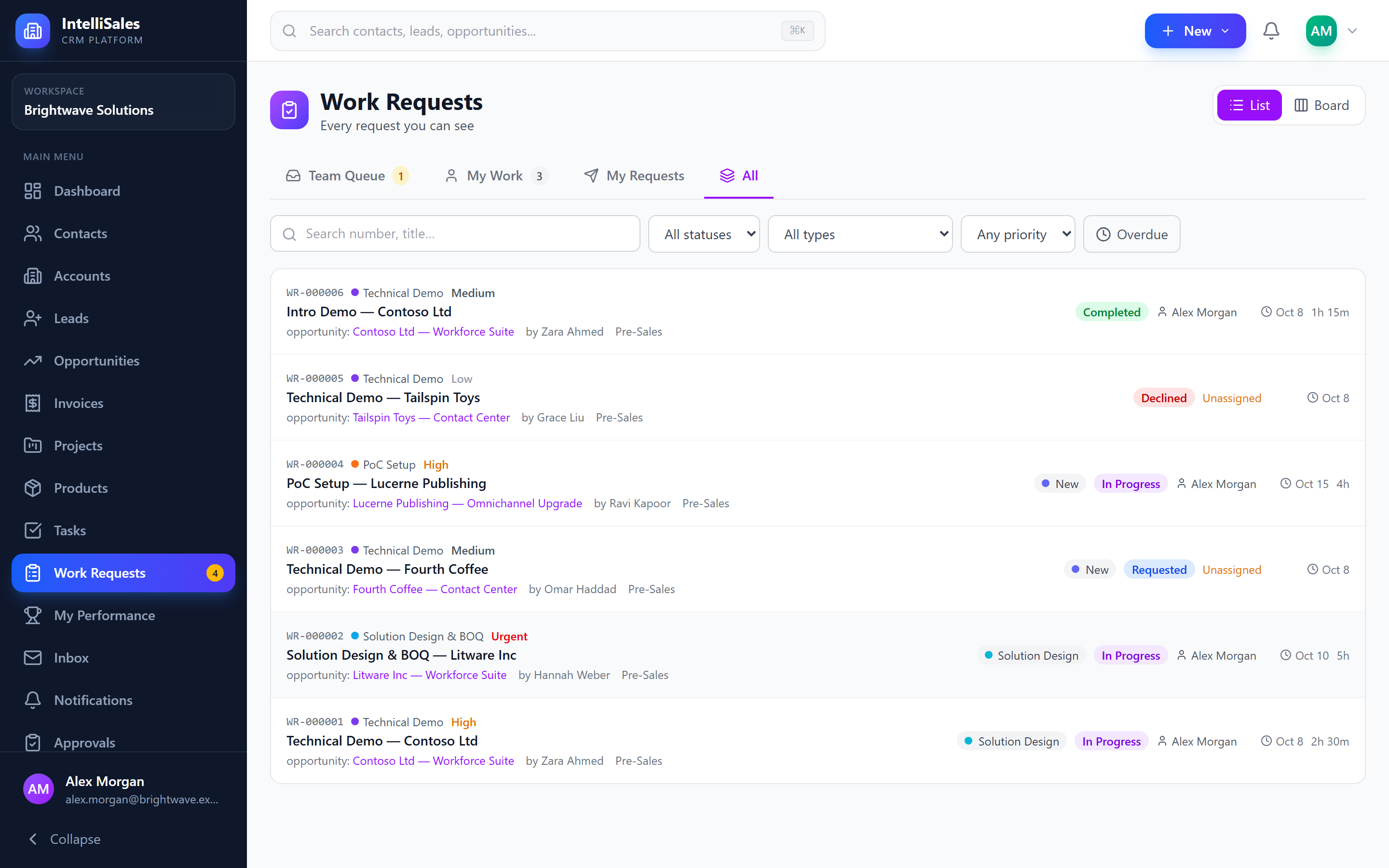
Work Requests let one team ask another team for a piece of work tied to a CRM record. A sales rep can ask presales for a demo or a solution design on an opportunity, ask marketing for a campaign brief, or ask finance for a credit check on a lead — and everyone can see who picked it up, how far along it is, and how much time went into it.
Requests live alongside the record they were raised on, so the context (the deal, the customer, the contacts) is always one click away. Work and time are tracked before a project exists, and carry over when the deal becomes a project.
Key Concepts
Request Types
Every request has a request type, set up by your administrator. A request type defines:
| Setting | What it means for you |
|---|---|
| Name, description and color | What you see when choosing what to ask for (e.g. "Demo", "Solution Design", "Credit Check") |
| Owning team | The team that does the work (optionally a department) |
| Pipeline | The stages the work moves through, e.g. Scoping → In Progress → Review → Done |
| How requests get assigned | Team queue, auto-assign, or lead assigns — see Assignment Modes |
| Can be raised on | Which kinds of records the type can be requested on |
| Due in (days) | A default "needed by" date, which you can change |
| Request form | Extra questions you answer when raising the request (text, number, date, dropdown, multi-select, checkbox or link) |
| Billable by default | Whether time on this kind of work is billable, and at what hourly rate |
If you open Request work and see "No request types can be raised here yet", ask your administrator to add a request type for that kind of record. Administrators set up request types and their pipelines under Admin > Work Requests — see Work Request Settings.
Request Numbers
Each request gets a number such as WR-000042. You can search for a request by its number on the Work Requests page.
Status vs Stage
A request has two independent indicators:
- Status — where the request is in its lifecycle. This is the same for every request type.
- Stage — how far the work has progressed on the request type's own pipeline. Different request types can have completely different stages.
| Status | Meaning |
|---|---|
| Requested | Raised and waiting for someone on the owning team to take it |
| Accepted | Someone has taken the request (or been assigned it) but has not started |
| In Progress | Work has started |
| Completed | The work is done |
| Declined | The owning team declined the request (a reason is always recorded) |
| Cancelled | The request was withdrawn |
Requested → Accepted → In Progress → Completed
    ↘ Declined                     ↘ Cancelled (from any open status)
Stages and status are connected in a few places:
- Stages only unlock once someone has accepted or been assigned the request.
- Moving an Accepted request to another stage automatically marks it In Progress.
- Moving a request into the pipeline's completion stage completes it; moving it into a cancellation stage cancels it.
- Completing a request moves it to the completion stage; cancelling moves it to the cancellation stage (when the pipeline has one).
Requested, Accepted and In Progress count as open. Completed, Declined and Cancelled are closed.
Assignment Modes
The request type decides what happens when you send a request. The request form shows a hint so you know what to expect.
| Mode | What happens |
|---|---|
| Team queue | The request goes to the team queue and every member of the owning team is notified. Any member can Accept it. |
| Auto-assign | The request is assigned straight away, round-robin across the owning team (or to the owner configured on the first stage). If nobody can be picked, it falls back to the team queue. |
| Lead assigns | The team lead is notified and chooses who does the work. |
Who Can Do What
What you can do on a request depends on how you are involved. The request page only shows the buttons you are allowed to use.
| Person | Can |
|---|---|
| Requester (who raised it) | View and edit the details while it is open, cancel it, reopen it after it closes, add files |
| Owning team member | Accept an unassigned request, decline a new request, edit details, log time, add files |
| Assignee | Start, move through stages, complete, hand back to the queue, change billing, log time |
| Team lead / department head | Everything the assignee can do, plus assign and reassign, decline, cancel and reopen |
| Administrator | Everything |
Anyone who can view the lead or opportunity a request was raised on can also see that request — so a lead's owner sees requests a colleague raised on their lead.
Your role must include the Work Requests permission to see the Work Requests menu and tab. Logging time uses the separate Time Tracking permission. If you can't see either, ask your administrator.
A Typical Presales Flow
- Sales rep opens an opportunity, goes to the Work Requests tab and clicks Request work.
- They choose Demo, fill in the details and the request form (for example, the product modules to show and the attendees), set Needed by, and click Send Request.
- The Presales team is notified. The request appears in their Team Queue and in the sidebar badge.
- A presales engineer clicks Accept. The rep is notified that the request was picked up.
- The engineer starts a timer, moves the request through stages such as Scoping → Build → Dry Run, and uploads the demo script and technical proposal on the Files tab.
- When the demo is delivered, the engineer clicks Complete and records the outcome. The rep is notified.
- When the deal is won and a project is created from it, the request is linked to the project, so the delivery team can see the pre-sales work and time.
In This Section
- Raising Work Requests — ask another team for help from a lead or opportunity, follow progress, cancel or reopen.
- Working on Work Requests — the Work Requests page, accepting from the queue, the board, stages, hand-offs and completing.
- Time Tracking — timers and manual time on requests, billable time.
- Associated Records — the panel that links requests, leads, opportunities, contacts, accounts, tasks and projects together.