Associated Records
The Associated Records panel shows everything connected to the record you are looking at — in one place, grouped by type. It also lets you link any two records together, for example a technical contact to a work request, or a related opportunity to a project.
The panel appears in the side column of the detail pages for:
- Leads
- Opportunities
- Contacts
- Accounts
- Tasks
- Projects
- Work requests
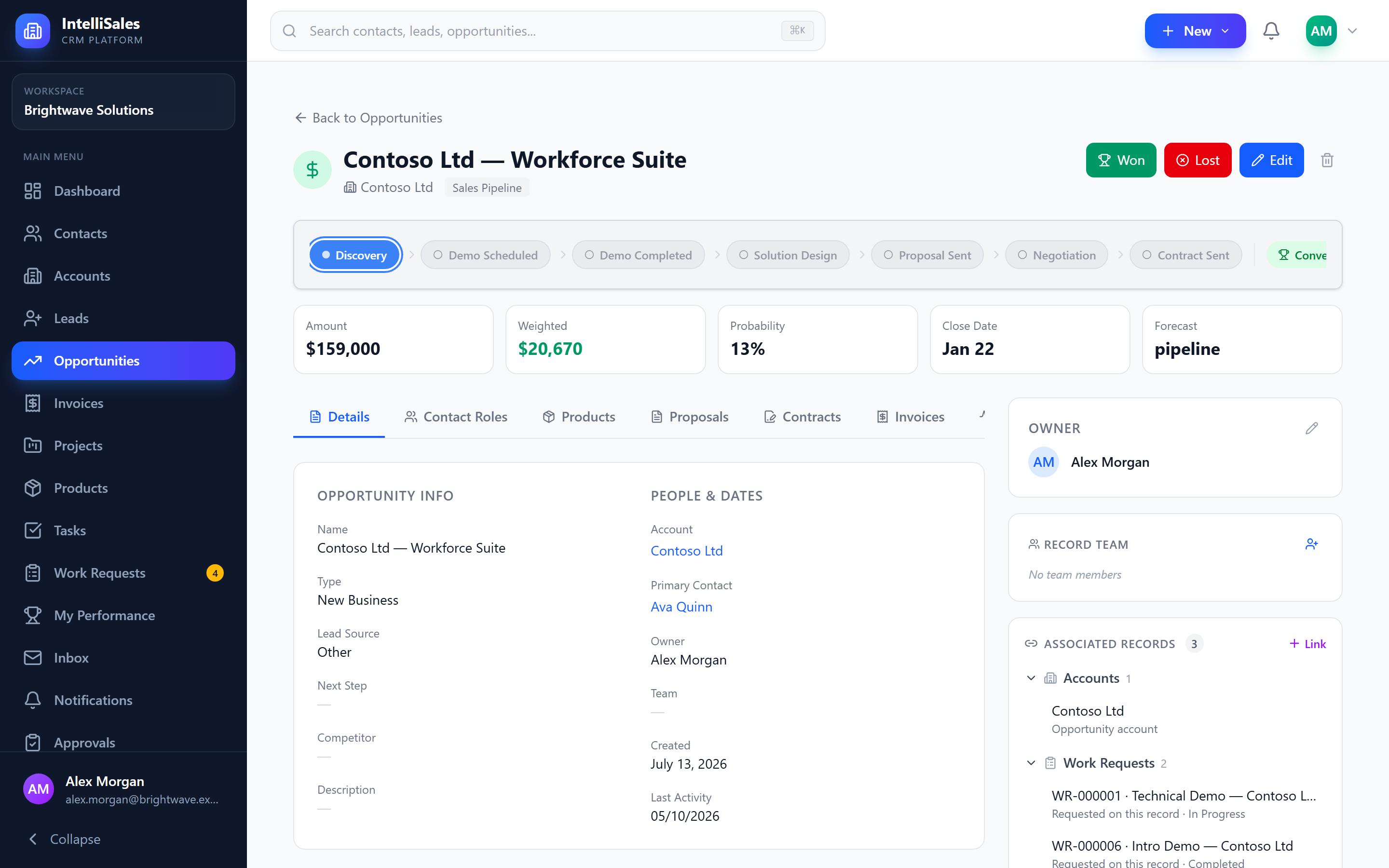
Reading the Panel
The header shows Associated Records and the total number of linked records you can see. Records are grouped by type:
| Group | Examples |
|---|---|
| Leads | The lead an opportunity was converted from |
| Opportunities | Opportunities on an account, the deal a project was created from |
| Accounts | The lead's or opportunity's account |
| Contacts | Contacts on an account or opportunity |
| Projects | The project created from a deal |
| Tasks | Tasks on this record |
| Work Requests | Requests raised on this record, or pre-project work on a project |
Click a group heading to collapse or expand it; the number next to it is the size of the group. Click a record's name to open it.
Under each record's name, a short note explains why it is linked — for example Opportunity account, Converted from, Task on this record, Requested on this record, Pre-project work — or shows the relationship you typed when linking it manually.
Two Kinds of Links
Links From Record Fields
Many links already exist because of how records are set up — the account on an opportunity, the contacts on a deal, the opportunity a project was created from, the record a task or work request is on. The panel shows these automatically, with a note saying where the link comes from.
These links can't be removed from the panel. To change them, edit the field on the record itself (for example, change the opportunity's account).
Some of the links you'll see:
| On a… | Links shown automatically |
|---|---|
| Lead | Its account and contact (including those created on conversion), the opportunity it converted to, its tasks and work requests |
| Opportunity | Its account, the lead it came from, its contacts, the project created from it, its tasks and work requests |
| Account | Its contacts, opportunities, leads and projects, its tasks and work requests |
| Contact | Its accounts, opportunities, leads and projects, its tasks and work requests |
| Project | The opportunity it was created from, its account and contact, its tasks, and work requests on it or on the deal it came from |
| Task | The record the task is on, and its project |
| Work request | The record it was raised on, the project it was delivered as, and its tasks |
Manual Links
You can also link any two records yourself — for example, a contact who is the technical lead for a work request, or two opportunities for the same customer programme. Manual links:
- Show on both records — link a contact to a work request, and the work request appears on the contact's panel too.
- Can carry a relationship label, such as Technical contact.
- Can be removed.
Linking and unlinking are recorded in the activity of both records.
When a lead is converted, each of its work requests moves to the new opportunity and keeps a manual link back to the lead, labelled Raised on. See Raising Work Requests.
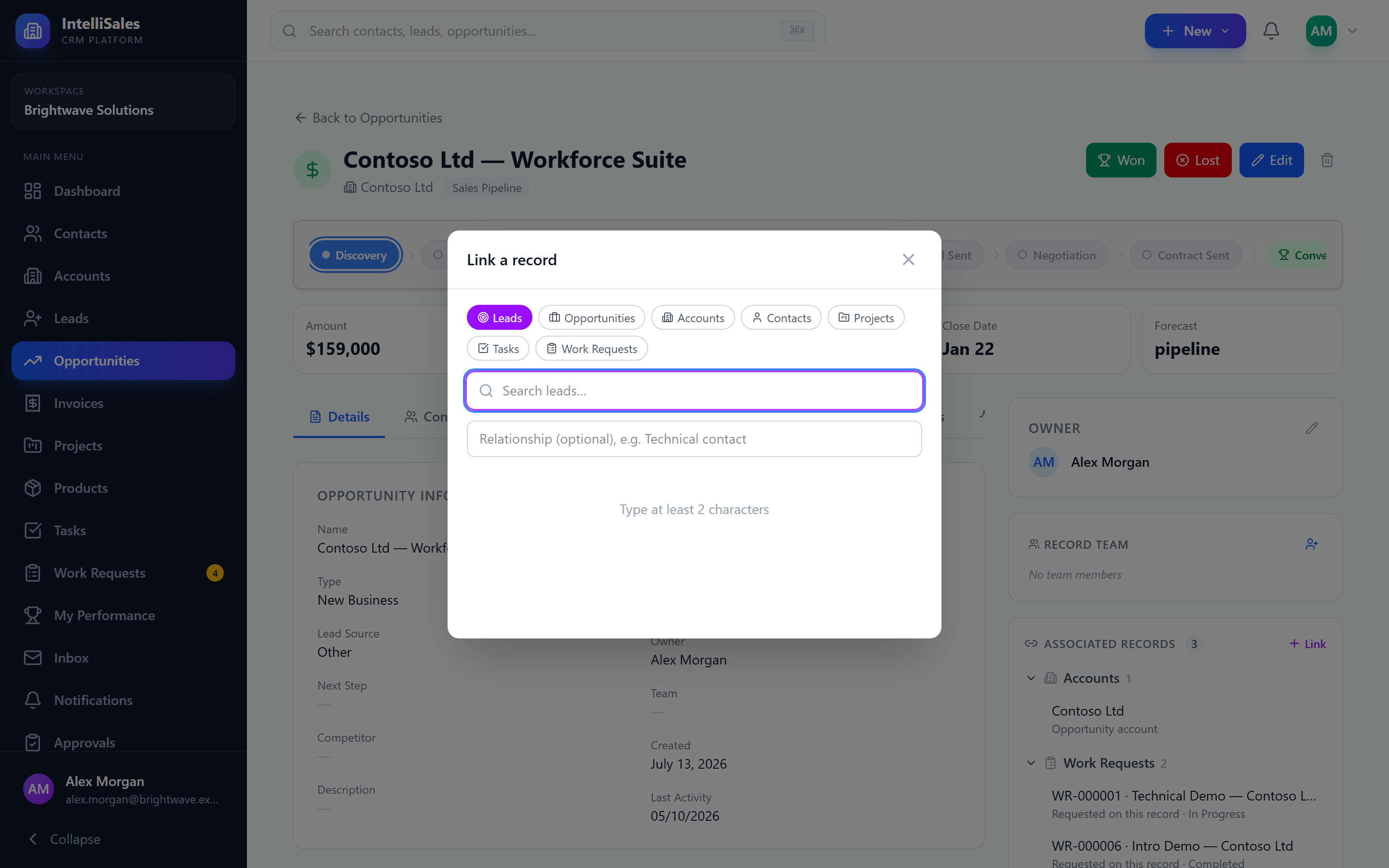
Linking a Record
- On the detail page, find the Associated Records panel.
- Click Link.
- Choose the type of record to link.
- Type at least 2 characters to search.
- Optionally enter a Relationship, e.g. Technical contact.
- Click the record in the results.
The picker closes and the panel refreshes with the new link. Records already linked are marked Linked and can't be picked again. A record can't be linked to itself.
Unlinking a Record
- Hover over a manually linked record in the panel.
- Click the × (Unlink) icon.
Only manual links show the × icon. Links that come from record fields have to be changed on the record itself.
Permissions
- Seeing records — the panel only lists records you are allowed to open. If a group contains records you can't access, it shows "N more you don't have access to" instead of their names, so you know they exist without seeing their details.
- Linking — the Link button appears when your role can edit the kind of record you are on. In the picker you can only choose types you can view, and only find records you can access.
- Unlinking — the × icon appears on manual links when your role can edit the kind of record you are on.