Raising Work Requests
This chapter is for the person asking for help — usually a sales rep or account owner. It covers raising a request from a lead or opportunity, following its progress, and what happens to your requests when the lead converts or the deal becomes a project.
For background on request types, status and stages, see Work Requests Overview.
The Work Requests Tab
Lead and opportunity detail pages have a Work Requests tab. It lists every request raised on the record, plus requests that were linked to it from elsewhere (marked linked).
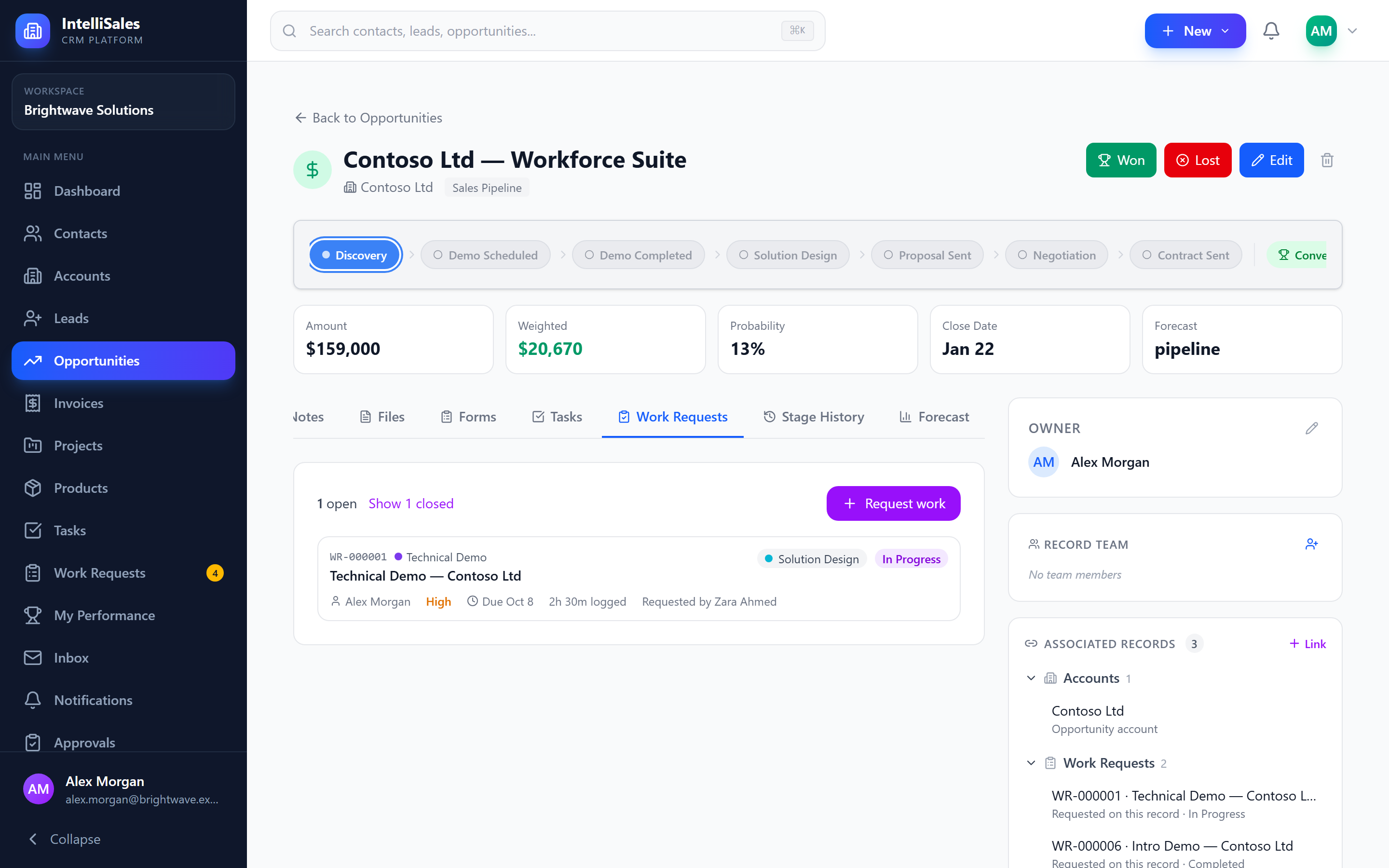
Each request shows:
- Request number and type
- Title
- Stage (while open) and status
- Assignee — or Unassigned · <Team> queue if nobody has taken it yet
- Priority
- Due date — shown in red as Overdue when the date has passed
- Time logged so far
- Decline reason, if the team declined it
- Requested by
The tab shows open requests by default. Click Show N closed to include completed, declined and cancelled requests. Click any request to open it.
Anyone who can view the lead or opportunity can see all of its requests, even ones raised by colleagues.
Requesting Work
- Open the lead or opportunity.
- Go to the Work Requests tab.
- Click Request work.
- Choose what you need. Only request types that can be raised on this kind of record are listed, each with its description and the team that owns it. If only one type is available, it is selected for you.
- Read the hint at the top of the form — it tells you whether the request goes to the team queue, is auto-assigned, or is assigned by the team lead.
- Fill in the form:
- Title (required) — pre-filled as <Type> — <record name>; change it to something specific
- Details — the context the team needs: goals, stakeholders, timing
- Priority — Low, Medium (default), High or Urgent
- Needed by — pre-filled when the request type has a default turnaround
- Request form questions — the questions defined for this type; those marked with a red asterisk are required
- Click Send Request.
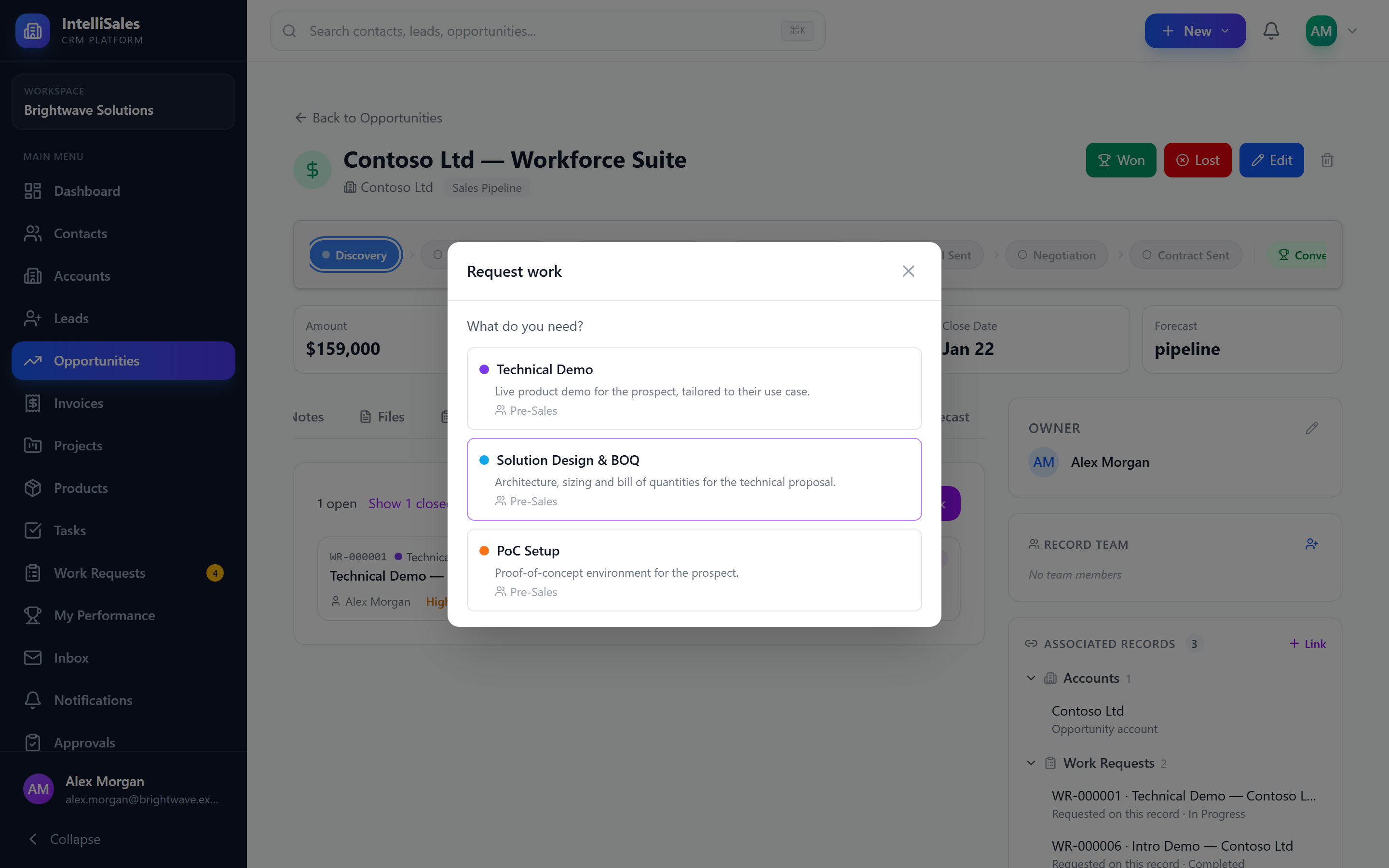
The request appears on the tab immediately and an entry such as "Demo requested: Demo — Acme Corp" is added to the record's activity timeline. The owning team (or its lead) is notified.
Put everything the team needs in Details and the request form. A good request — who the audience is, what they care about, when it's needed — saves a round of back-and-forth.
Request work is hidden on converted or disqualified leads, on lost opportunities, and if your role doesn't allow creating work requests.
Following Progress
Click a request on the tab, or find it under My Requests on the Work Requests page, to open it. The request page shows:
- The current status and stage, with a stage bar showing which stages are done
- Who it is Assigned to, who Requested it and the owning Team
- Dates — Needed by, Requested, Accepted, Started, Completed, and how long it has been in its current stage
- Logged time against the Estimate, and whether the work is billable
- Files the team has attached — for example a technical proposal or demo script
- Activity — every change, stage move, hand-off and time entry
You are notified when:
- Someone picks up your request (accepts it or is assigned it)
- The team declines it — with their reason
- It is completed — with the outcome they recorded
- It is cancelled by someone else
See Notifications to choose how you receive these.
Editing a Request
While a request is open, you can click the pencil icon on the request page to change the title, details, priority, needed-by date, estimate and your answers to the request form. Billing settings can only be changed by the assignee or the team lead.
A closed request has to be reopened before it can be edited.
Cancelling a Request
If you no longer need the work:
- Open the request.
- Click Cancel.
- Optionally enter a reason.
- Click Cancel request.
The request moves to Cancelled (and to the pipeline's cancellation stage, if it has one). The assignee is notified. Only the requester or the team lead can cancel.
Reopening a Request
If a closed request (completed, declined or cancelled) needs more work:
- Open the request.
- Click Reopen.
- Optionally add a note.
- Click Reopen.
What happens next depends on how it closed:
- If someone was assigned, it goes back to them as Accepted.
- If it was declined, or nobody was assigned, it goes back to the team queue as Requested and the team is notified again.
- If it was sitting on a completion or cancellation stage, it moves back to the first stage of the pipeline.
Only the requester or the team lead can reopen a request.
Deleting a Request
You can delete a request you raised as long as nobody has picked it up yet. Once work has started, only the team lead or an administrator can delete it. Deleting stops any timer running on it.
When the Lead Converts
When you convert a lead, its work requests move with it:
- Requests on the lead move to the new opportunity. If no opportunity is created, they move to the new account, or to the contact if there is no account.
- The original lead stays linked to each request as an associated record ("Raised on"), so the lead's history is still one click away. The requests still appear on the converted lead's Work Requests tab, marked linked.
- Each moved request gets a "Moved to Opportunity" entry in its activity.
Nothing about the request itself changes — the same people stay assigned and the same stage and time remain.
When the Deal Becomes a Project
When a project is created from an opportunity, every request on that opportunity that isn't already tied to a project is linked to the new project:
- The request page shows a Delivered as project card linking to the project.
- The project's Associated Records panel lists the requests under Work Requests with the note "Pre-project work".
This gives the delivery team visibility into the pre-sales effort — the demo, the solution design, the time spent — before they start.