Opportunities List & Kanban Views
The Opportunities module provides two primary views for managing your deals: a List view for data-rich browsing and a Kanban board for visual pipeline management.
List View with Dynamic Columns
The list view displays opportunities in a data table with configurable columns. Default columns include:
- Opportunity Name
- Amount
- Stage
- Probability
- Close Date
- Account
- Owner
- Created Date
Click the column settings icon to show or hide columns. All standard and custom fields are available as columns.
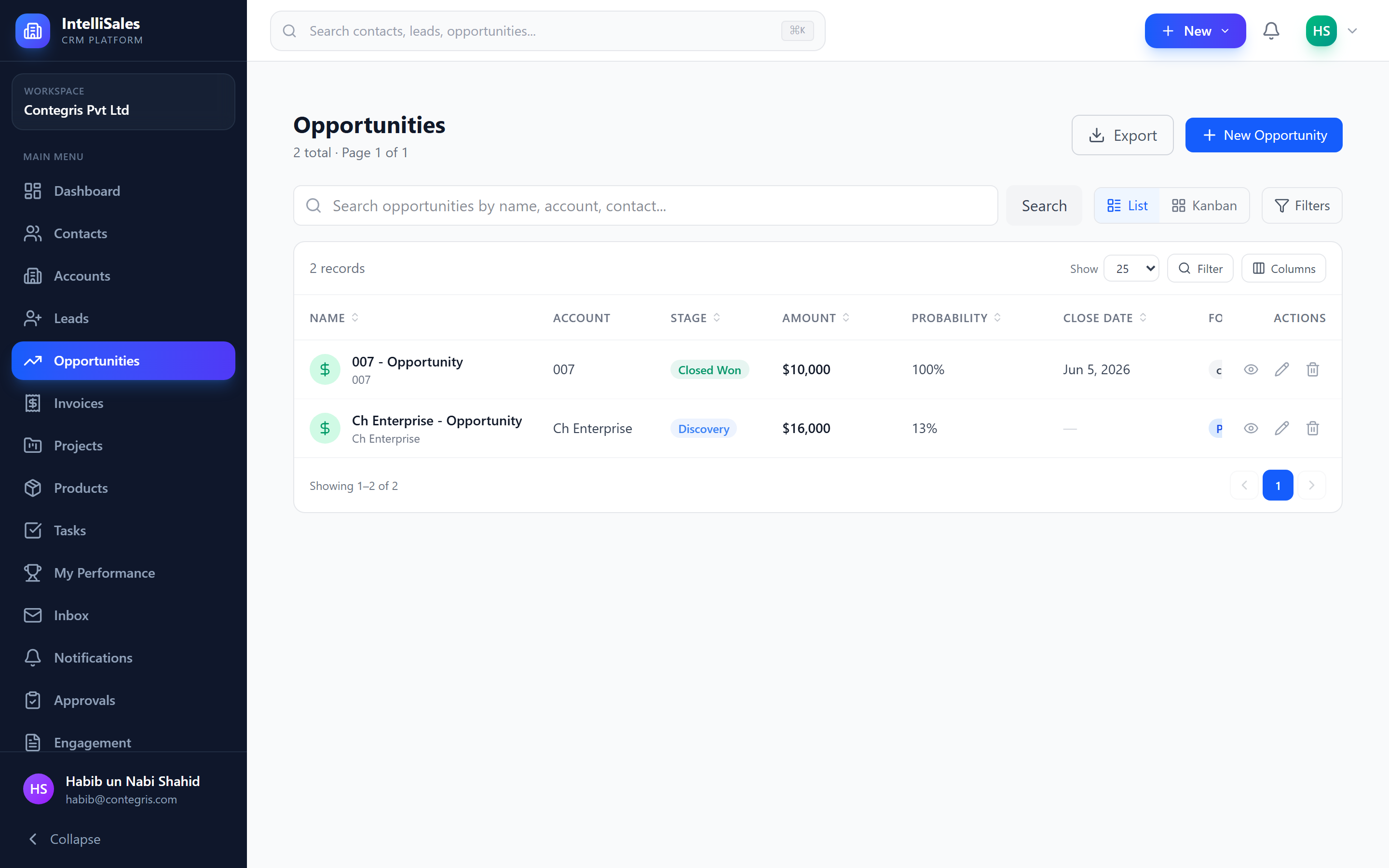
For details on data table features, see Data Tables.
Kanban Board
The Kanban board displays opportunities as cards organized into columns by pipeline stage. This provides a visual representation of your deal pipeline.
Each card shows:
- Opportunity name
- Account name
- Deal amount
- Close date
- Probability percentage
- Owner avatar
- Priority icon
Drag-and-Drop
Move opportunities between stages by dragging and dropping cards:
- Click and hold an opportunity card.
- Drag it to the target stage column.
- Release to drop.
If the target stage has required fields, a modal prompts you to fill them in.
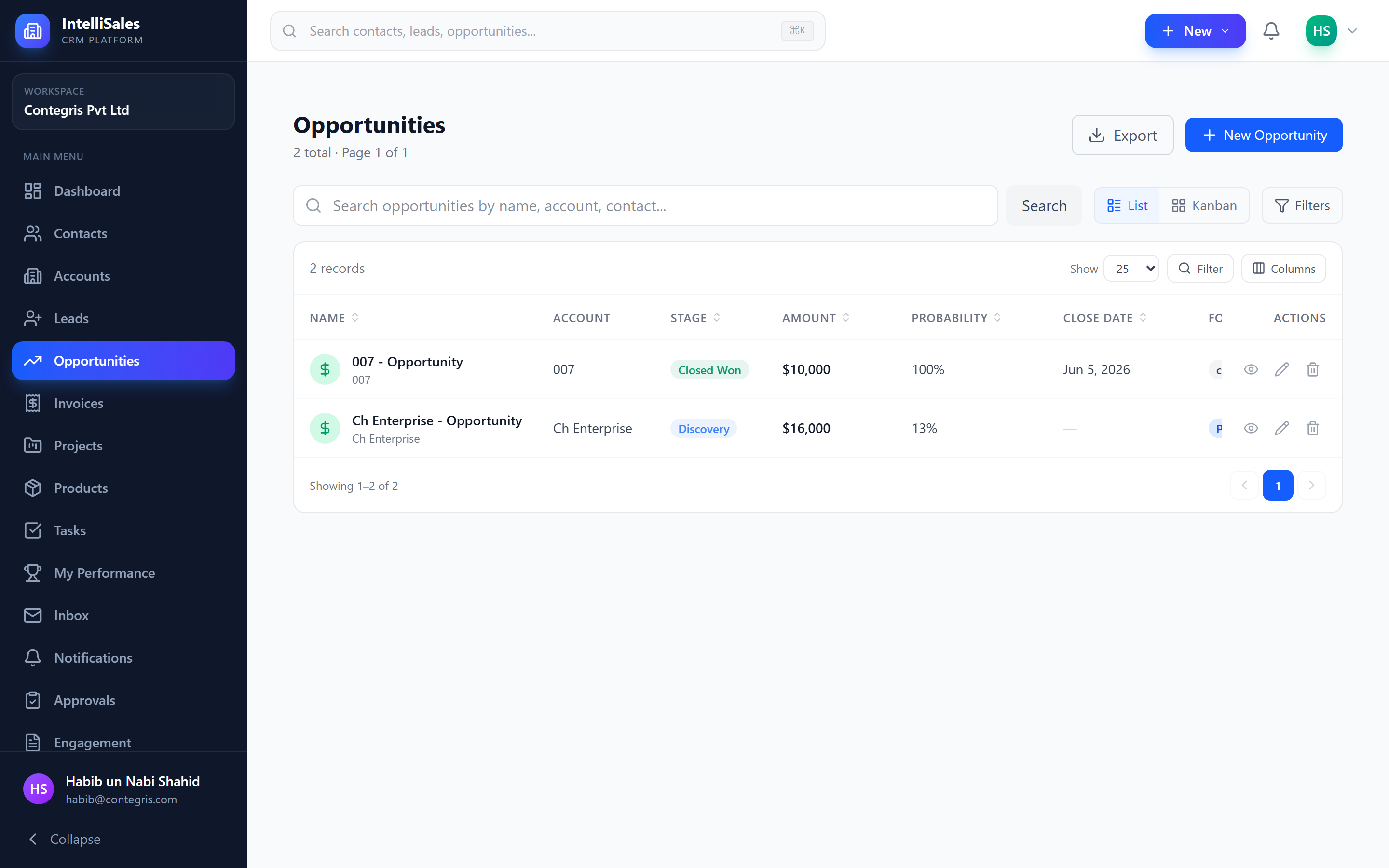
The Kanban board is especially useful during pipeline review meetings. Sort by close date to focus on deals closing this month, and drag cards to update stages as you discuss each deal.
Pipeline Selector
If your organization has multiple pipelines, use the pipeline dropdown at the top of the page to switch between them. Each pipeline has its own stages and its own Kanban layout.
Search, Filter, and Sort
Search
Type in the search bar to find opportunities by name, account, or other text fields.
Filters
Narrow down visible opportunities using:
- Stage — specific pipeline stages
- Owner — assigned sales rep
- Close Date range — deals closing within a timeframe
- Amount range — minimum/maximum deal value
- Probability range — win likelihood threshold
- Account — deals for a specific organization
- Forecast Category — Committed, Best Case, Pipeline, Omitted
Sort
Click any column header in list view to sort. Common sorts include:
- Close Date (ascending) — focus on deals closing soonest
- Amount (descending) — focus on highest-value deals
- Probability (descending) — focus on most likely wins
Close Probability Display
In both views, the probability is displayed as a percentage. This indicates how likely the deal is to close:
- 75-100% — high confidence (often shown in green)
- 50-74% — moderate confidence (shown in yellow/amber)
- 25-49% — lower confidence (shown in orange)
- 0-24% — at risk (shown in red)
Probability often auto-updates based on the pipeline stage but can be manually overridden.
Bulk Operations
In list view, select multiple opportunities using checkboxes for bulk actions:
- Bulk Update — change fields on multiple deals at once
- Bulk Delete — remove multiple deals
- Export — download selected deals
See Bulk Operations for details.