Time Tracking
Time spent on a work request — a demo build, a solution design, a credit review — is logged directly on the request. This lets the team see the effort behind every deal, and lets managers report on pre-sales time and billable work long before a project exists.
Time is logged on the Time tab of a work request. Time on project tasks is logged separately on the project — see Managing Projects.
Who Can Log Time
On a work request, you can log time if you are:
- The assignee
- A member of the owning team
- The team lead (or department head, or an administrator)
Time can only be logged while the request is open (Requested, Accepted or In Progress). Your role also needs the Time Tracking permission. Anyone who can see the request can see its time entries.
Totals
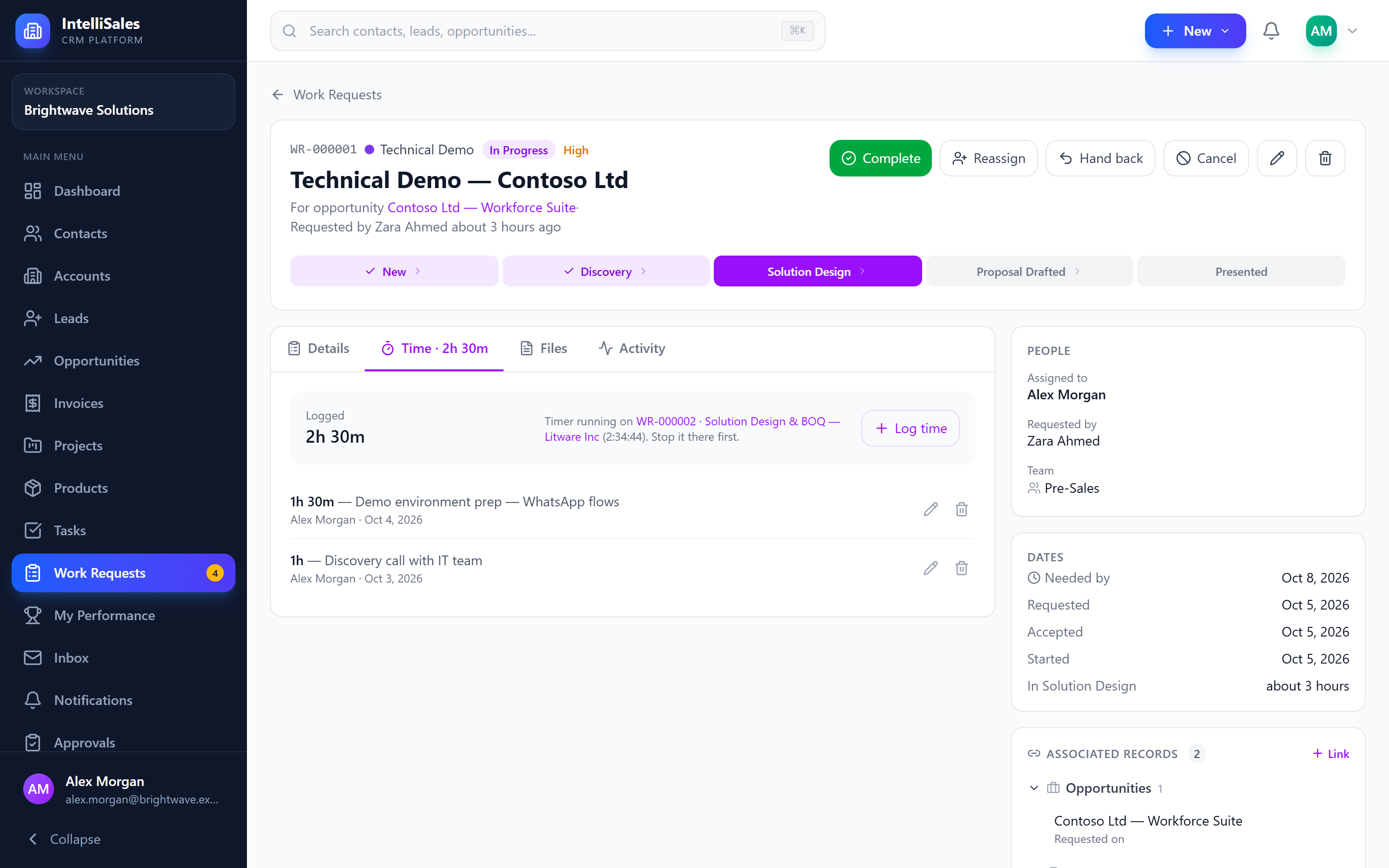
The top of the Time tab shows:
- Logged — total time logged on the request by everyone
- Billable — billable time, and the billable amount when an hourly rate is set (shown only when there is billable time)
Time is shown in hours and minutes, e.g. 1h 30m. The total also appears on the Time tab label and on the Details tab, next to the estimate.
Using the Timer
- Open the request and go to the Time tab.
- Click Start timer. A red dot and a running clock show the elapsed time.
- Work as normal. The timer runs on the server, so you can leave the page, refresh, or close the browser — it keeps counting.
- When you're done, come back to the request and click Stop & log.
The elapsed time is logged as an entry straight away (rounded to the nearest minute, at least 1 minute and at most 24 hours), marked timer. Billing follows the request's billable setting and hourly rate.
To throw away a running timer without logging anything, click Discard and confirm.
One Timer at a Time
You can only run one timer at a time:
- If your timer is running on another request, the Time tab shows "Timer running on <record> (elapsed). Stop it there first." with a link to that record, instead of the Start timer button.
- You can't start a timer on a work request while a project task timer is running for you. Stop the project timer first.
If a request is completed, cancelled or deleted while your timer is running on it, the timer is discarded and the time is not logged. Always click Stop & log before closing a request.
Logging Time Manually
Use manual entries for time you didn't time — a call earlier in the day, or work done offline.
- On the Time tab, click Log time.
- Enter the hours and minutes.
- Choose the date the work was done (defaults to today).
- Tick or untick Billable — it starts with the request's billable setting.
- Optionally describe what you worked on.
- Click Save.
A single entry can't be more than 24 hours.
Billable Time
Whether time is billable starts from the request type (set by your administrator) and can be changed per request by the assignee or team lead when editing the request — see Editing Details and Billing.
- Timer entries use the request's billable setting and hourly rate.
- Manual entries let you tick or untick Billable for each entry.
- When an hourly rate is set, each billable entry shows its amount, and the totals show the billable amount so far in the request's currency.
Viewing Entries
Entries are listed newest first. Each shows:
- The time and description
- Who logged it and the date
- timer — if it came from the timer
- billable and its amount — if it is billable
Editing and Deleting Your Entries
Pencil and bin icons appear next to your own entries.
- Edit — click the pencil, change the minutes or description, and click the tick to save (or the cross to cancel).
- Delete — click the bin and confirm.
Your role needs the Time Tracking edit or delete permission to make these changes.
Time in Reports
All time entries are available in the report builder through the Time Entries data source — for example, hours by person, by request type, or by whether the deal was won. See Report Builder.