Working on Work Requests
This chapter is for the team doing the work — presales and deployment engineers, marketers, finance analysts — and for their team leads. It covers the Work Requests page, picking up requests, moving them through stages and completing them.
For background on request types, status and stages, see Work Requests Overview.
The Sidebar Badge
Work Requests appears in the main sidebar (between Tasks and My Performance) when your role includes the Work Requests permission. Its amber badge counts:
- Requests assigned to you that are Accepted or In Progress, plus
- Unassigned requests waiting in the queues of the teams you belong to
The badge refreshes as you move between pages and every minute. When the sidebar is collapsed, it shows as an amber dot.
The Work Requests Page
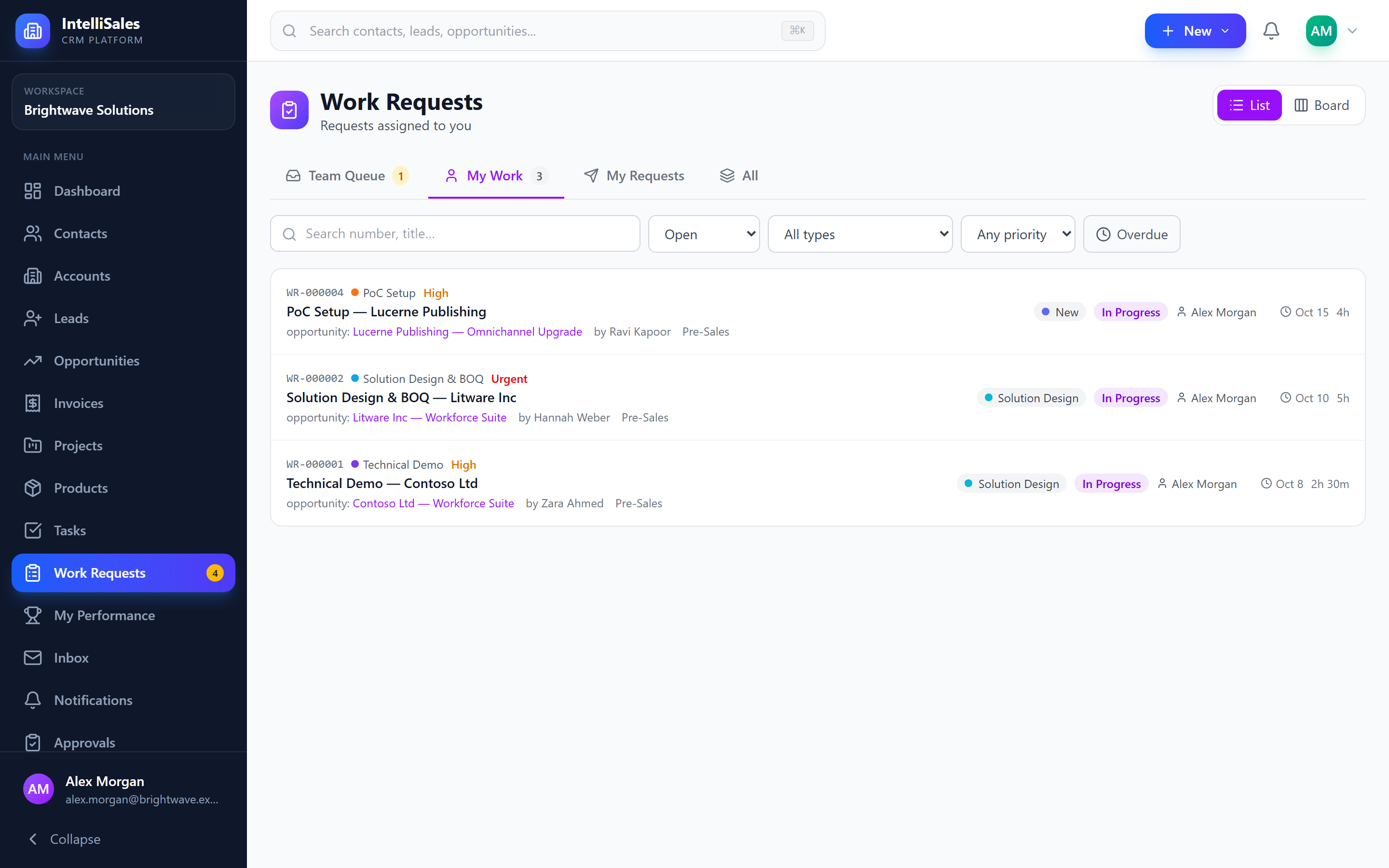
Click Work Requests in the sidebar to open the page. It opens on My Work.
Views
| View | Shows |
|---|---|
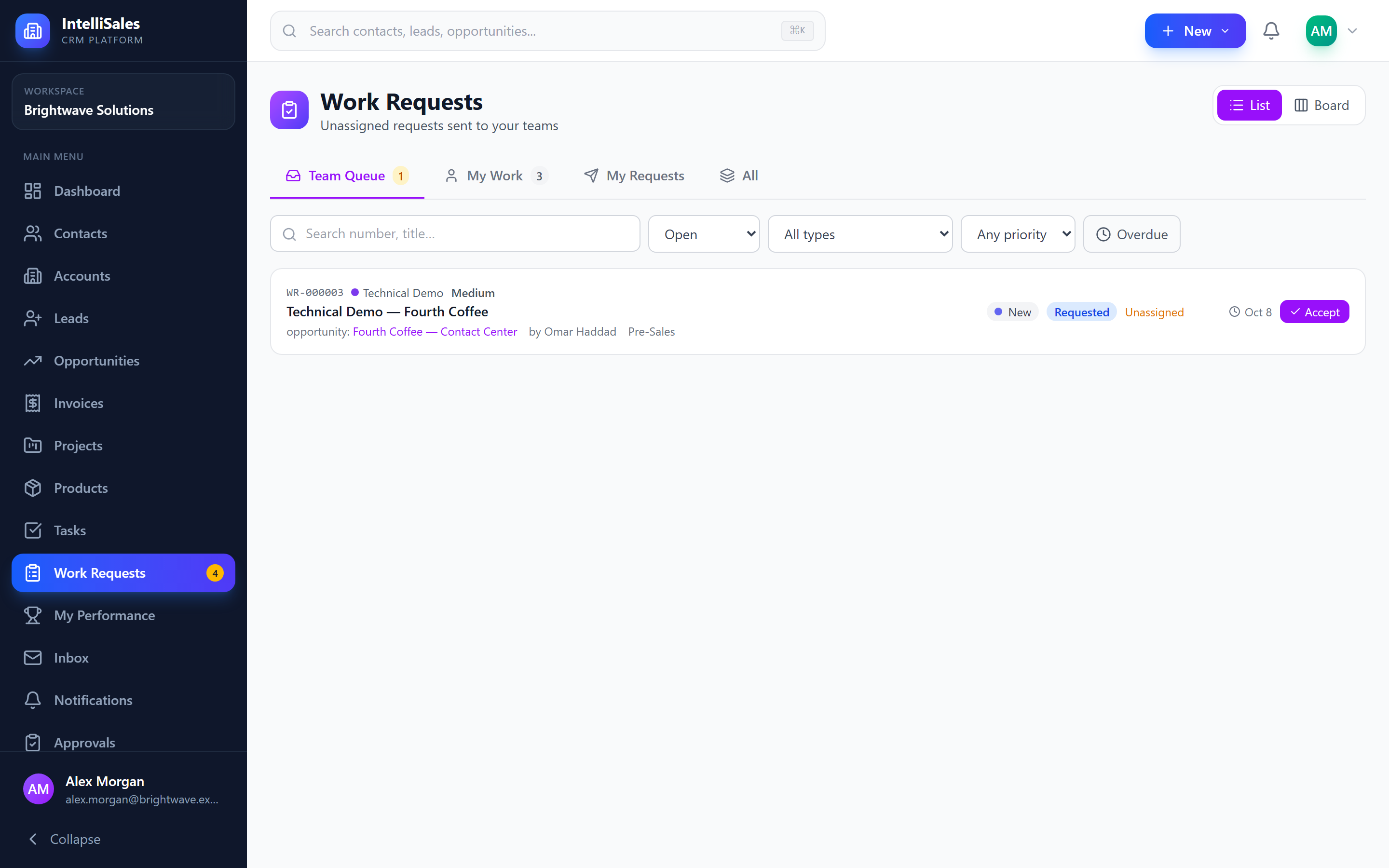
| Team Queue | Unassigned requests sent to your teams, waiting for someone to accept them |
| My Work | Requests assigned to you |
| My Requests | Requests you raised |
| All | Every request you can see |
Team Queue, My Work and My Requests show a count of open requests next to their name. The Team Queue count is highlighted in amber.
Filters
| Filter | Options |
|---|---|
| Search | Request number, title or details (at least 2 characters) |
| Status (list only) | Open (default), Requested, In progress, Closed, All statuses |
| Type | Any request type |
| Priority | Urgent, High, Medium, Low |
| Overdue | Only open requests past their needed-by date. On My Work, the button shows how many of your requests are overdue. |
Your view, layout and filters are kept in the page address, so you can bookmark a view or share it with a colleague.
List Layout
Each row shows the request number, type, priority, title, the record it was raised on (click to open it), who requested it, the owning team, the current stage, status, assignee (or Unassigned), due date (red when overdue) and time logged. Click a row to open the request. The list shows 25 requests per page, newest first.
Board Layout
Click Board at the top right to see requests as cards in stage columns.
- Choose a Pipeline — each request type has its own pipeline, so the board shows one pipeline at a time.
- Columns show the pipeline's open stages, each with a count. Only open requests are shown.
- Drag a card to another column to move it to that stage.
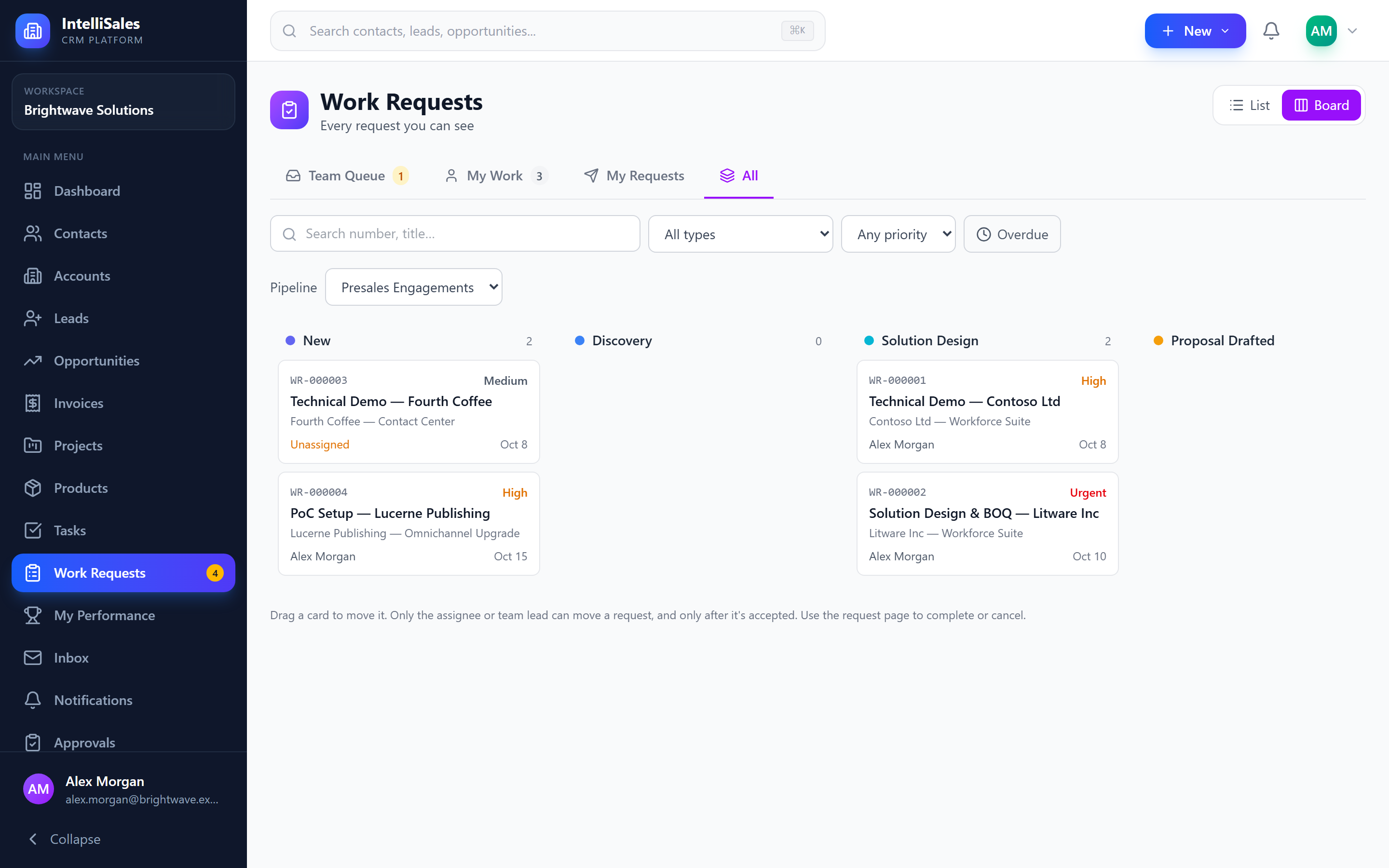
Only the assignee or the team lead can move a request, and only after it has been accepted. To complete or cancel a request, open it — the completion and cancellation stages are not shown as columns.
Picking Up Requests
Accepting from the Queue
Any member of the owning team can take an unassigned request:
- In the Team Queue view, click Accept on the row, or
- Open the request and click Accept.
The request is assigned to you and becomes Accepted. The requester is notified that it was picked up.
Being Assigned
Depending on the request type, requests may also reach you by:
- Auto-assign — the request is assigned round-robin across the team as soon as it is raised.
- Lead assigns — your team lead picks you.
Either way you receive a Work Request Assigned notification and the request appears in My Work.
Assigning and Reassigning (Team Leads)
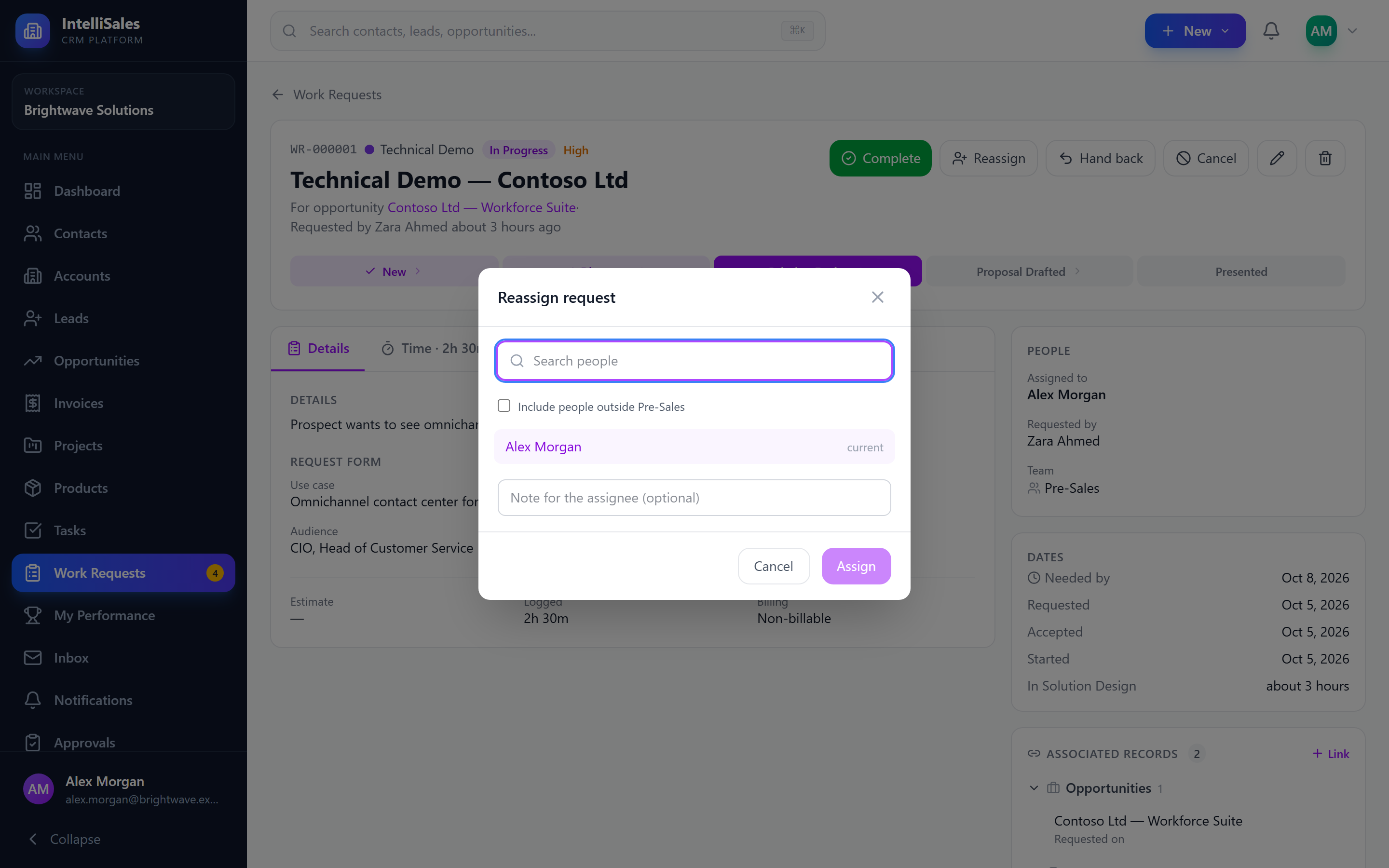
Team leads, department heads and administrators can assign any open request:
- Open the request.
- Click Assign (or Reassign if someone already has it).
- Pick a person. Members of the owning team are listed first; tick Include people outside <Team> to pick anyone else.
- Optionally add a note for the assignee.
- Click Assign.
The new assignee is notified. Assigning an unassigned request also marks it Accepted.
Declining a Request
If your team can't take a request on, decline it while it is still new (Requested):
- Open the request.
- Click Decline.
- Enter a Reason — this is required, and the requester sees it.
- Click Decline.
Any member of the owning team, or the team lead, can decline. The requester is notified with your reason.
Handing a Request Back
If you have accepted a request but can't do it after all:
- Open the request.
- Click Hand back.
- Optionally leave a note for the team.
- Click Hand back.
The request returns to the team queue as Requested and unassigned. The team is notified again — or only the team lead, for request types where the lead assigns.
The Request Page
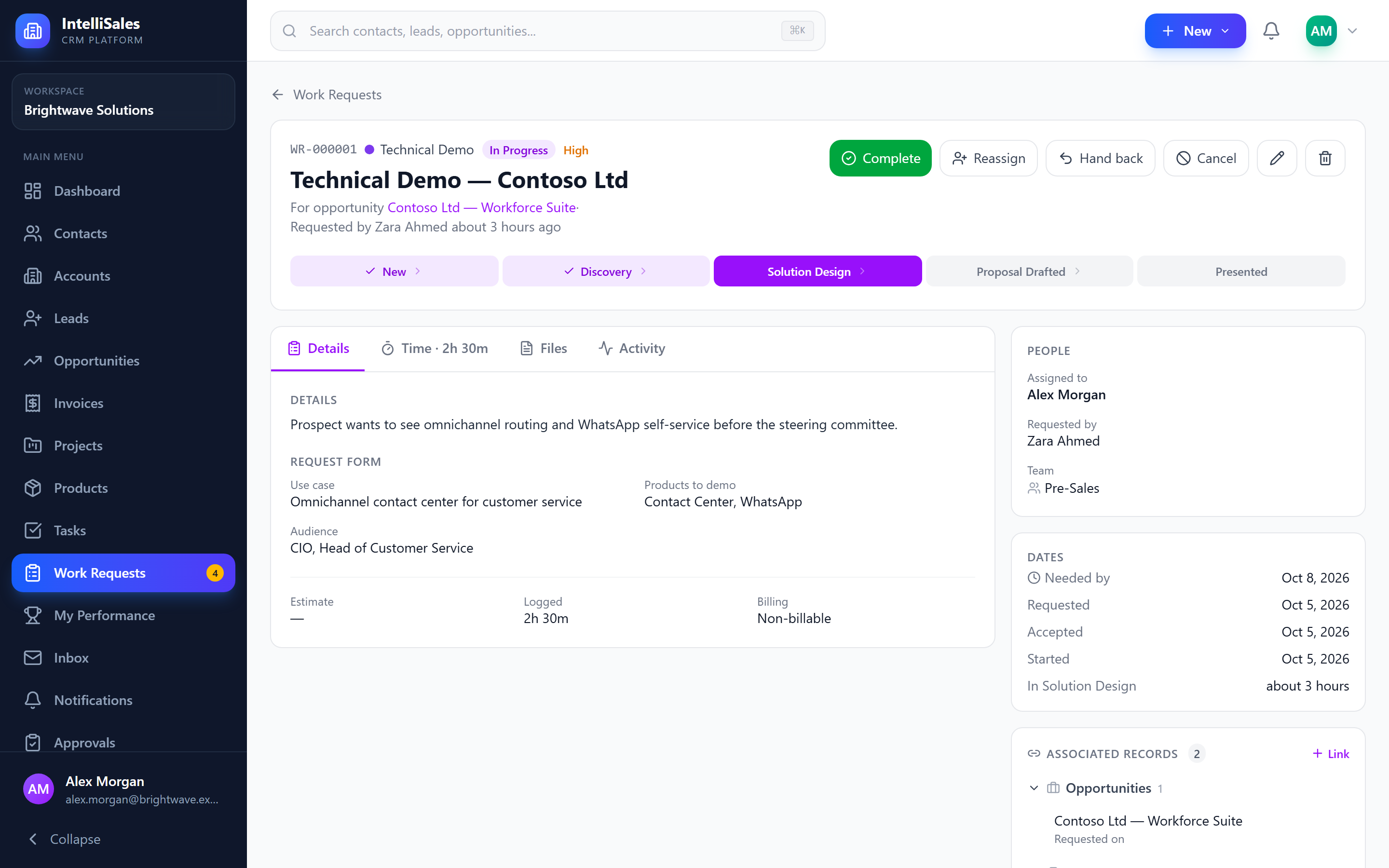
Header and Actions
The header shows the request number, type, status, priority, title, the record it was raised on and who requested it. The action buttons depend on the status and your role — you only see actions you can take:
| Button | When it appears |
|---|---|
| Accept | New, unassigned request; you are on the owning team |
| Start | Accepted request; you are the assignee or team lead |
| Complete | Open, assigned request; you are the assignee or team lead |
| Assign / Reassign | Open request; you are the team lead |
| Hand back | You are the assignee and it is Accepted or In Progress |
| Decline | New request; you are on the owning team |
| Cancel | Open request; you are the requester or team lead |
| Reopen | Closed request; you are the requester or team lead |
| Edit (pencil) | Open request; you are involved in it |
| Delete (bin) | Your role allows deleting work requests. Once work has started, only the team lead or an administrator can actually delete it. |
If a request was declined, the reason is shown in red under the header.
Moving Through Stages
The stage bar under the header shows the pipeline's open stages. Completed stages are ticked, and the current stage is highlighted.
To move a request, click a stage on the bar (or drag its card on the board). You need to be the assignee or the team lead, and the request needs to be Accepted or In Progress — before that, the bar shows "Stages unlock once someone accepts or is assigned the request."
- Moving an Accepted request automatically marks it In Progress. You can also click Start to do this without changing stage.
- Some pipelines require sequential movement — you can't skip stages, and you'll see an error if you try.
- Every move is recorded on the Activity tab (Stage changed from "X" to "Y").
Stage Hand-offs
Your administrator can give a stage its own owner — for example, a Review stage owned by the presales team lead, or a Pricing stage handled by someone in finance. When you move a request into a stage like that, the request is handed off to that stage's owner automatically: they become the assignee, receive a Work Request Assigned notification, and the activity shows Handed off at stage "<stage>".
Stages without their own owner keep the current assignee.
Tabs
| Tab | Contents |
|---|---|
| Details | The request details, answers to the request form, the estimate, time logged (amber when it exceeds the estimate), and billing — billable or not, the hourly rate, and the billable amount so far |
| Time | The timer, manual time entries and totals — see Time Tracking. The tab label shows the total logged. |
| Files | Files attached to the request |
| Activity | A timeline of what happened: creation, edits, assignments and hand-offs, stage moves, status changes, time logged, removed files and record links |
Side Panels
- People — assignee, requester and team
- Dates — needed by (red when overdue), requested, accepted, started, completed, cancelled or declined, and how long it has been in the current stage
- Delivered as project — shown once the opportunity the request belongs to has become a project
- Associated Records — the record it was raised on and anything else linked to it; see Associated Records
Files
Use the Files tab to share the work product — technical proposals, solution designs, demo scripts, briefs, spreadsheets.
- Open the request and go to the Files tab.
- Click Upload or drag files onto the upload area.
Everyone who can see the request can see its files. A file can be removed by the person who uploaded it, the assignee, the requester, or the team lead. Removals are recorded on the Activity tab.
Attach the finished technical proposal to the request rather than emailing it around. The sales rep sees it from the opportunity's Work Requests tab, and it stays with the deal if it becomes a project.
Editing Details and Billing
Click the pencil to edit the title, details, priority, needed-by date, Estimate (hours) and the request-form answers. The assignee and the team lead also see a Billable box and an Hourly rate — billing belongs to the team doing the work, so the requester can't change it.
Changing billing affects time logged from then on; existing time entries keep the billing they were logged with.
Completing a Request
- Open the request.
- Click Complete.
- Optionally describe the Outcome — what was delivered.
- Click Complete.
The request moves to Completed and to the pipeline's completion stage. The requester is notified with your outcome note.
Stop your timer before completing or cancelling a request. Any timer still running on the request is discarded without logging the time.