Importing Opportunities
The Opportunity Import wizard loads open deals in bulk from a spreadsheet, for example when you migrate from another CRM or bring in a partner's pipeline. Each row becomes one opportunity, placed in the right pipeline and stage and linked to its account, primary contact, owner and record team.
Navigate to Opportunities and click Import (next to Export) to open the wizard.
The Import button only appears if your role has the Import permission on the Opportunities module. Ask your administrator if you do not see it. See Roles & Permissions.
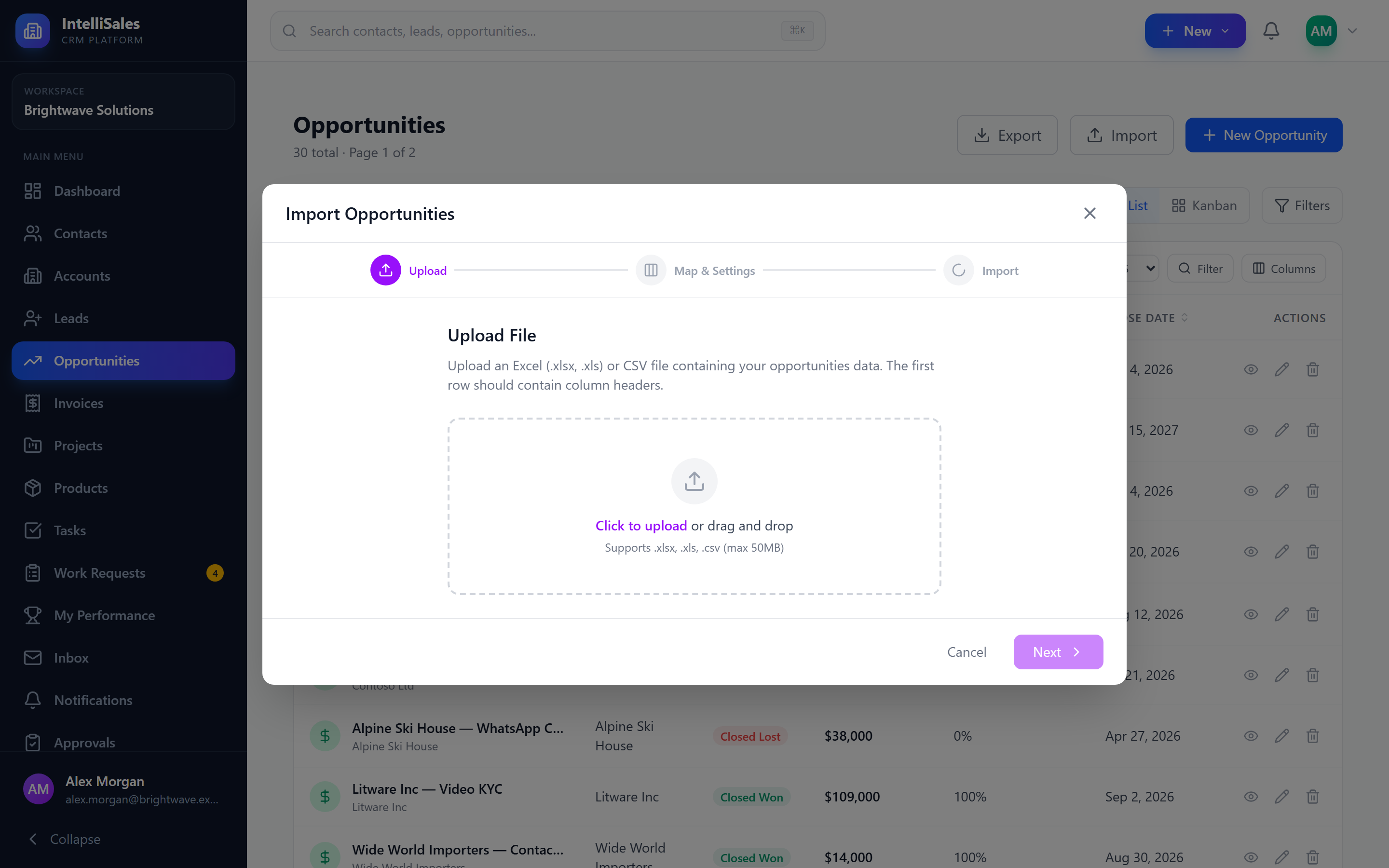
Import Wizard Overview
The wizard has three steps:
- Upload — select your file
- Map & Settings — match file columns to opportunity fields and choose import options
- Progress — watch the import run and review the results
Supported Formats
| Format | Extension | Max Size |
|---|---|---|
| Comma-Separated Values | .csv | 50 MB |
| Excel Workbook | .xlsx | 50 MB |
The first row of the file must be a header row and there must be at least one data row. Only the first sheet of an Excel workbook is read.
Save legacy Excel 97-2003 .xls files as .xlsx or .csv first. The upload accepts .xls, but its contents are not read correctly.
Hyperlinked cells, such as account names Excel turned into links, import as their displayed text. CSV values are kept exactly as written, including leading zeros. See How Spreadsheet Cells Are Read.
Step 1: Upload
- Click Click to upload and select your file.
- The file is uploaded and parsed. The wizard reads the headers and the first five rows for the preview.
- The wizard moves to the mapping step automatically.
Step 2: Map & Settings
Map Columns
Each column in your file is listed with a dropdown of opportunity fields. The wizard auto-suggests a mapping by matching header names against common synonyms (for example, Deal Value maps to Amount and Expected Close maps to Close Date). Review every suggestion before you continue.
You can map up to three columns to the same field. The first non-empty value in that row is used. This is useful when a source file has, for example, both Owner Email and Owner Name.
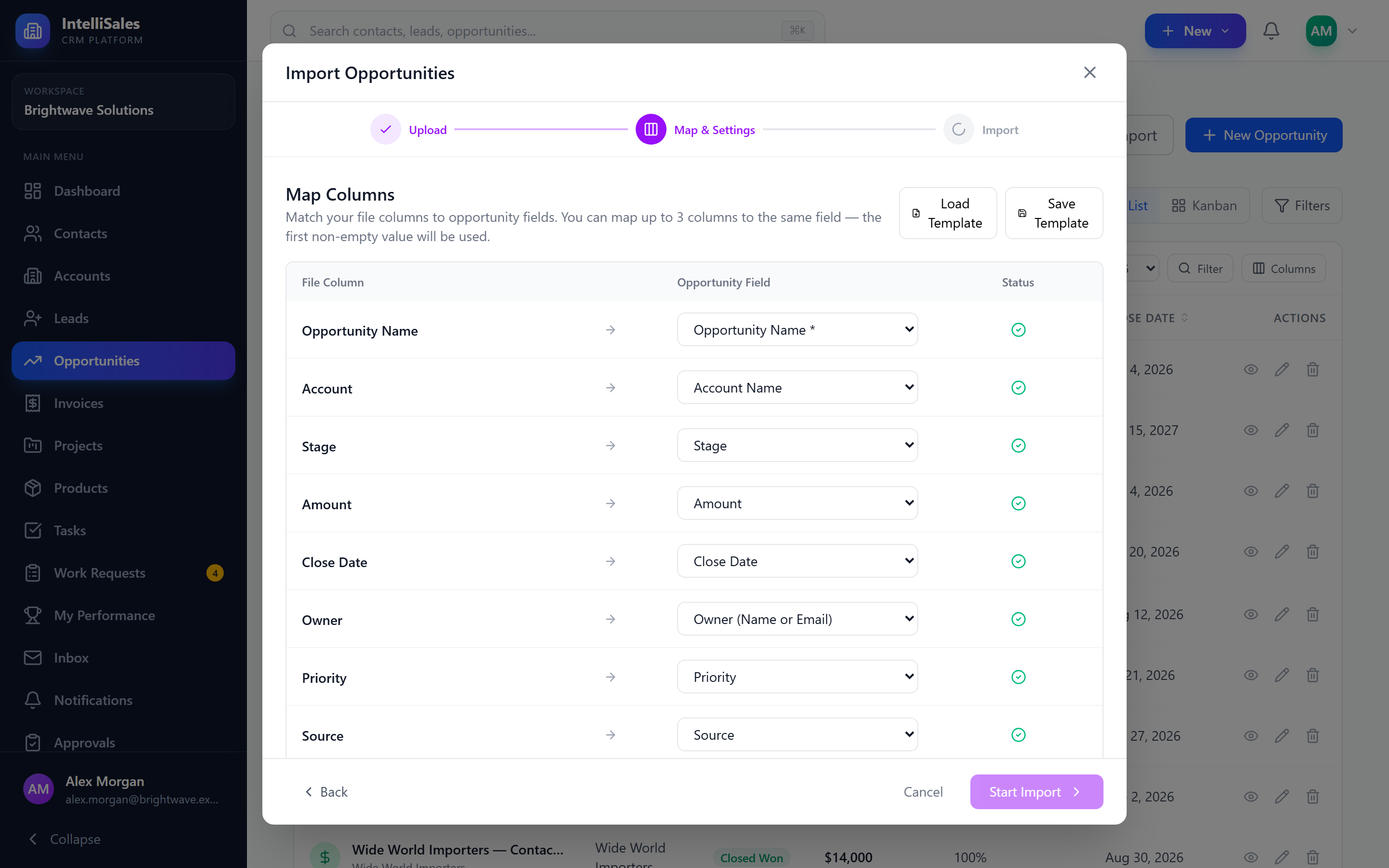
| CRM Field | How the value is used |
|---|---|
| Opportunity Name | Required. Rows without a name fail. |
| Pipeline | Matched by pipeline name (case-insensitive). An unknown name fails the row. If not mapped or blank, the Default Pipeline setting is used. |
| Stage | Matched by stage name within the resolved pipeline. An unknown name fails the row. If not mapped or blank, the Default Stage is used, or the pipeline's first active stage. |
| Account Name | Matched to an existing account by name. If the name is given but no account matches, the row fails. |
| Primary Contact Email | Matched to an existing contact by email. If no contact matches, the opportunity is still imported without a primary contact. |
| Amount | Parsed as a number. |
| Currency | ISO code (for example USD, EUR). Defaults to USD. |
| Close Date | ISO dates (2026-09-30) work best. DD/MM/YYYY is detected when the first part is greater than 12. Otherwise the date is read as MM/DD/YYYY. |
| Probability | A number from 0 to 100. Values outside that range are clamped. |
| Forecast Category | Matched by forecast category name or slug. |
| Type | Matched by opportunity type name or slug. |
| Priority | Matched by priority name. |
| Source | Stored as entered. |
| Owner (Name or Email) | Matched to an active user by email first, then by full name. |
| Team Name | Sets the opportunity's team and gives an owner fallback (see below). |
| Record Team Members (Names or Emails) | A comma-separated list of users to add to the opportunity's record team with read access. The owner is skipped. |
| Next Step, Competitor, Description | Stored as entered. |
| Tags | A comma-separated list of tags. |
| Custom fields | Every Opportunities custom field appears in the dropdown with a (Custom) suffix. |
| Skip (Do not import) | Ignore the column. |
Unmatched values for Forecast Category, Type and Priority do not fail the row. The field is just left empty. Check spelling against Admin > Opportunity Settings before importing.
How the owner is chosen
For each row the owner is picked from the first match in this list:
- The Owner column matched by email
- The Owner column matched by full name
- The team lead of the Team Name (or the first active team member if the team has no lead)
- The user selected under Assign to specific user in the settings
- You, the person running the import
Every imported opportunity gets an owner. If you choose Leave unassigned and a row's owner cannot be resolved, the opportunity is assigned to you.
Mapping Templates
If you import from the same source regularly, save the mapping as a template:
- After mapping the columns, click Save Template and enter a name (for example, "Q4 Pipeline Import").
- On later imports, click Load Template and pick a saved template to apply its mapping. Templates whose columns match your file are offered automatically.
- You can rename (pencil icon) or delete (trash icon) saved templates from the Load Template list.
Import Settings
| Setting | Options |
|---|---|
| Default Pipeline | Used for rows with no pipeline value. The first opportunity pipeline is preselected. |
| Default Stage | Used for rows with no stage value. If the default stage does not belong to a row's pipeline, the pipeline's first active stage is used. |
| Duplicates | Always import (default): imports every row. Skip duplicates (same name + account): skips a row if an opportunity with the same name and account already exists, including earlier rows in the same file. |
| Assignment | Assign to specific user (default, then choose a user) or Leave unassigned. This is used only when the row's owner cannot be resolved from the Owner or Team columns. |
| Tags | Type a tag and press Enter to add it. These tags are added to every imported opportunity, along with any tags from the file. |
Start Import stays disabled until Opportunity Name is mapped and, if you chose Assign to specific user, a user is selected. Click Start Import to queue the import.
Step 3: Progress
The import runs in the background. The progress screen updates live and shows counts for Imported, Skipped, Duplicates and Failed.
- You can close the wizard while the import runs. You receive a notification when it finishes.
- Each imported opportunity gets a stage-history entry with the note Imported, so its time-in-stage starts from the import date.
- When the import finishes with failures, click Download Failed Records to get a spreadsheet of the failed rows and the reason each one failed.
All opportunity imports also appear on the Batch Jobs page.
Common Row Errors
| Error | Fix |
|---|---|
Opportunity Name is required | Fill in the name column for that row. |
Pipeline not found: … | Use the exact pipeline name shown in Opportunity Settings, or clear the cell to use the default pipeline. |
Stage not found in pipeline: … | The stage name must exist in that row's pipeline. |
No pipeline specified | Map a Pipeline column or choose a Default Pipeline. |
Account not found: … | Create the account first, for example with Account Import, or correct the name. |
Duplicate opportunity: … | The row was skipped by the duplicate setting. |
Imported opportunities are created directly in their target stage. Stage requirements (required fields, forms, account/products) are not enforced during import. They apply the next time someone moves the opportunity to another stage.